
 This online help page is dedicated to the SurgeONE.ai Organization Hierarchy screen and its associated functionalities. View the entire hierarchical representation of the company (and its corporate associations) as displayed based on the structural configuration of the parent organization and its sub firm(s).
The accessibility and functionalities of the different sections of this page are dependant on the role based access controls / permissions set for the logged-in user. For more details refer to the Roles online help.
1. Viewing the Organization Hierarchy
Click on the Settings menu and then on the expanded Org Hierarchy menu option listed under it to view the hierarchical structure of your firms.
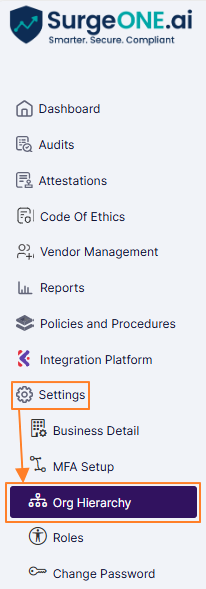 Fig: 1 - Settings menu > Org Hierarchy menu option
Here is the view of the Organization Hierarchy page that loads after clicking on the menu option.

Fig: 2 - Organization Hierarchy view
The entire hierarchical representation of the company (and its corporate associations) is displayed based on the structural configuration of the parent organization and its sub firm(s).
Various directional icons are present at the top right to set the orientation of the hierarchical representation. Use them at your convenience to view the configured organizational structure.
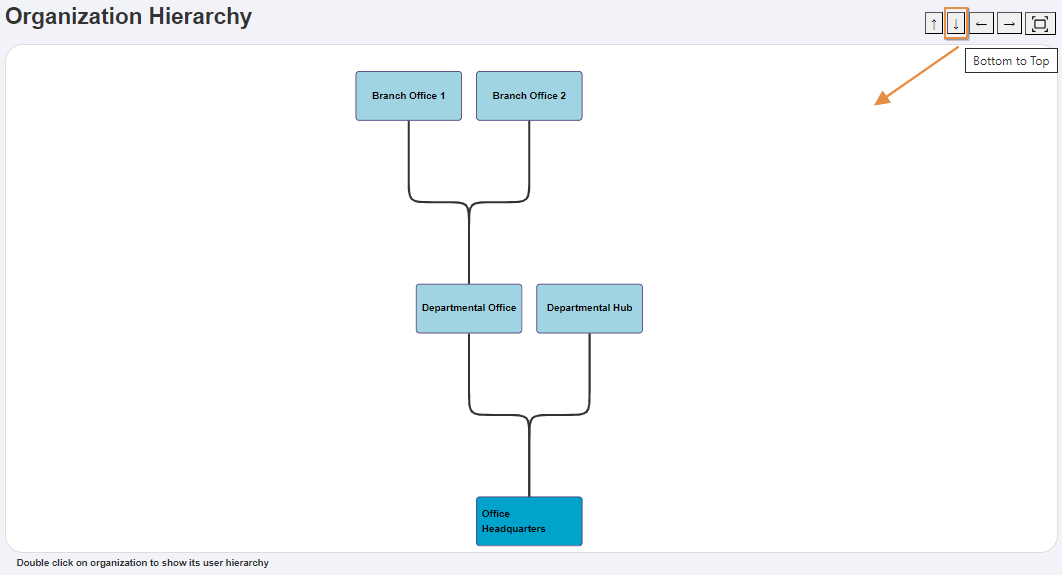
Fig: 3 - Bottom to Top oriented Organization Hierarchy view
Here, you can double click on any organizational block to view the user or employee hierarchical representation. This is displayed as per the organization on which you double clicked. Refer to the following screenshot.
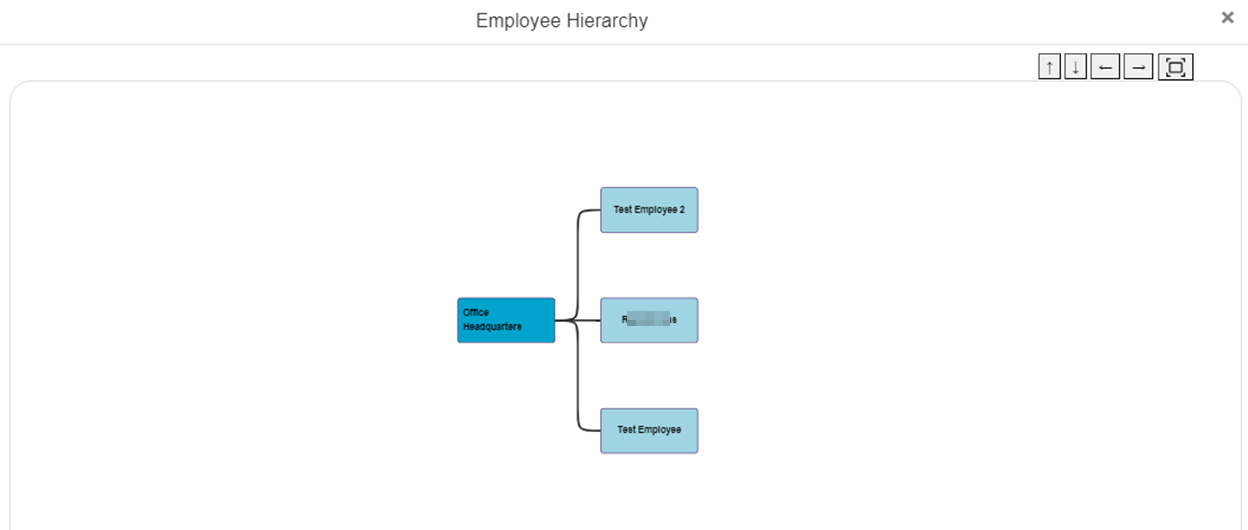
Fig: 4 - View of user or employee hierarchical representation
Various directional icons are present here as well (at the top right) to set the orientation according to your preference.