
 This online help page details the functionalities associated with the Multi Factor Authentication (MFA) facility of the SurgeONE.ai portal MFA Setup screen. This security feature is applicable for your own user account and for the users who report to you.
1. Navigating to SurgeONE.ai Settings > MFA Setup
The primary purpose of the SurgeONE.ai MFA module is to protect user accounts and sensitive data by adding extra layers of security beyond just a password.
Let us assume that you have logged-in to SurgeONE.ai. Click on the Settings menu option of the left-panel menu and then on the expanded menu option labeled as MFA Setup to navigate to the MFA Setup page.
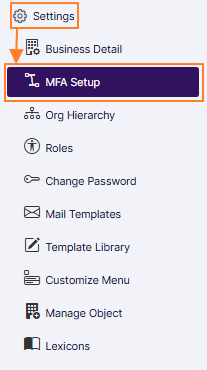 Fig: 1 - MFA Setup menu option
Here is the default view of the MFA Setup screen.
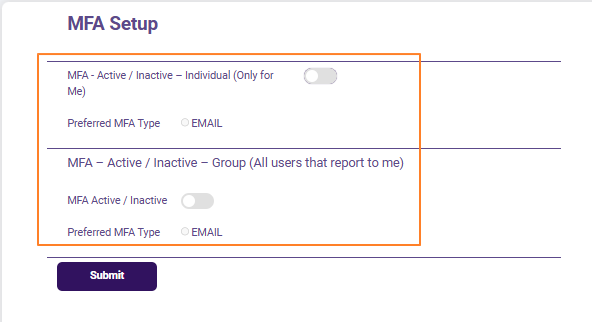 Fig: 2 - MFA Setup screen
 NOTE:
NOTE:
- MFA will be disabled for all users by default.
- In the MFA module, one gets the options to perform the following:
- Enable MFA on account logins in SurgeONE.ai portal
- Disable MFA on account logins in SurgeONE.ai portal
- Enforce MFA on account logins in SurgeONE.ai portal for self
- Post onboarding, a user gets the option to enroll for MFA for self and the subordinates (who are direct or anyone down the line in the hierarchical chain)
- By default, when you are visiting this screen for the first time, the sliders and radio buttons are usually disabled. However, there can be an exception. If a supervisor has enabled the MFA Active/Inactive slider of the MFA – Active / Inactive – Group (All users that report to me) section (and thereby has auto-enabled the Preferred MFA Type radio button), then all users created under that supervisor will have MFA functionality enabled for their accounts, even if they themselves have not enabled MFA. The users can disable this MFA functionality at their own discretion.
2. Toggling the MFA functionality of own Account
To enhance the security of own SurgeONE.ai account, user can have Multi-Factor Authentication (MFA) enabled. By requiring both a password and an additional verification method — such as a code sent to the registered email address, the user can ensure that unauthorized access is significantly more difficult. This added layer of protection safeguards own sensitive information, prevents identity theft, and gives a peace of mind when accessing SurgeONE.ai across devices.
- The MFA Setup page displays the MFA Active/Inactive slider to toggle the MFA for own user account. Cick on the slider to enable it. After the MFA Active/Inactive slider is enabled, then a radio button labeled as EMAIL gets selected next to the Preferred MFA Type label, below the slider.
- Click on the Submit button. A success toast notification gets triggered and can be seen at the top.
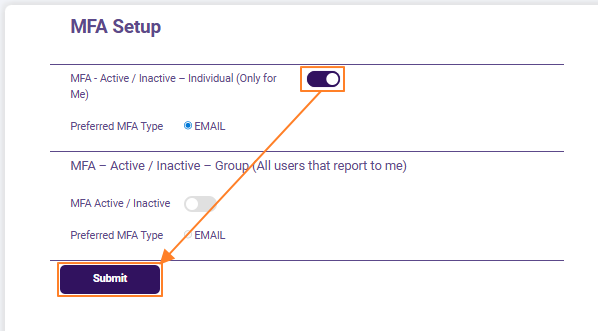 Fig: 3 - Own account MFA Active/Inactive slider view
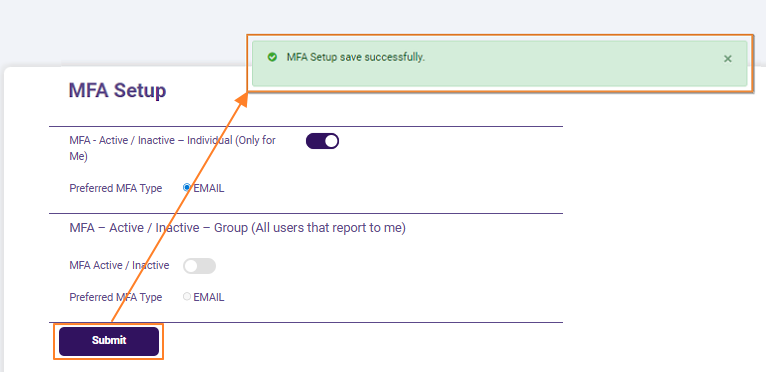 Fig: 4 - Success notification on MFA setup for own user account
3. Toggling the MFA functionality of Subordinates
To maintain the integrity of organizational systems and data, it is essential that all subordinates have Multi-Factor Authentication (MFA) activated on their SurgeONE.ai accounts. MFA strengthens account security by requiring a second form of verification in addition to their password. This measure helps reduce the risk of breaches, ensures compliance with data protection policies, and demonstrates a proactive commitment to safeguarding firm's information.
- The MFA Setup page displays the MFA Active/Inactive slider under the MFA – Active / Inactive – Group (All users that report to me) label, to toggle the MFA for the user accounts of your subordinates. Cick on the slider to enable it. After this MFA Active/Inactive slider is enabled, then a radio button labeled as EMAIL gets selected next to the Preferred MFA Type label, below the slider.
- Click on the Submit button. A success toast notification gets triggered and can be seen at the top.
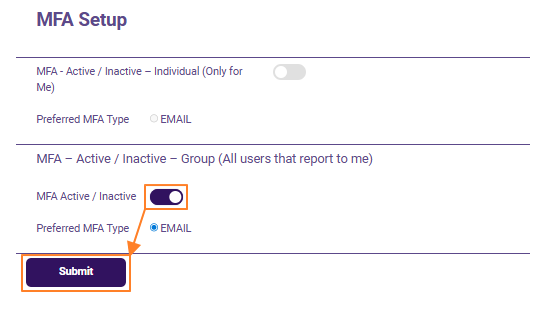 Fig: 5 - Subordinate user(s) account MFA Active/Inactive slider view
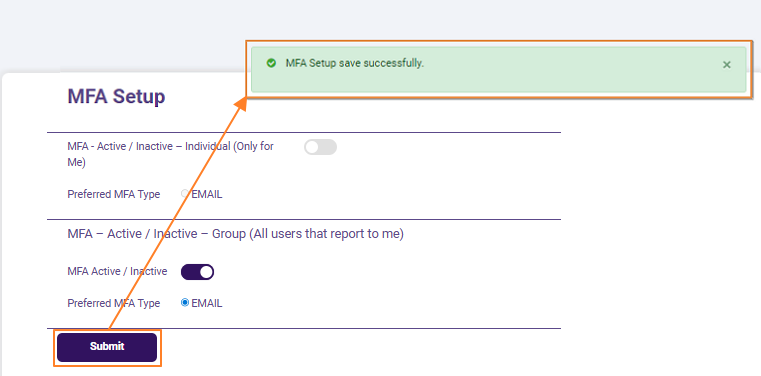 Fig: 6 - Success notification on MFA setup for subordinates user account
4. Logging into SurgeONE.ai with MFA
Once the unique MFA code is successfully validated, user gets redirected to your SurgeONE.ai Dashboard, or any permitted landing page which is configured as per the user account permissions/priviliges. This extra verification step ensures that even if your password is compromised, only you can complete the login process.
- Next time the user (whose MFA is enabled) tries to login to SurgeONe.ai with valid login credentials, he / she will be redirected to the MFA verification page and prompt to provide an authentication passcode (unique 6 digit code). Here is the view of the login page. The user needs to enter the username and password in the respective fields and click on the Login button.
- By default, you get redirected to the MFA verification page.
- Enter the unique code in the Verification Code field of the MFA verification page. The Submit button gets activated after you enter the unique code. Click on it to login to SurgeONE.ai.
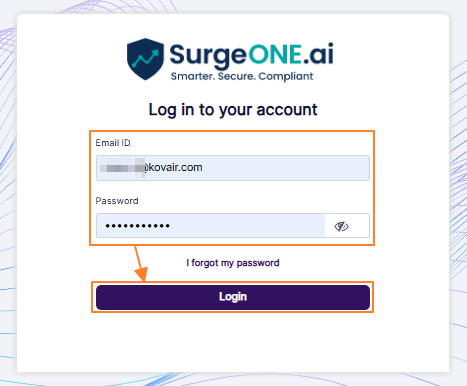 Fig: 7 - Entering own credentials in the login page to proceed to the MFA code input page when MFA is enabled
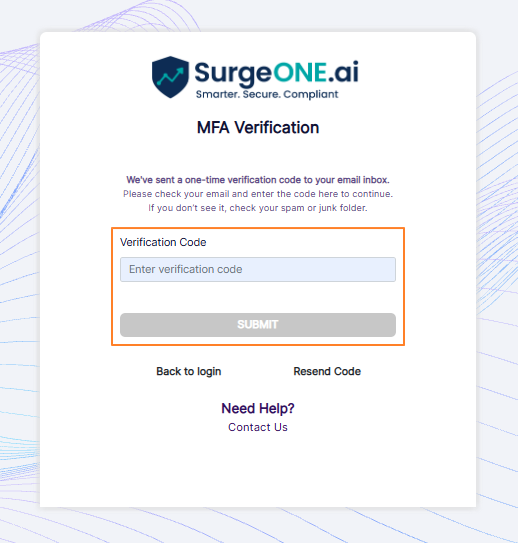 Fig: 8 - MFA verification page view
As the MFA is enabled, an email gets triggered. Here is the view of one such email with a 6-digit secure, login authentication code.
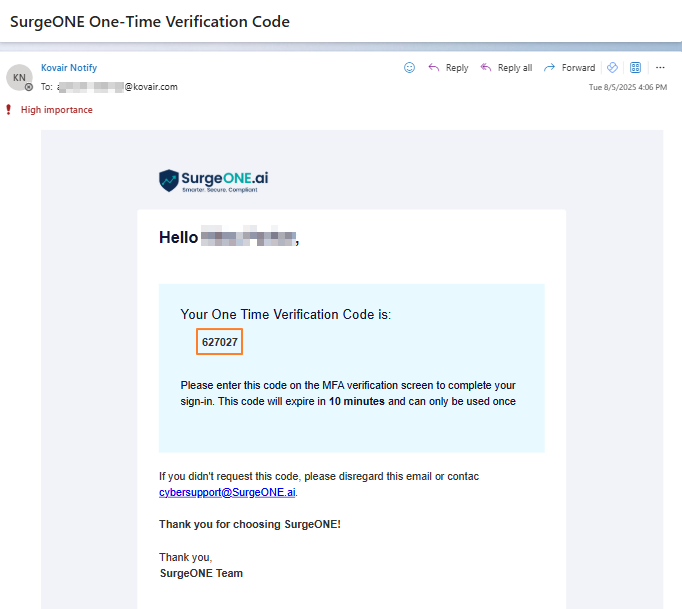 Fig: 9 - Email triggered with unique code for login authentication
 Fig: 10 - Submitting the received MFA code to login
NOTE:
- For existing SurgeONe.ai users (who already have an account), if MFA is activated, they will be prompted for a 2-step authentication during login starting from the very next time they login to SurgeONe.ai.
- The following error toast notification gets prompted at the top-right of the SurgeONE.ai MFA Verification screen during login, if the entered code token is expired. You need to click on the Back to login button to navigate back to the login screen, enter valid username and password, click on the Login button and again enter the received code (to your email address) in the Verification Code field.
- You must enter a valid code in the Verification Code field of the MFA verification page before clicking on the SUBMIT button. Otherwise, the system will prompt the following validation text below the field.
 Fig: 11 - Error toast notification prompted when the MFA login token is expired
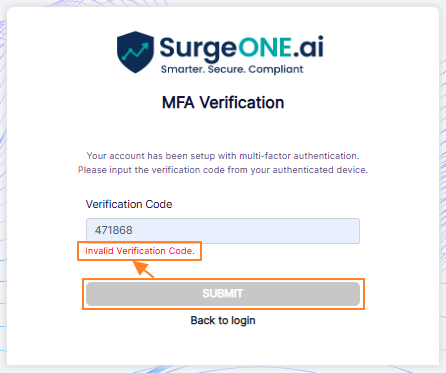 Fig: 12 - Validation employed on the Verification Code field