
 This online help page is dedicated to the Fusion1 Lexiconss page and its associated functionalities. Gain the power of customizable monitoring by tailoring keyword lexicons to align with your organization's regulatory policies and risk appetite. Compliance administrators can now define and manage restricted keywords, phrases, and sentences under a dedicated Lexicons module.
1. Navigating to the Lexicons page
Click on the Settings menu option of the left panel menu and then again on the expanded sub-menu option labeled as Lexicons.
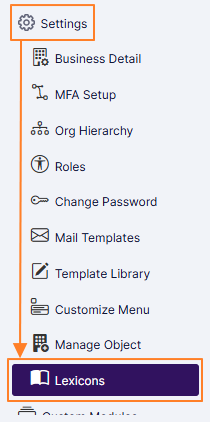 Fig: 1 - Settings > Lexicons menu option of the left panel
Here is the view of the Lexicons page. The page displays row entries of the existing lexicons associated with marketing objects.
 Fig: 2 - Lexicons page view on load
Here is the view of the Lexicons page showing the user-created custom entries related with E-Comms Surveillance objects.
 Fig: 3 - E-Comms Surveillance Lexicons
2. Understanding the various elements of the Lexicons page
By default, this page enlists all the custom (user-defined) lexicons for the AI-driven Marketing Review functionality of Fusion1. These lexicons can be associated with marketing review objects or with e-comms surveillance objects.
Refer to the following screenshot which is marked with numerical values that correspond to the below stated points.
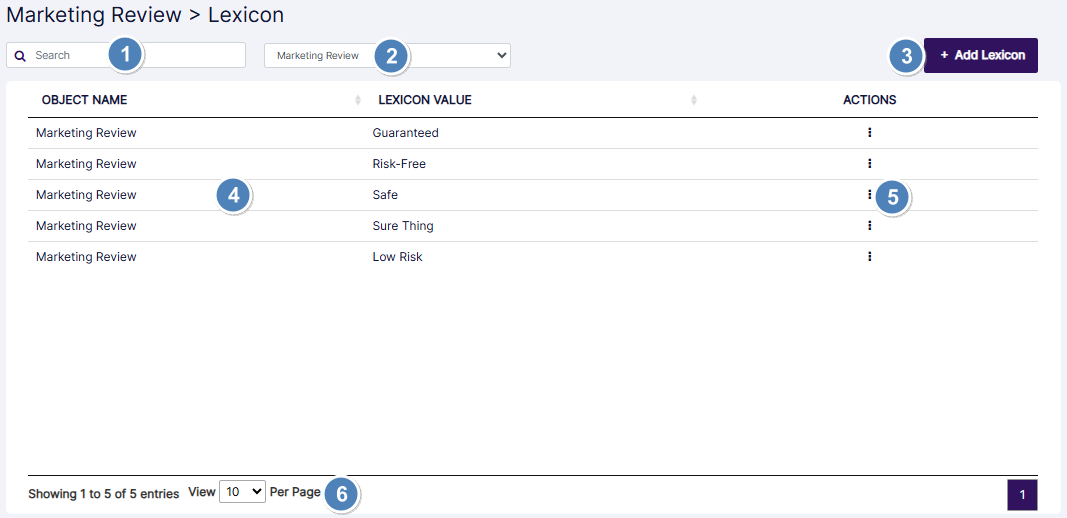
Fig: 4 - Understanding the various elements of the Lexicons page
- Search bar to filter out created lexicons
- Dropdown to select object
- + Add Lexicon button to create a new custom lexicon
- Grid view populates the loaded or filtered lexicon(s) of the chosen object
- ACTIONS column contains the toggled row-context menu options, as follows
- Edit option is provided for modifying any user-defined lexicons
- Delete option is provided for removing any user-defined lexicons
- Pagination options are provided at the bottom to control the grid items display limit and to navigate to other pages of the grid view entries
 NOTE: The following sub-sections elaborate further to the above-stated points. The sub-section level identifiers correlate with the numerical values indicated on the above screenshot.
2.1. Searching for Lexicons
You can use the search bar to enter text and find matching lexicons which are linked with the Marketing Review or E-Comms Surveillance objects.
Based on the search query entered, matching Marketing Review lexicons(s) are listed out in the grid view, after quick search operation is executed. Here is the view of search operation executed on the basis of the LEXICON VALUE column data.
 Fig: 5 - Search operation executed on Lexicon Value columns data
Here is the view of search operation executed on the E-Comms Surveillance data.
 Fig: 6 - Filtered results
If results are not found based on the search query, the grid displays the No matching records found label.
 Fig: 7 - No matching records found
2.2. Using the Object filter selection dropdown
You can use the object selection dropdown, which exists beside the search bar, to select any existing object.
 Fig: 8 - Object selection dropdown options
You can change the selection to any other listed object. Multi-selection is not permitted. It contains two options labeled as Marketing Review and E-Comms Surveillance. The former is selected by default.
 Fig: 9 - Marketing Review dropdown dropdown selection loads the associated lexicons
When you change the dropdown option selection, associated lexicons populate the OBJECT NAME column of the grid view.
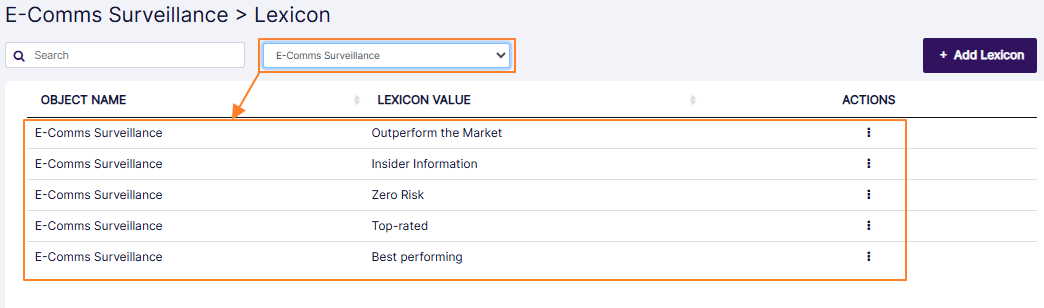 Fig: 10 - Loading the lexicons associated with E-Comms Surveillance
NOTE: A combination of the search bar, this object selection dropdown and the category selection dropdown can be used to filter out matching lexicons.
2.3. Creating a new Custom Lexicon
There are two instances of adding a new lexicon into the system. This depends on the object selection.
Fig: 11 - Object selection dropdown options
- When you select the Marketing Review dropdown option and click on the + Add Lexicon button, then you can proceed to create a new lexicon associated with the Marketing Review module.
- When you select the E-Comms Surveillance dropdown option and click on the + Add Lexicon button, then you can proceed to create a new lexicon associated with the E-Comms Surveillance module.
2.3.1. Creating a new Marketing Review Lexicon
- Make sure the Marketing Review dropdown option is selected.
- Click on the + Add Lexicon button at the top right, to proceed to create a new custom lexicon for the chosen selection.
- Proceed to enter suitable text as the new lexicon in the Lexicon Value field.
- Click on the Save button.
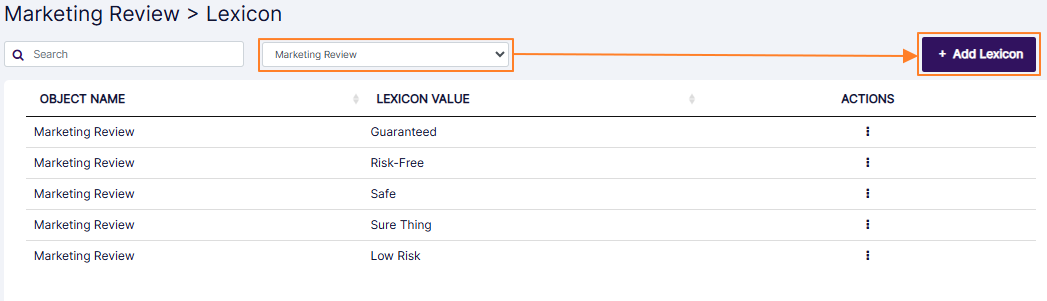 Fig: 12 - + Add Lexicon button
A modal window titled as Add Lexicon loads where you need to specify the new custom lexicon label. A disabled Object Name field shows the modular object with which this new lexicon is to be associated.
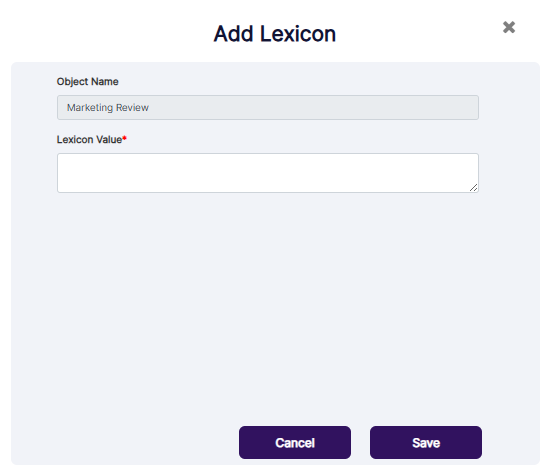 Fig: 13 - Add Lexicon modal window
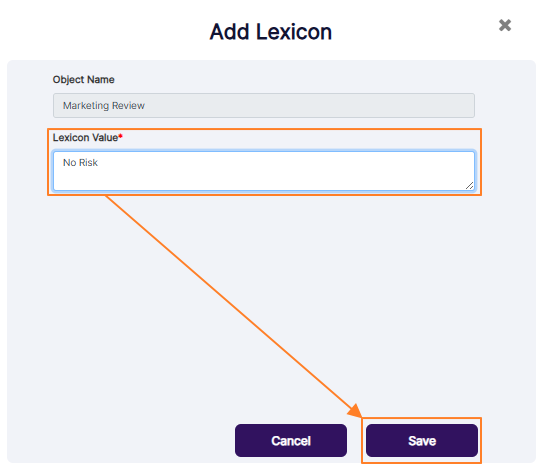 Fig: 14 - Creating a new Marketing Review lexicon
Get redirected to the Lexicons page. The new lexicon gets added to the grid view.
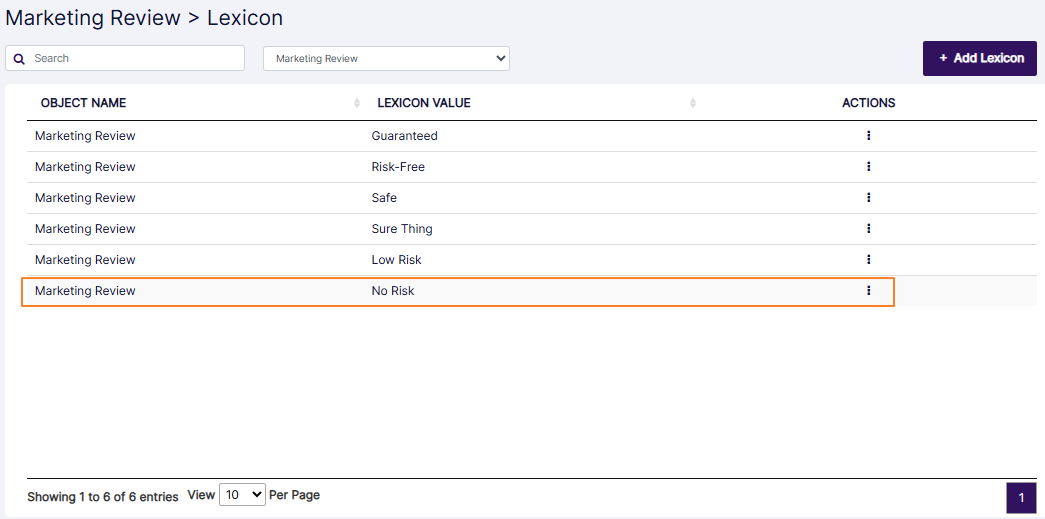 Fig: 15 - Created lexicon visible in grid view
NOTE:
- There is no restriction of user role to create any lexicons.
- Validation is employed on the Lexicon Value field. Text must be entered in this field when you click on the Save button, otherwise the system will prompt you to do so, since the field cannot remain empty.
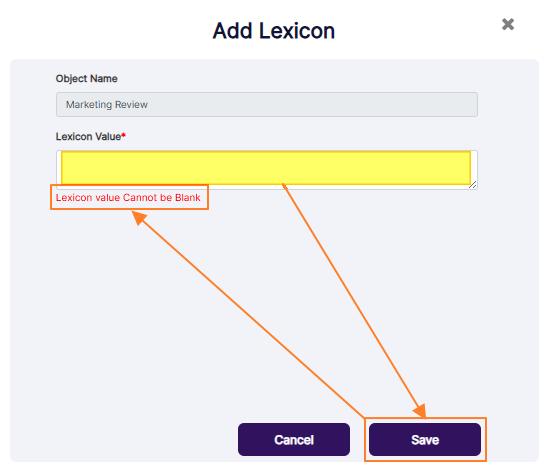 Fig: 16 - Validation on blank lexicon label
2.3.2. Creating a new E-Comms Surveillance Lexicon
- Make sure the E-Comms Surveillance dropdown option is selected.
- Click on the + Add Lexicon button at the top right, to proceed to create a new custom lexicon for the chosen selection.
- Proceed to enter suitable text as the new lexicon in the Lexicon Value field.
- Click on the Save button.
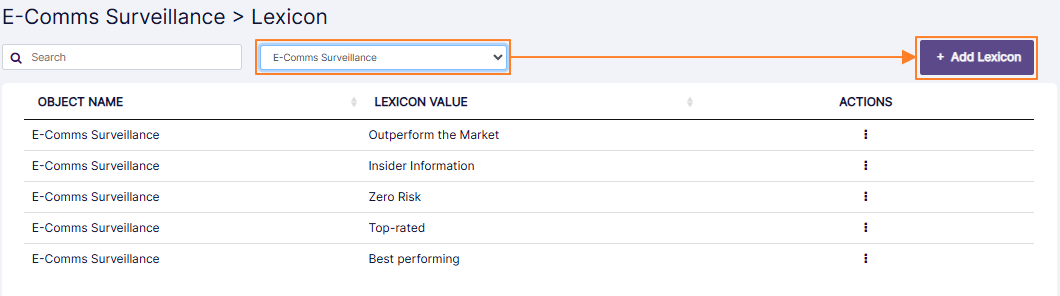 Fig: 17 - + Add Lexicon button
A modal window titled as Add Lexicon loads where you need to specify the new custom lexicon label. A disabled Object Name field shows the modular object with which this new lexicon is to be associated.
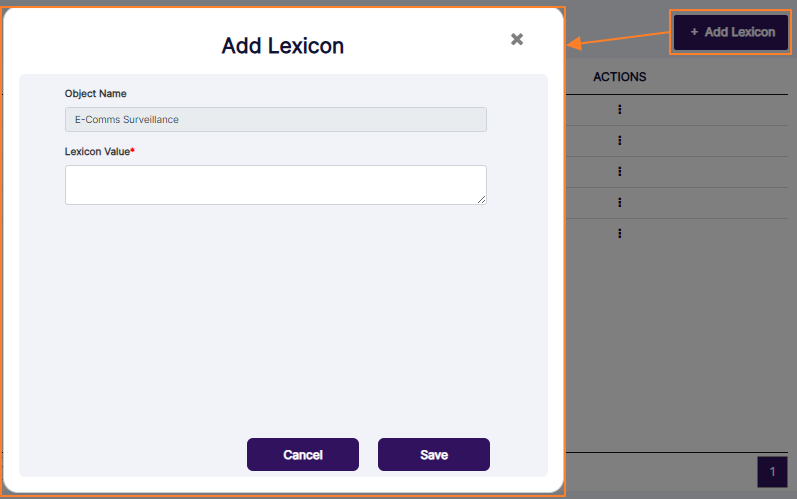 Fig: 18 - Add Lexicon modal window
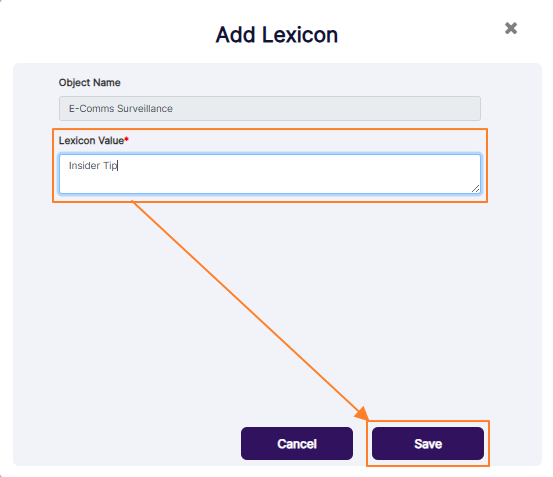 Fig: 19 - Creating a new E-Comms Surveillance lexicon
Get redirected to the Lexicons page. The new lexicon gets added to the grid view.
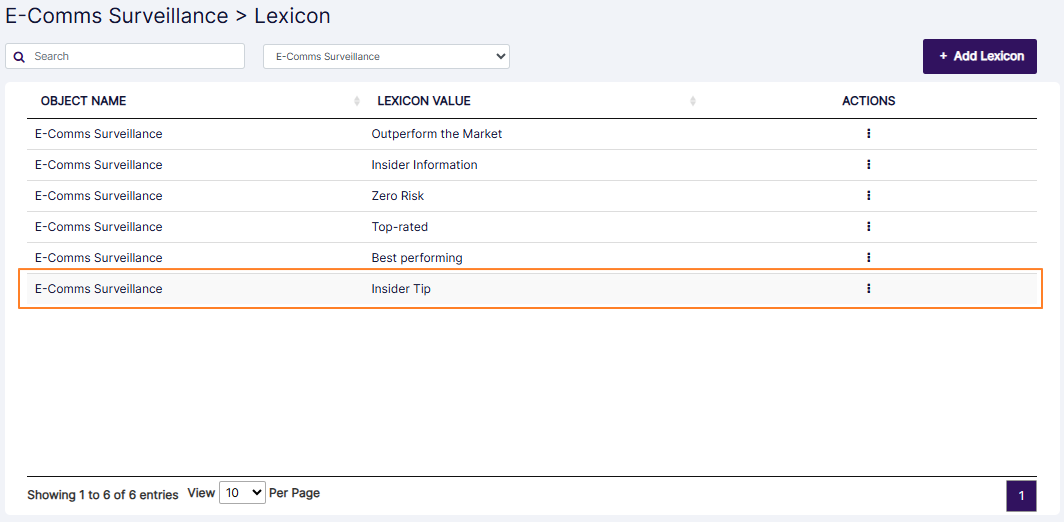 Fig: 20 - Created lexicon visible in grid view
NOTE:
- There is no restriction of user role to create any lexicons.
- Validation is employed on the Lexicon Value field. Text must be entered in this field when you click on the Save button, otherwise the system will prompt you to do so, since the field cannot remain empty.
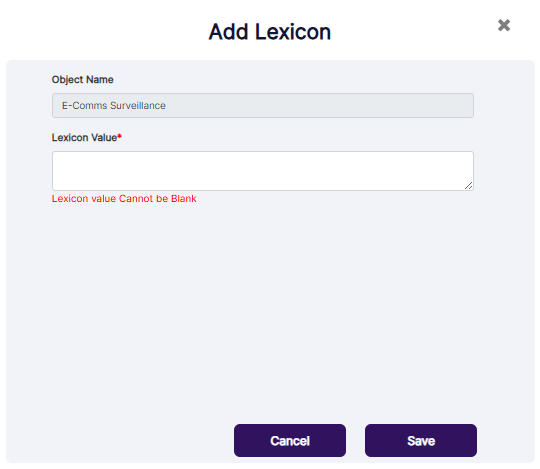 Fig: 21 - Validation on blank lexicon label
2.4. Understanding the Lexicon grid view
The grid view displays all the existing Marketing Review or E-Comms Surveillance lexicons. You can view any one type at a time. Here is the default view showing lexicons associated with Marketing Review.
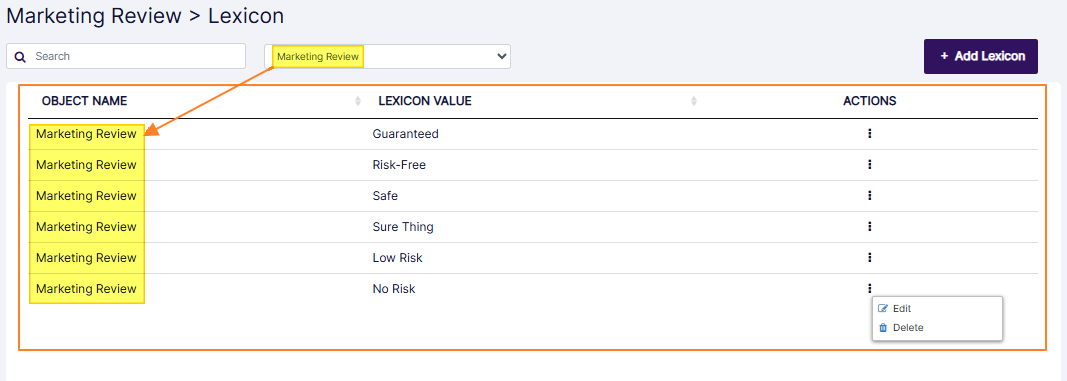 Fig: 22 - Marketing Review > Lexicon grid view
Here is the view showing E-Comms Surveillance lexicons (after the same dropdown option selection).
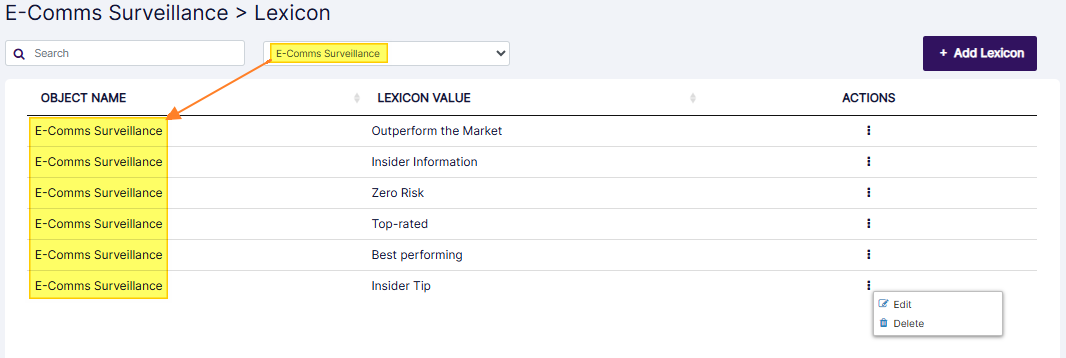 Fig: 23 - E-Comms Surveillance > Lexicon grid view
The following columns are displayed in the grid view:
- OBJECT NAME: Displays the type of object the lexicon is associated with. It displays the same value which is set in the object selection dropdown.
- LEXICON VALUE: Displays the set label or text of the lexicon.
- ACTIONS: Contains the vertical ellipsis
 icon which can be used to toggle the row-context menu option.
NOTE:
- All the grid view columns are sortable, except for the ACTIONS column.
- The lexicons which populate the grid view will depend on the source object and the filters set.
2.5. Using the Actions column
The menu options Edit and Delete are displayed after clicking on the vertical ellipsis icon. The following two sub-sections explain the functionality of each of these two.
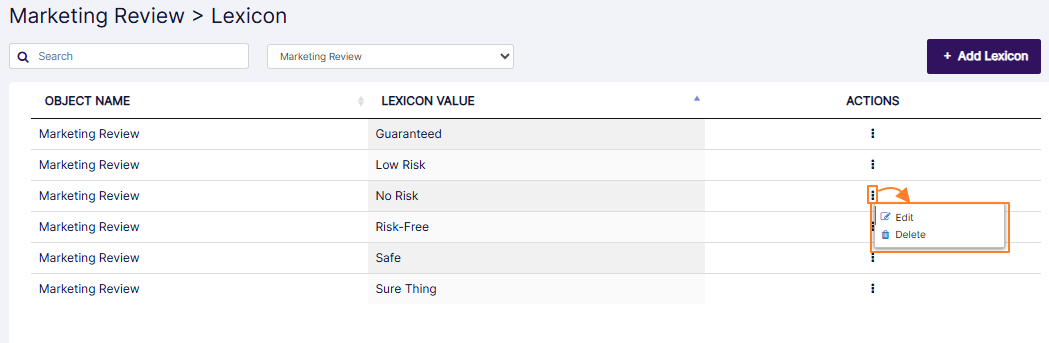 Fig: 24 - Row-context menu options
2.5.1. Editing an existing Marketing Review Lexicon
- To edit any existing Marketing Review lexicon, make sure the Marketing Review dropdown option is selected in the filter section.
- Click on the vertical ellipsis icon of the ACTIONS column against the row entry which you want to modify. Click on the expanded Edit menu option.
- A modal window titled as Edit Lexicon loads. Make necessary changes to the text entered in the Lexicon Value field.
- Click on the Save button to store your changes.
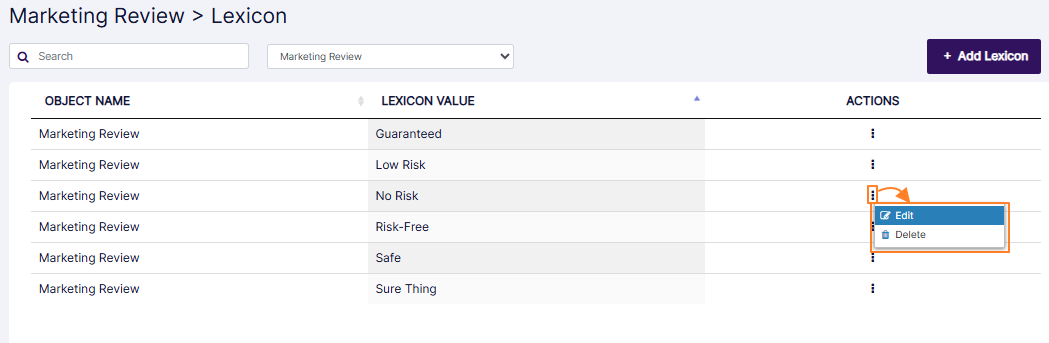 Fig: 25 - Edit option to edit Marketing Review lexicon
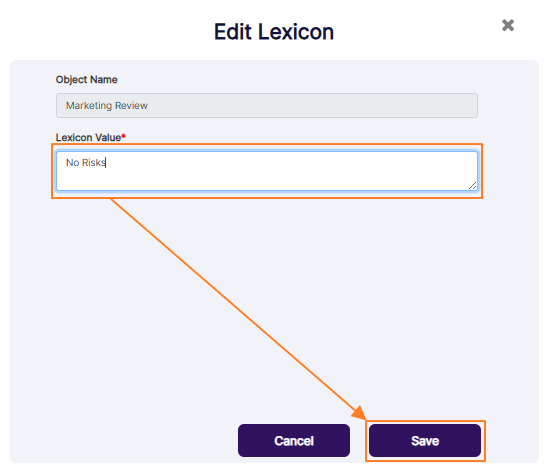 Fig: 26 - Edit Lexicon modal window
Get redirected to the Lexicons page. The modified lexicon text can be seen in the grid view.
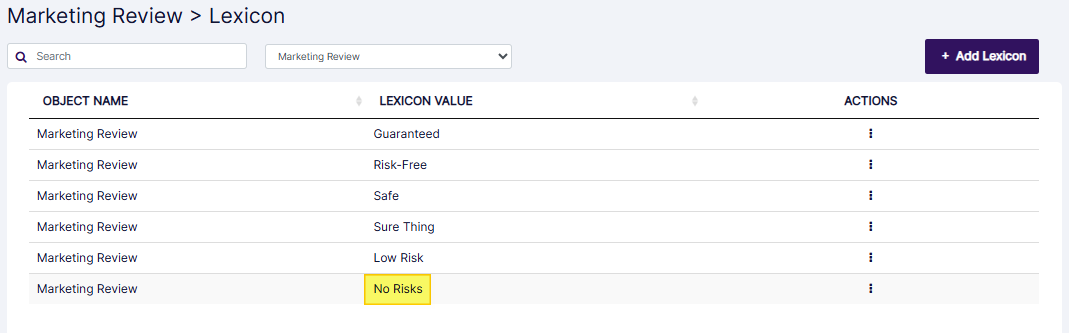 Fig: 27 - Edited Marketing Review lexicon view in the grid
NOTE:
- There is no restriction of user role to modify any lexicon value.
- Validation is employed on the Lexicon Value field. Text must be entered in this field when you click on the Save button, otherwise the system will prompt you to do so, since the field cannot remain empty.
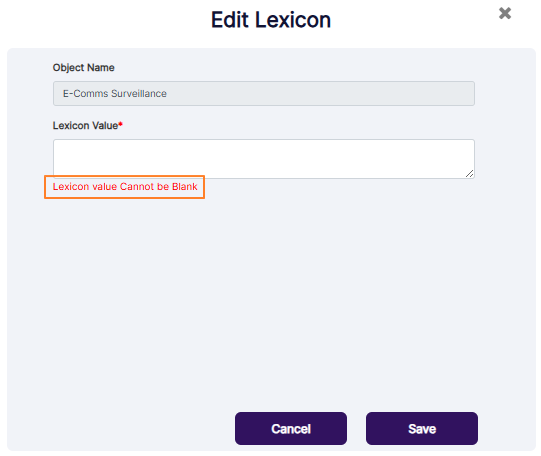 Fig: 28 - Validation on blank lexicon label
2.5.2. Editing an existing E-Comms Surveillance Lexicon
- To edit any existing E-Comms Surveillance lexicon, make sure the E-Comms Surveillance dropdown option is selected in the filter section.
- Click on the vertical ellipsis icon of the ACTIONS column against the row entry which you want to modify. Click on the expanded Edit menu option.
- A modal window titled as Edit Lexicon loads. Make necessary changes to the text entered in the Lexicon Value field.
- Click on the Save button to store your changes.
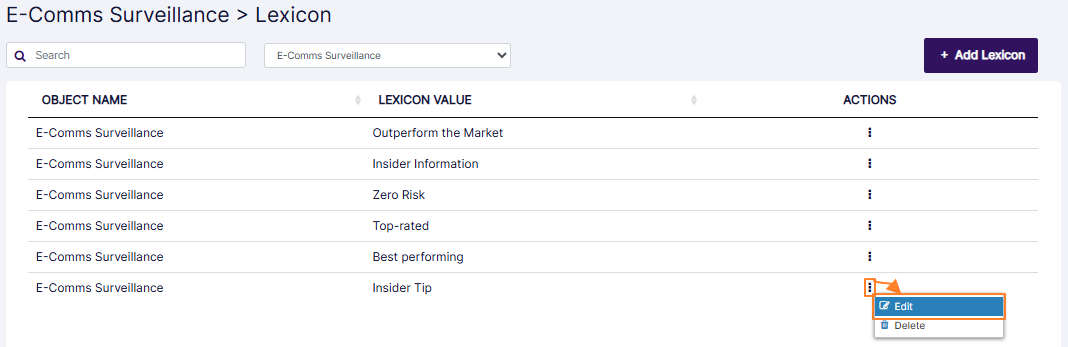 Fig: 29 - Edit option to edit E-Comms Surveillance lexicon
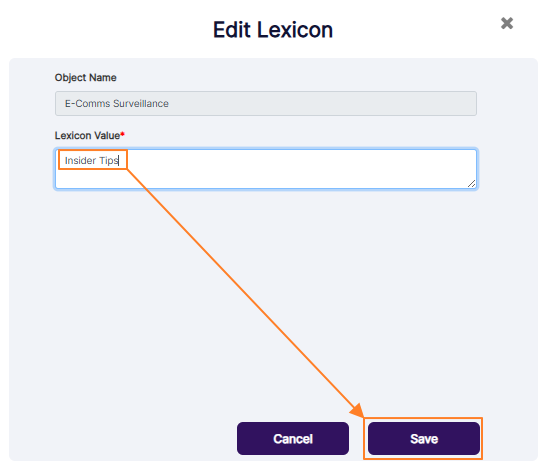 Fig: 30 - Edit Lexicon modal window
Get redirected to the Lexicons page. The modified lexicon text can be seen in the grid view.
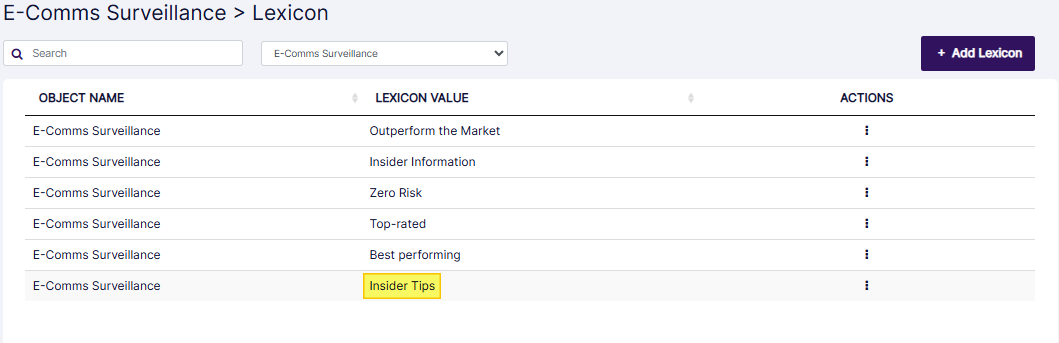 Fig: 31 - Edited E-Comms Surveillance lexicon view in the grid
NOTE:
- There is no restriction of user role to edit any lexicon value.
- Validation is employed on the Lexicon Value field. Text must be entered in this field when you click on the Save button, otherwise the system will prompt you to do so, since the field cannot remain empty.
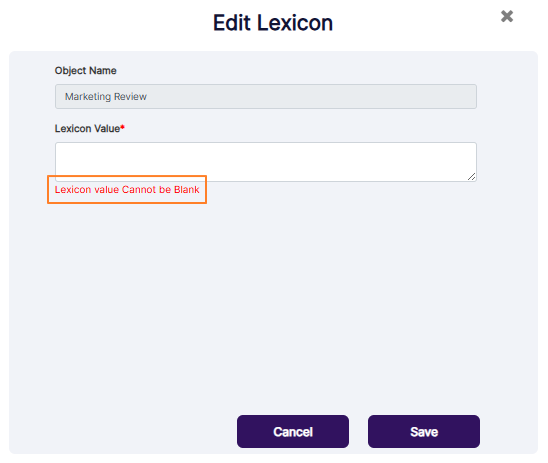 Fig: 32 - Validation on blank lexicon label
2.5.3. Deleting an existing Marketing Review Lexicon
- To delete any existing Marketing Review lexicon, make sure the Marketing Review dropdown option is selected in the filter section.
- Click on the vertical ellipsis icon of the ACTIONS column against the row entry which you want to remove. Click on the expanded Delete menu option.
- A modal window loads to be obtain delete confirmation.
- Click on the Yes button to confirm the lexicon delete operation.
 Fig: 33 - Delete option to delete Marketing Review lexicon
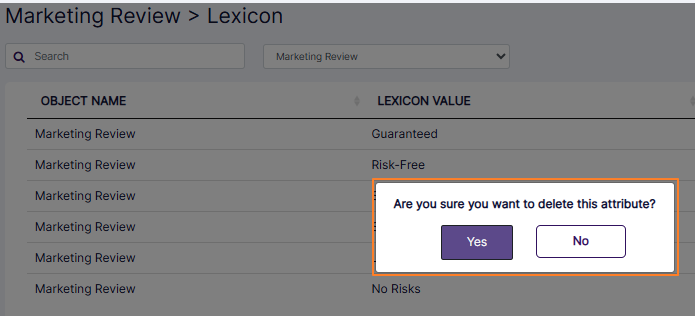 Fig: 34 - Marketing Review lexicon delete confirmation modal window
Get redirected to the Lexicons page. The deleted lexicon row entry gets removed from the grid view.
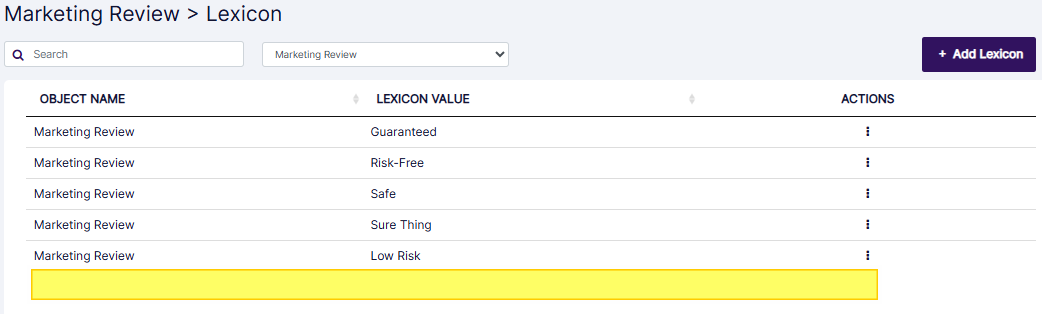 Fig: 35 - Deleted Marketing Review lexicon cannot be found in the grid
NOTE:
- There is no restriction of user role to delete any lexicon.
- A deleted lexicon cannot be restored.
2.5.4. Deleting an existing E-Comms Surveillance Lexicon
- To delete any existing E-Comms Surveillance lexicon, make sure the E-Comms Surveillance dropdown option is selected in the filter section.
- Click on the vertical ellipsis icon of the ACTIONS column against the row entry which you want to remove. Click on the expanded Delete menu option.
- A modal window loads to be obtain delete confirmation.
- Click on the Yes button to confirm the lexicon delete operation.
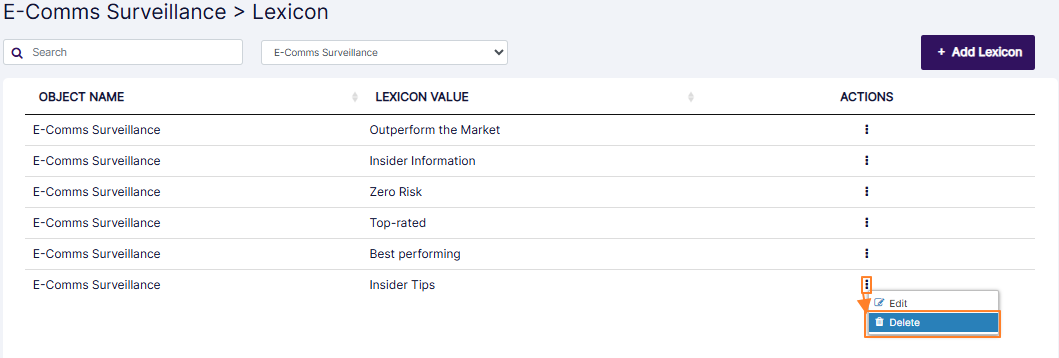 Fig: 36 - Delete option to delete E-Comms Surveillance lexicon
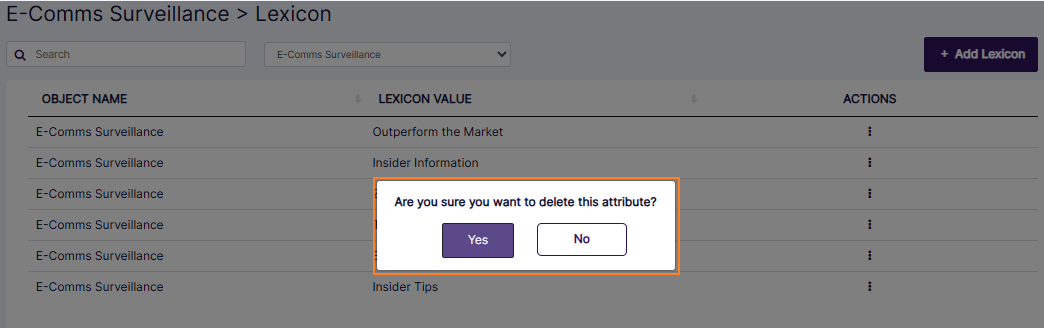 Fig: 37 - E-Comms Surveillance lexicon delete confirmation modal window
Get redirected to the Lexicons page. The deleted lexicon row entry gets removed from the grid view.
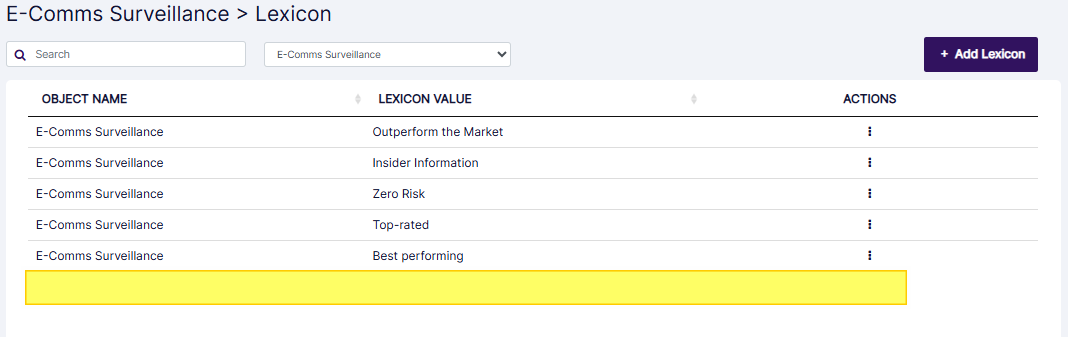 Fig: 38 - Deleted E-Comms Surveillance lexicon cannot be found in the grid
NOTE:
- There is no restriction of user role to remove any lexicon.
- A deleted lexicon cannot be restored.
2.6. Pagination options
Pagination options are provided at the bottom. The page items count can be set at either 10, 25, 50 or 100. Use the arrow icons to navigate through multiple pages of lexicons, which populate the grid view as per the selected count of items per page.
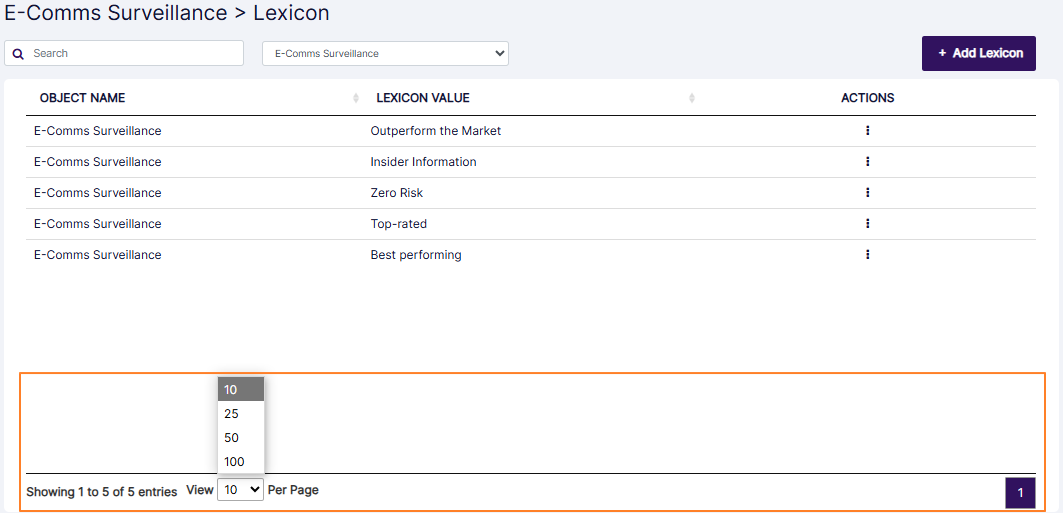 Fig: 39 - Lexicon pagination options