
 This online help page is dedicated to the SurgeONE.ai Reports page and its associated functionalities. The SurgeONE.ai reports help firms adhere to all applicable laws and regulations, reducing the likelihood of fines and penalties. They promote a culture of transparency, accountability, and ethical conduct, which is crucial for earning and maintaining the trust of clients and stakeholders. Additionally, these reports enhance the firm's operational efficiency and effectiveness, supporting its long-term success.
The accessibility and functionalities of the different sections of this page are dependant on the role based access controls / permissions set for the logged-in user. For more details refer to the Roles online help.
1. Navigating to the Reports page
Click on the Reports menu option of the left panel menu to get redirected to the Reports page.
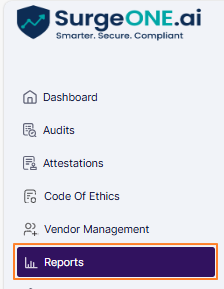 Fig: 1 - Reports menu
Here is the view of the Reports page. There are nine reports provided currently.
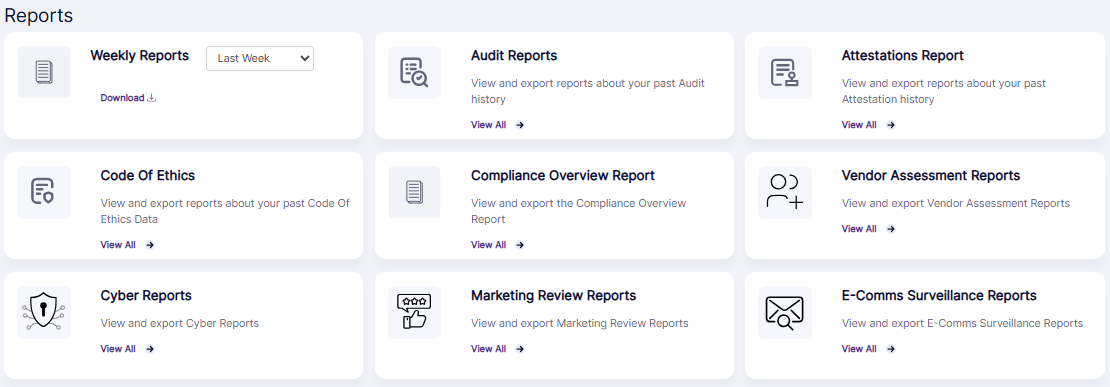
Fig: 2 - Reports page
2. Using the Weekly Reports
This dedicated Weekly Summary Report provides quick access via a card on the Reports page for streamlined reporting. It is built entirely from SurgeOne data, ensuring accuracy and consistency without manual input. This streamlines the reporting process by reducing the time users spend searching for relevant data, making it easier to stay updated on weekly performance and activities. You can also export the generated report results.
Here is the view the card related to the Weekly Reports. The following screenshot is indicated with numerical values which correspond with the following two points:
- Date range selection filter - This dropdown lets you choose any one option from the listed ones or lets you set a custom date range.
- Download option lets you obtain a local copy of the generated report based on the selected date range.
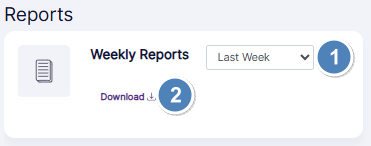 Fig: 3 - Elements of the Weekly Reports card
Here is the expanded view of the date selection dropdown options. Choosing the Last Week option gathers information of the activities pertaining to the previous week, while choosing the This Week option gathers information of the activities pertaining to the current week. This feature ensures consistency in weekly reporting and speeds up the process of generating reports.
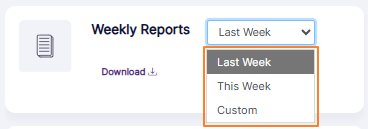 Fig: 4 - Expanded view of the date selection dropdown options
The following image displays the visibility of the Date Range field which loads after you select the Custom option.
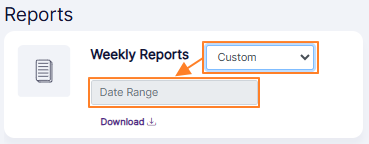 Fig: 5 - Date Range field loads on Custom option selection
The following image displays the visibility of the calendar which loads after you click on the Date Range field. Click on the preset options on the left of the calendar or click twice on the calendar dates to set your own custom date range.
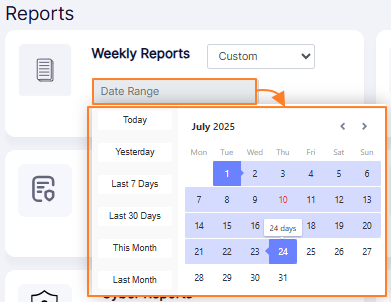 Fig: 6 - Calendar to set custom date range
After choosing a default dropdown option, or setting a custom date range, you can click on the Download option to proceed to get a local copy of the generated report. The system analyzes weekly activity and highlights the most critical items that need attention. This includes:
- Flagging anomalies or unusual trends.
- Identifying underperforming areas.
- Surfacing urgent tasks or issues. This helps users focus on what matters most without sifting through all the data.
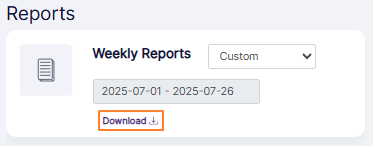 Fig: 7 - Download option
AI generates a concise, concise summary of key actions and trends from the past week. The report is crafted with simplicity in mind to ensure that users of all technical backgrounds can understand the insights. With access to data, your team members are now empowered to make informed decisions. After you click on the Download option, a pdf copy of the generated report gets downloaded.
 Fig: 8 - Clicking on the Download option initiates the PDF copy downloading
Here is the view of the sample contents of a generated Weekly Reports PDF file. The file is titled as 'Weekly Compliance Summary Report' if the current or last week date range is chosen, otherwise the file is titled as 'Compliance Summary Report' when a custom date range is chosen for report generation.
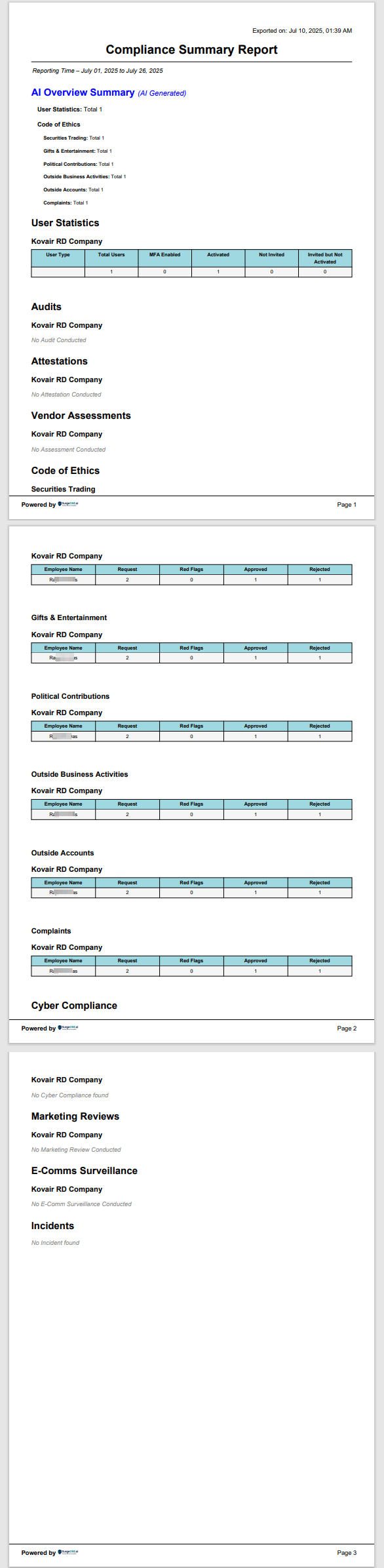 Fig: 9 - View of the generated sample Weekly Report
3. Using the Audit Reports
The Audit Reports lets you search for existing audits created or processed. Set appropriate filters to generate report results as required. You can also export the generated report results.
Click on the View All option of the Audit Reports tile on the Reports page, to proceed to navigate to the audit report.
 Fig: 10 - Option to navigate to the report
Alternatively, you can click on the Past Audits button at the top right of the Audits page, to proceed to view the audit report. A user can view audits that they have created or audits where they have been assigned as an auditor or a recipient.
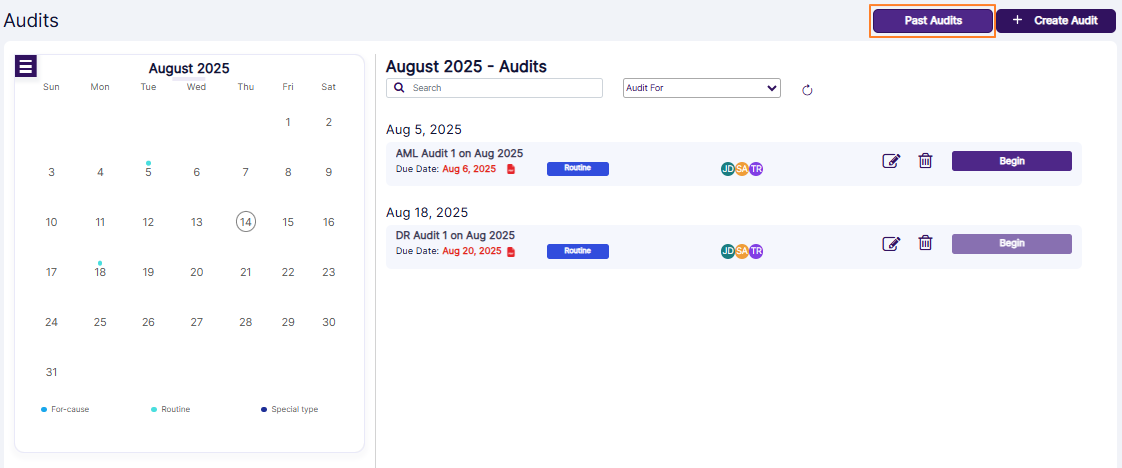 Fig: 11 - Past Audits button
Consider this report screen as a combination of dashboard and grid view, where you can view drilldown of past audits, as well as search for past audits.

Fig: 12 - Past Audit Reports view
Let us illustrate the three sections which are present:
3.1. Audits by Category
This section shows a pie chart illustration to represent the number of audits per audit category. There are four different types of audit categories as follows - Cyber Security, Operational, Financial and Custom.
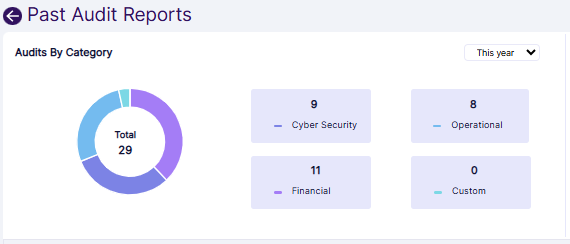 Fig: 13 - Audits By Category
- Each of these audit categories are color coded. Hover your mouse pointer over the pie chart to reveal a tooltip text about the audits count per audit category, out of the total audits count for that year. Refer to the following image to understand better.
- By default, the current year is selected. You can select another year from the year selection dropdown (at the top right of this section) to load the count of existing audits of different category types (of that year).
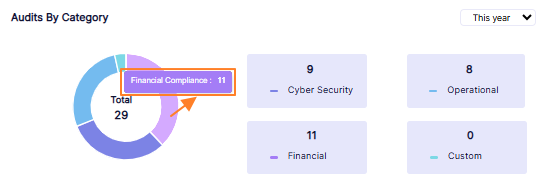 Fig: 14 - Audits By Category tooltip view
 Fig: 15 - Year selection dropdown expanded view
This section shows a horizontal bar chart illustration to represent the red flags count per audit category type. There are three categories labeled as - Financial Compliance, Cyber Security and Operational. If there is no bar chart present for a category, then there is no red flagged question response for it yet.
 Fig: 16 - Chart view of Red Flags section
- By default, the current year is selected. You can select another year from the year selection dropdown at the top right of this section.
- Hover your mouse pointer over a displayed bar chart to reveal a tooltip text about the red flags count of that audit category. Refer to the following image to understand better.
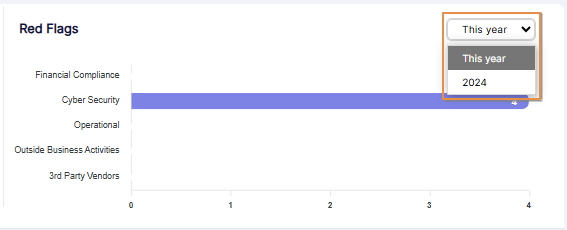 Fig: 17 - Year selection dropdown expanded view
 Fig: 18 - Tooltip view of Red Flags of Operational audit category
You can search for and view existing audits from this section. Let us first have a look at the different filters that can be set.
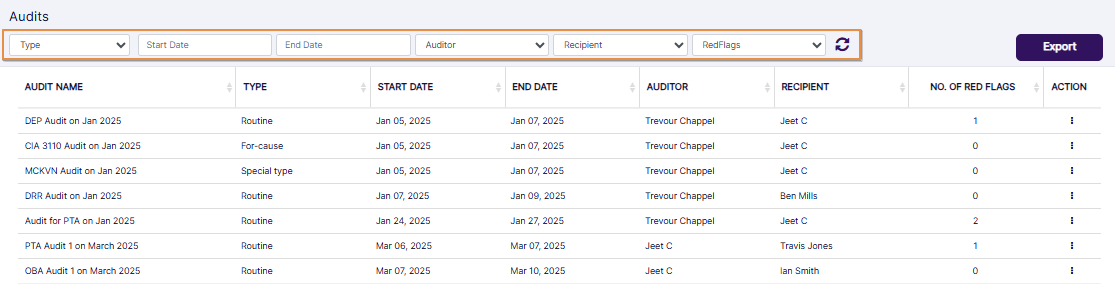 Fig: 19 - Audits section filter options of Past Audits Report
- You can click on the Type dropdown to expand its options. The selectable options are Special type, For-cause and Routine. By default, no option is selected. These are the different audit types which can be created in the system.
- You can select the date range using the provided Start Date and End Date calendars.
- You can click on the Auditor dropdown to expand its options. Existing users created for the Auditor, Audit Manager and OSJ roles populate this dropdown.
- You can click on the Recipient dropdown to expand its options. Existing users who are set as the Recipient of the audits (in the Audit Details tab at the time of audit creation) populate this dropdown.
- You can click on the RedFlags dropdown to expand its options. Selectable options are All, Yes and No.
- The following image shows the view when there report results are fetched to populate the grid view.
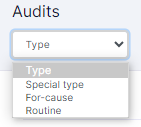 Fig: 20 - Type dropdown options
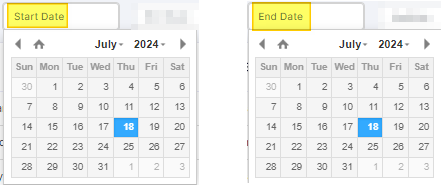 Fig: 21 - Date range fields
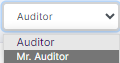 Fig: 22 - Auditor dropdown
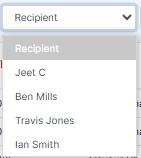 Fig: 23 - Recipient dropdown
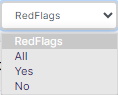 Fig: 24 - RedFlags dropdown
 Fig: 25 - Report results in grid view
 NOTE:
NOTE:
- All of the columns are sortable except for the ACTION column.
- The following columns populate the grid view:
- AUDIT NAME
- TYPE
- START DATE
- END DATE
- AUDITOR
- RECIPIENT
- NO. OF RED FLAGS
- ACTION
The following image shows the view when there is no fetched data to populate the grid view.
 Fig: 26 - No results found label
3.3.1. Reset filters
You can click on the refresh  icon to reset the report filters.
3.3.2. Exporting report results
- Click on the Export button to load the export options (to download a local copy the generated report). Two options labeled as CSV and PDF load below the button. Click on the former to download an excel file or on the latter to download a .pdf copy.
- Here is the view of the contents of the exported PDF file, after clicking on the PDF option. The file is named as AuditReport_YYYYMMDD_HHMMSS, where the timestamp is the Coordinated Universal Time (UTC).
- You can also click on the vertical ellipsis icon of the ACTION column against any listed audit to load the View Details menu option. Click on the option to load the modal window which displays the audit questions and responses. An Export button is present at its bottom. Click on it to download the .pdf copy of this audit report.
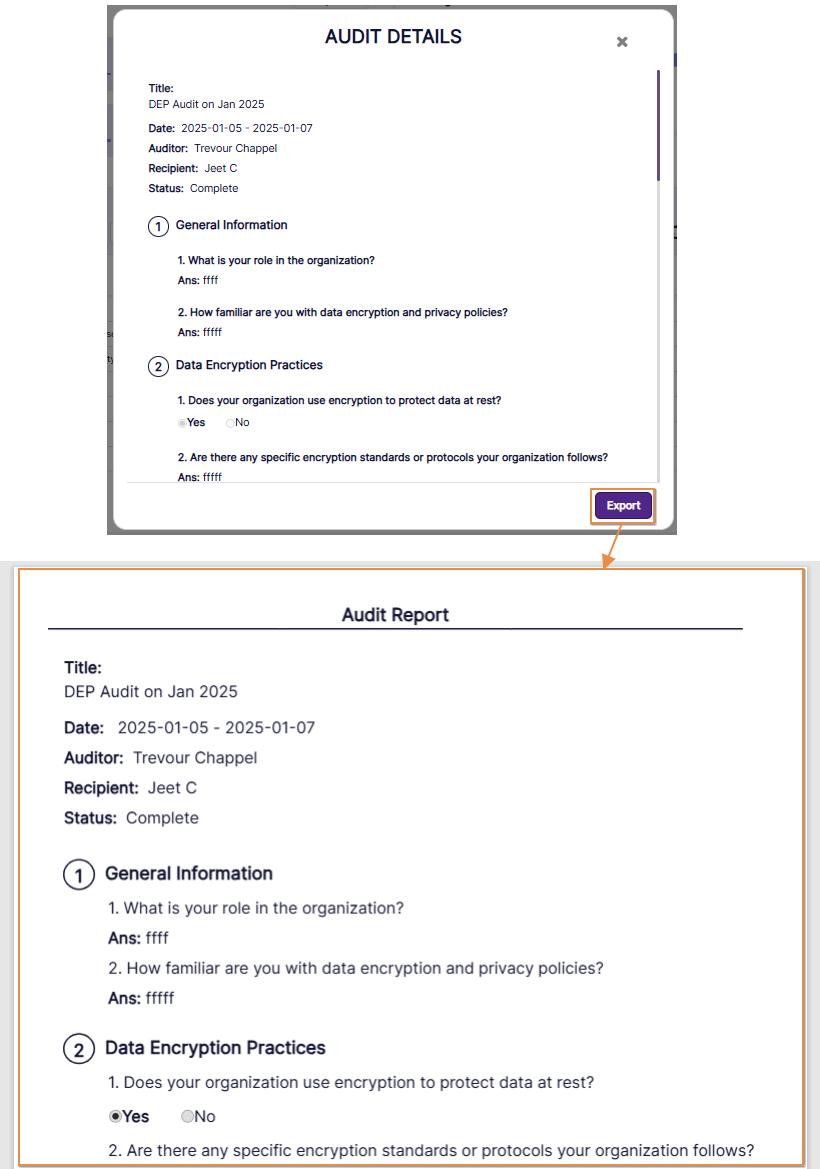 Fig: 29 - Exported PDF file content view of chosen audit
 Fig: 27 - Export button
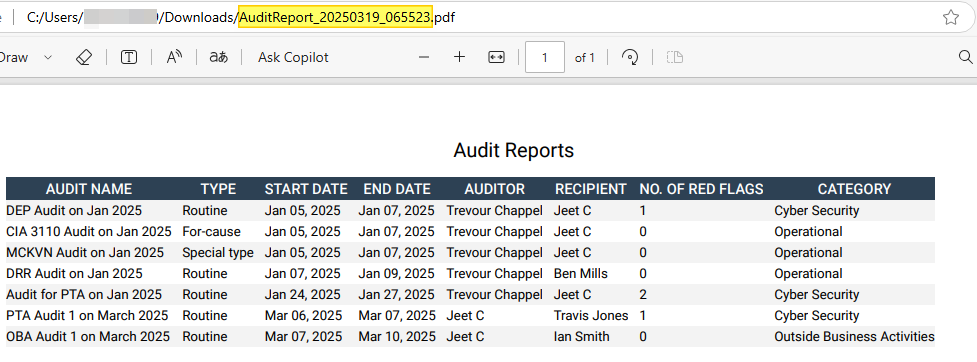 Fig: 28 - Exported PDF file content view of all audits
3.3.3. Customizing the grid view columns
- To alter the columns of the view, you can click on the vertical ellipsis
 icon at the right of the + Export button.
- Make permissible checkbox selections under the Audit Schedule header to set the grid view according to your preference. The checkbox selections which cannot be modified are greyed-out.
- Click on the Save button to store changes made and close this modal window.
An Audit Attributes modal window loads to display the list of columns and its current selection. The columns of the grid view which are visible by default are pre-selected in this modal window. You can customize and control the columns displayed in the grid view. This feature enables you to tailor the grid view to show data which enhance user experience by providing flexibility and control, making it easier to focus on the most pertinent details.
The following selectable items (column labels) are displayed in the loaded modal window (in default collapsed view state). Refer to the following table:
| Sl. No. | Column Label |
|---|---|
| 1 | Audit Name |
| 2 | Audit For |
| 3 | Start Date |
| 4 | Target Date |
| 5 | Auditor |
| 6 | Recipient |
| 7 | Red Flag Count |
| 8 | Category |
| 9 | Description |
| 10 | Organization |
| 11 | Created On |
| 12 | Audit Year |
| 13 | Audit Type |
| 14 | Status |
| 15 | Active? |
| 16 | Audit Complete? |
| 17 | Remediation? |
| 18 | Remediation Date |
| 19 | Remediation By |
| 20 | Finalized? |
| 21 | Finalized Date |
| 22 | Finalized By |
| 23 | Information Send? |
| 24 | Information Send By |
| 25 | Information Send On |
| 26 | Request Information? |
| 27 | Request Information By |
| 28 | Request Information On |
| 29 | Created By |
| 30 | Completion Date |
| 31 | Modification Date |
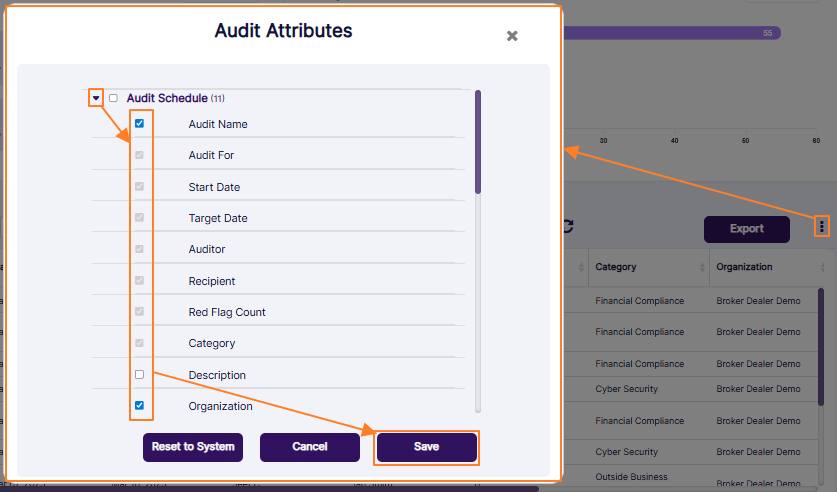 Fig: 30 - Customizing the applicable columns
3.3.4. Using the Pagination options
Pagination options are provided at the bottom-left, to navigate through multiple pages of entries, which populate the grid view as per the selected count of items per page.
 Fig: 31 - Pagination options
4. Using the Attestations Report
The Past Attestation Reports let you search for existing attestations which are completed. Set appropriate filters to generate report results as required. You can also export the generated report results.
Let us assume that you have navigated to the Reports page. Click on the View All option of the Attestations Report tile, to navigate to the attestation report.
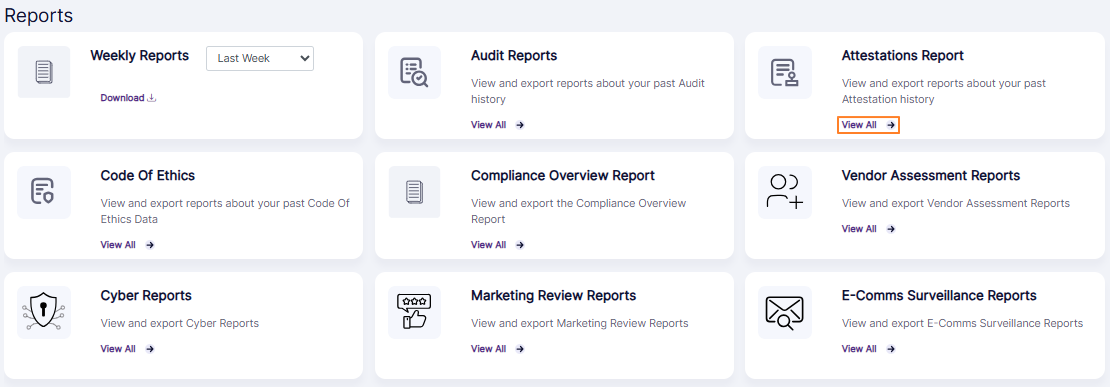 Fig: 32 - View All option of the Attestations Report tile on the Reports page
Alternatively, you can click on the Past Attestation Reports button at the top right of the grid view of the Attestations page to proceed to view the same attestations report.
 Fig: 33 - Option to navigate to the report
Here is the view of the report page. The report displays row entries of only the attestations which are completed.
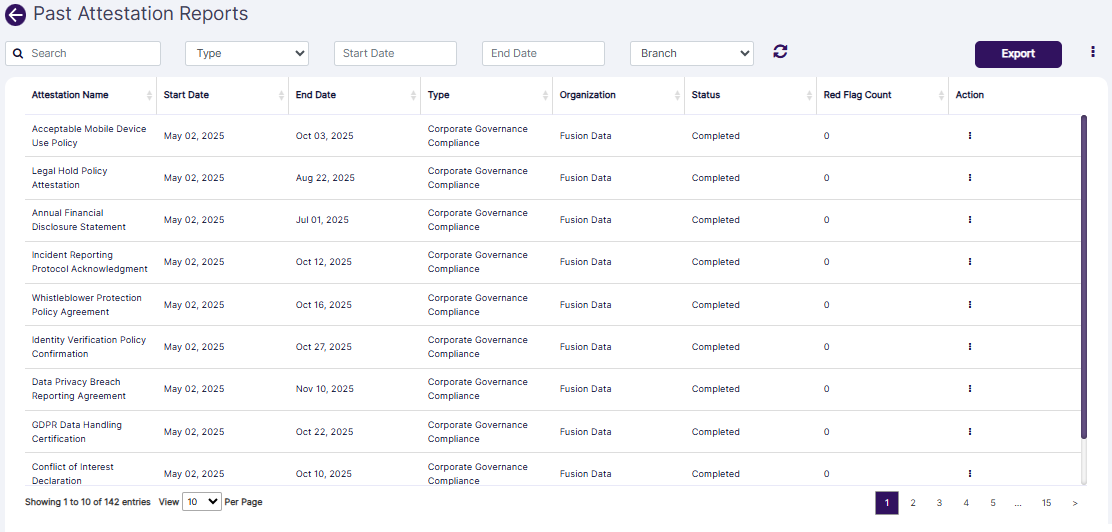 Fig: 34 - Past Attestation Reports view
The following filters are present in the report grid view.
- Search bar
- Category selection Type dropdown
- Start Date (date selection) calendar
- End Date (date selection) calendar
- Branch dropdown
 Fig: 35 - Past Attestation Reports filters
Let us illustrate each filter one by one.
1. Search bar
Enter the text based on which you want to execute the attestation search by. If matching entry is found, it will populate the report grid view.
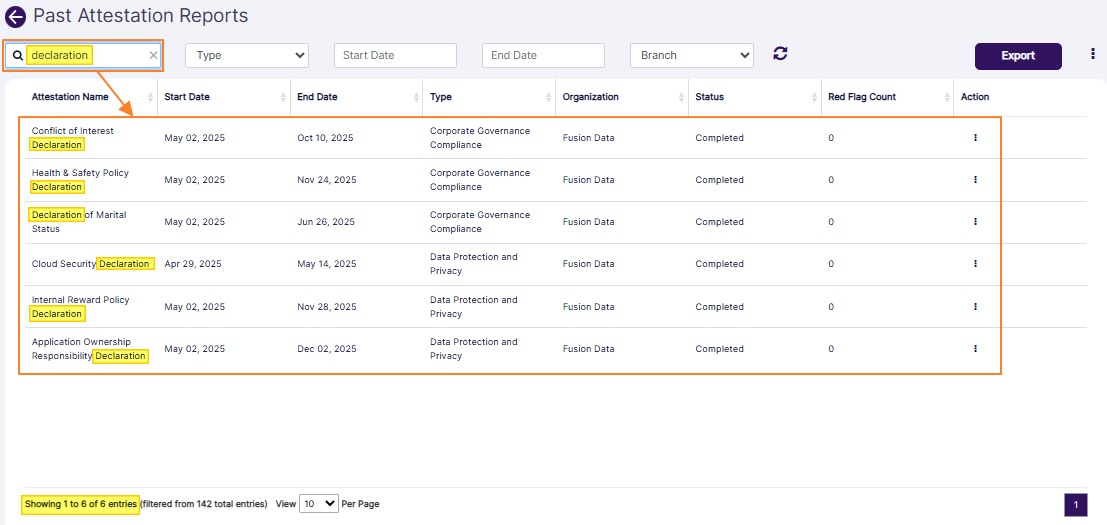 Fig: 36 - Report result fetched by search bar query
2. Category selection dropdown
The category selection dropdown is labeled as Type. Based on the categories of the completed attestation(s) present in the system, this dropdown is populated. You can make a dropdown selection to filter the report results based on an attestation category (provided that category entry populates the report results).
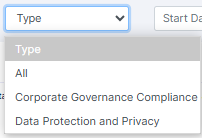 Fig: 37 - Category selection dropdown options
3. Start Date calendar
You can filter report results based on the attestation starting date by selecting a calendar date from the Start Date filter.
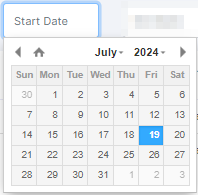 Fig: 38 - Start Date filter
4. End Date calendar
Similarly, you can filter report results based on the attestation ending date by selecting a calendar date from the End Date filter.
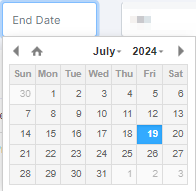 Fig: 39 - End Date filter
5. Branch dropdown
The Branch dropdown filter has the All option, along with the name of the firm (or parent company and its hierarchical companies, if created).
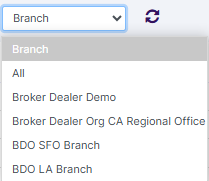 Fig: 40 - Branch filter
The report results are generated based on the filters set.
The following columns are present in the report grid view.
- Attestation Name
- Start Date
- End Date
- Type
- Organization
- Status
- Red Flag Count
- Action
NOTE:
All the columns except for the ACTION column are sortable.
6. Reset icon
You can click on the reset  icon to reset the report filters.
 Fig: 41 - Reset icon
7. Export button
Click on the Export button to load the export options (to download a local copy of the generated report). Two options labeled as CSV and PDF load below the button. Click on the former to download an excel file or on the latter to download a .pdf copy.
 Fig: 42 - Export button
An excel file gets downloaded after you click on the CSV option. The file is named as AttestationReport_YYYYMMDD_HHMMSS (where the timestamp is the GMT).
You can also click on the vertical ellipsis icon of the ACTION column against any listed attestation to load the View Details menu option. Click on the option to load the modal window which displays the status-wise breakdown of employee contributions towards the attestation completion in the form of row entries. An Action column is present at the right side of a row entry in it. Click on vertical ellipsis icon within it to load the View Details menu option. Another modal window loads which displays the attestation questions and responses.
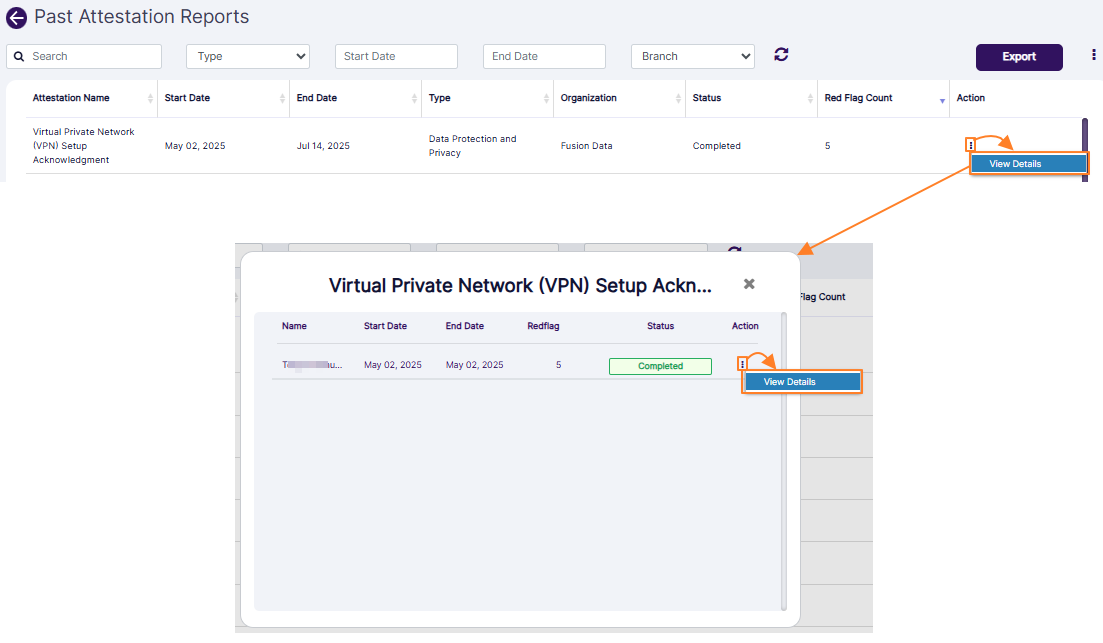 Fig: 43 - Proceeding to view the status-wise breakdown of employee contributions
An Export button is present at its bottom. Click on it to download the .pdf copy of this attestation report.
 Fig: 44 - Exported PDF file content view of chosen attestation entry
8. Customizing the grid view columns
- To alter the columns of the view, you can click on the vertical ellipsis
 icon at the right of the Export button.
- Make permissible checkbox selections under the Attestation Schedule header to set the grid view according to your preference. The checkbox selections which cannot be modified are greyed-out.
- Click on the Save button to store changes made and close this modal window.
A Attestation Attributes modal window loads to display the list of columns and its current selection. The columns of the grid view which are visible by default are pre-selected in this modal window. You can customize and control the columns displayed in the grid view. However, you cannot control the greyed-out column labels. This feature enables you to tailor the grid view to show data which enhance user experience by providing flexibility and control, making it easier to focus on the most pertinent details.
The following selectable items (column labels) are displayed in the loaded modal window. Refer to the following table:
| Sl. No. | Column Label |
|---|---|
| 1 | Attestation Name |
| 2 | Start Date |
| 3 | End Date |
| 4 | Type |
| 5 | Organization |
| 6 | Description |
| 7 | Status |
| 8 | Year |
| 9 | Actual Start Date |
| 10 | Actual End Date |
| 11 | Red Flag Count |
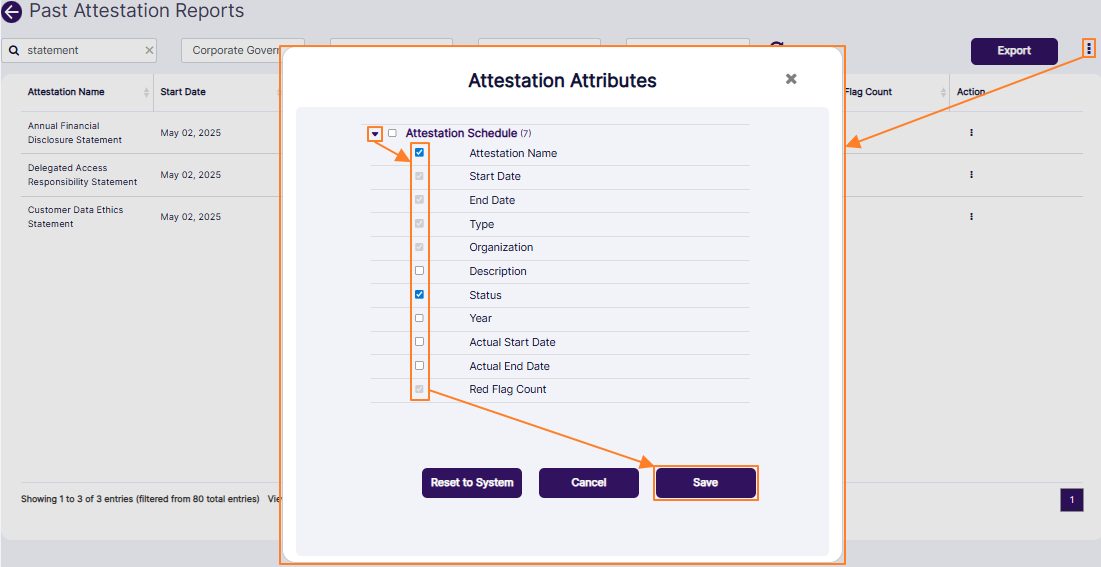 Fig: 45 - Customizing the report grid view column display
NOTE: If you click on the Reset to System button, then the checkbox selections are restored to the default state.
5. Using the Code Of Ethics Report
The Code Of Ethics Report lets you search for existing transactions or entries made in respect to the various Code of Ethics modules. Set appropriate filters to generate report results as required. You can also export the generated report results.
Let us assume that you have navigated to the Reports page. You can click on the View All option of the Code of Ethics tile, to navigate to the Past Code Of Ethics Report.
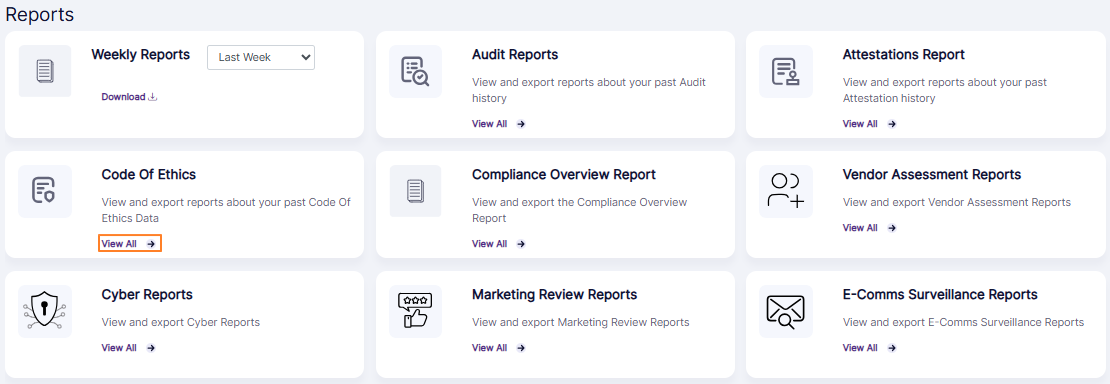 Fig: 46 - View All option of the Code of Ethics Report tile on the Reports page
Alternatively, if you are in the Code of Ethics page, click on the Past Code Of Ethics Report button of the Code of Ethics screen to navigate to the Past Code Of Ethics Report.
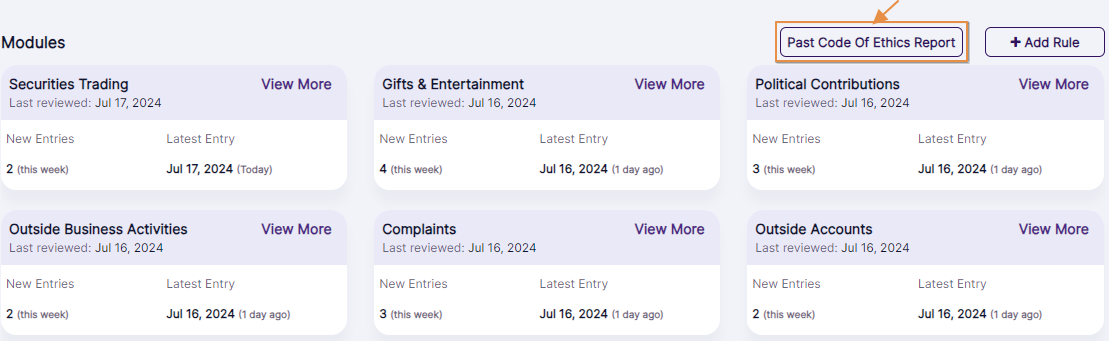 Fig: 47 - Past Code of Ethics Report button of the Code of Ethics page
The following image shows the report page that loads. The following columns are present in the grid view - EMPLOYEE NAME, MODULE TYPE, NO. OF ENTRIES, NO. OF REDFLAGS and ACTIONS.
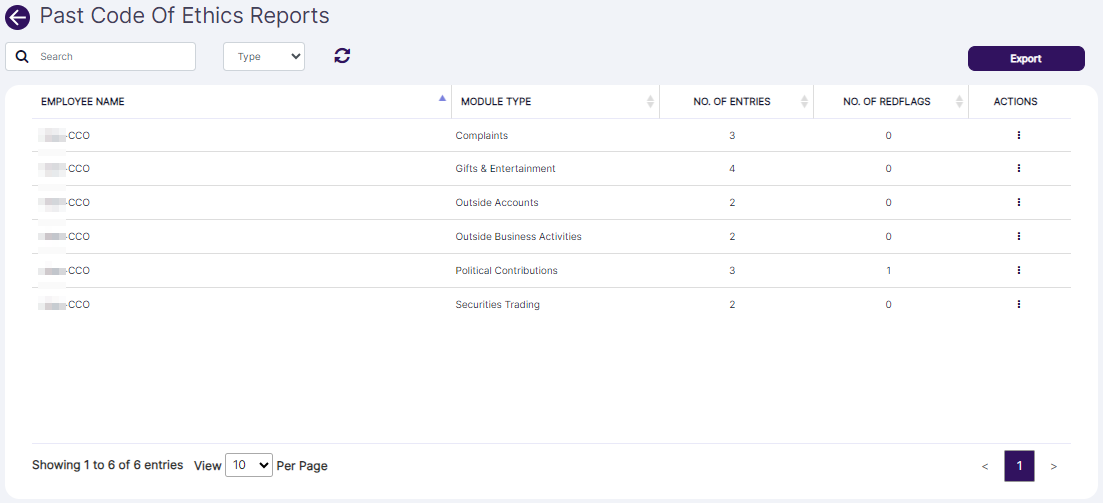 Fig: 48 - Past Code of Ethics Report view
Enter suitable text in the search bar based on which you want execute the search operation.
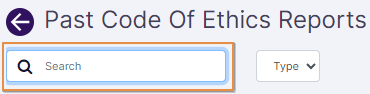 Fig: 49 - Search bar
Select the module type from the Type dropdown. By default, all selection is set.
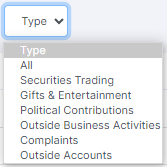 Fig: 50 - Type dropdown options
Search result(s) populate the grid view based on the filters set.
 Fig: 51 - Search results generated
NOTE: Search is executed based on the following parameters (displayed in the grid view as the column names).
- All the columns except for ACTION are sortable.
- Click on the Export button to load the export options (to download a local copy the generated report). Two options labeled as CSV and PDF load below the button. Click on the former to download an excel file or on the latter to download a .pdf copy. The following image shows the view of a downloaded pdf file.
- You can click on the refresh icon to reset the report filters.
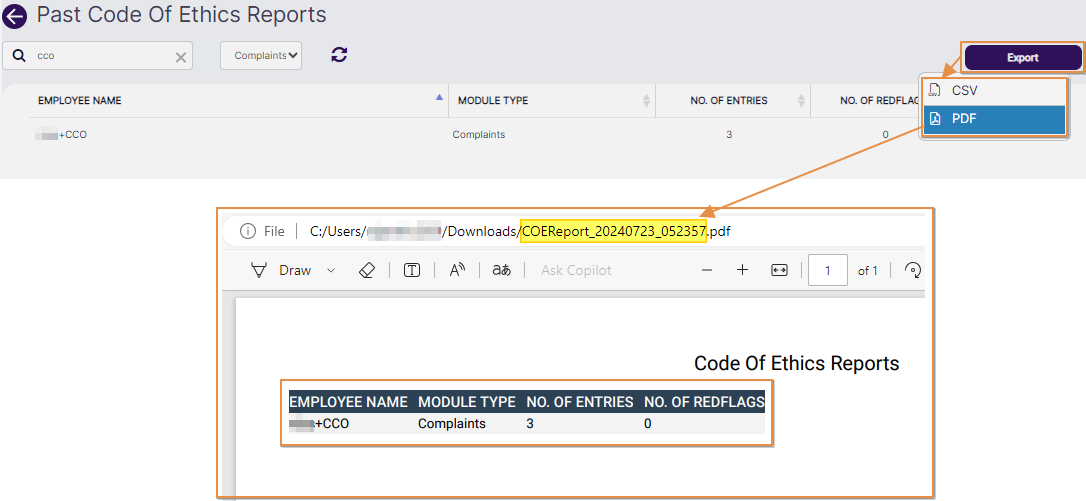 Fig: 52 - Exported report
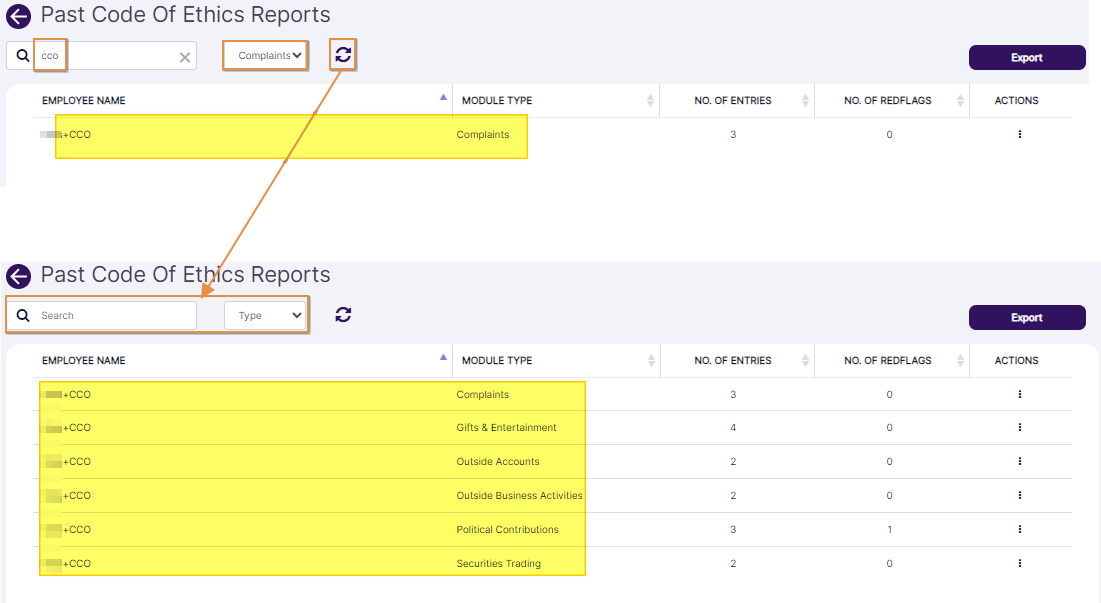 Fig: 53 - Filters reset
6. Using the Compliance Overview Report
The Compliance Overview Report consolidated report displaying roll-up data from Audit, Attestation and Code of Ethics modules. It is a parameterized report based on the logged-in user and a date range.
- Click on the View All option of the Compliance Overview Report tile, to proceed to navigate to the report view.
- Select the user based on which whom you want to execute the search operation. By default, the logged-in user is selected (populates) the dropdown. However, if the logged-in user is set as the Supervisor of another existing user, then the username of the subordinate also populates the dropdown. But, the logged-in user is selected in the dropdown.
- Select the starting date from the start date calendar selection field. By default, it is set to 1st January of the current year.
- Select the ending date from the end date calendar selection field. By default, it is set to 31st December of the current year.
- Click on the Submit button to generate report results based on the filters set.
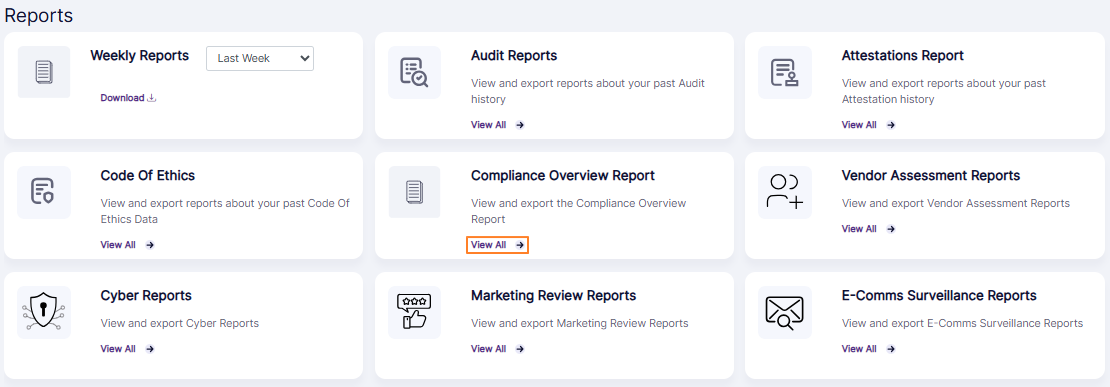 Fig: 54 - Option to navigate to the report
The following image shows the report page that loads. The following columns are present in the report page - DETAILS, # Of ITEMS, # Of ITEMS WITH RED FLAGS and # Of INCOMPLETED ITEMS. You can view the count of audits, attestations and code of ethics entries which are assigned to, red flagged and pending for the user.
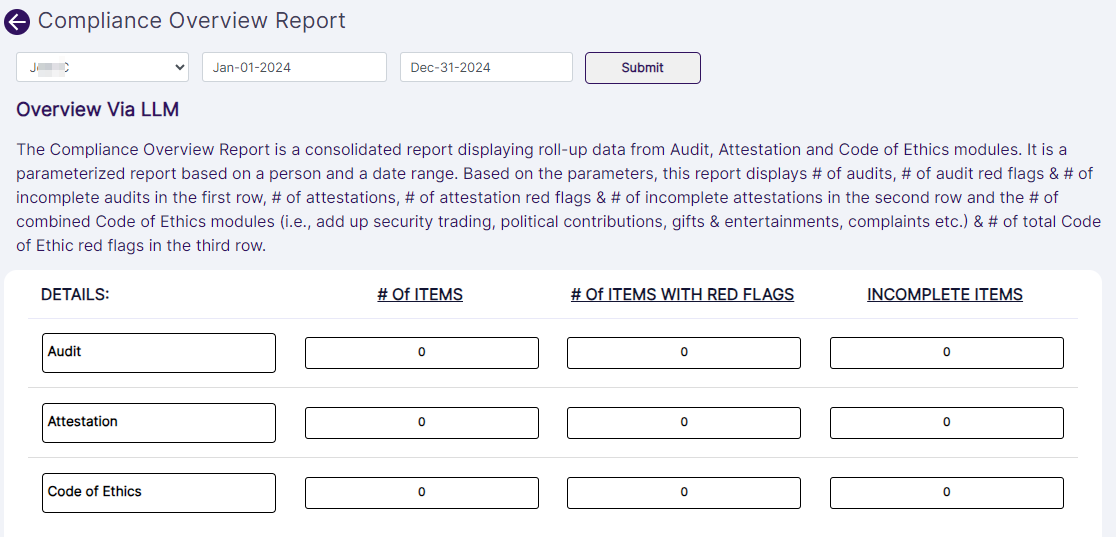 Fig: 55 - Compliance Overview Report view
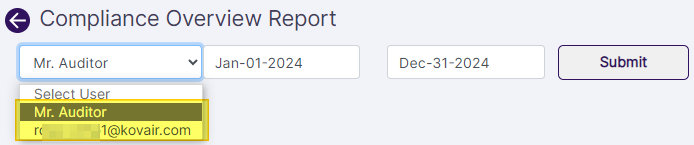 Fig: 56 - User selection dropdown
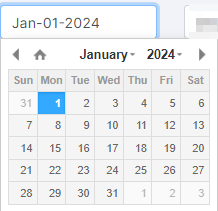 Fig: 57 - Start date calendar selection
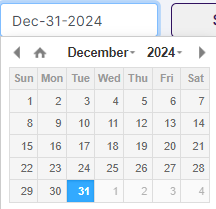 Fig: 58 - End date calendar selection
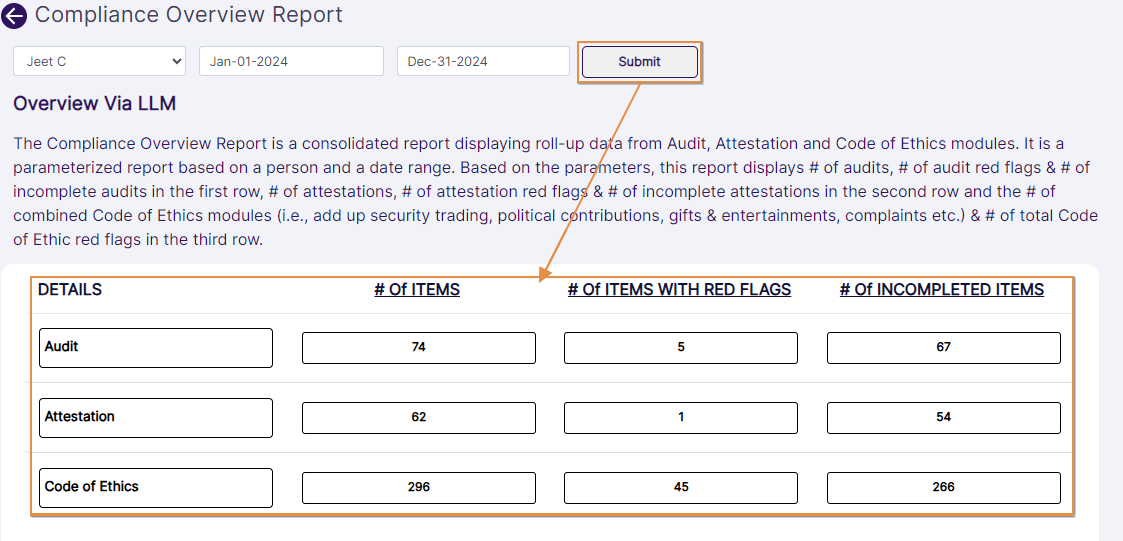 Fig: 59 - Search results generated
NOTE:
- By default, the Compliance Overview Report loads the results related to the logged-in user for the current year.
- You can drill down the results further by clicking on the numeric values of the report. For example, clicking on the numeric value of the Audit row entry with red flags loads the following screen. As evident in the image, the count of the drilled down items match.
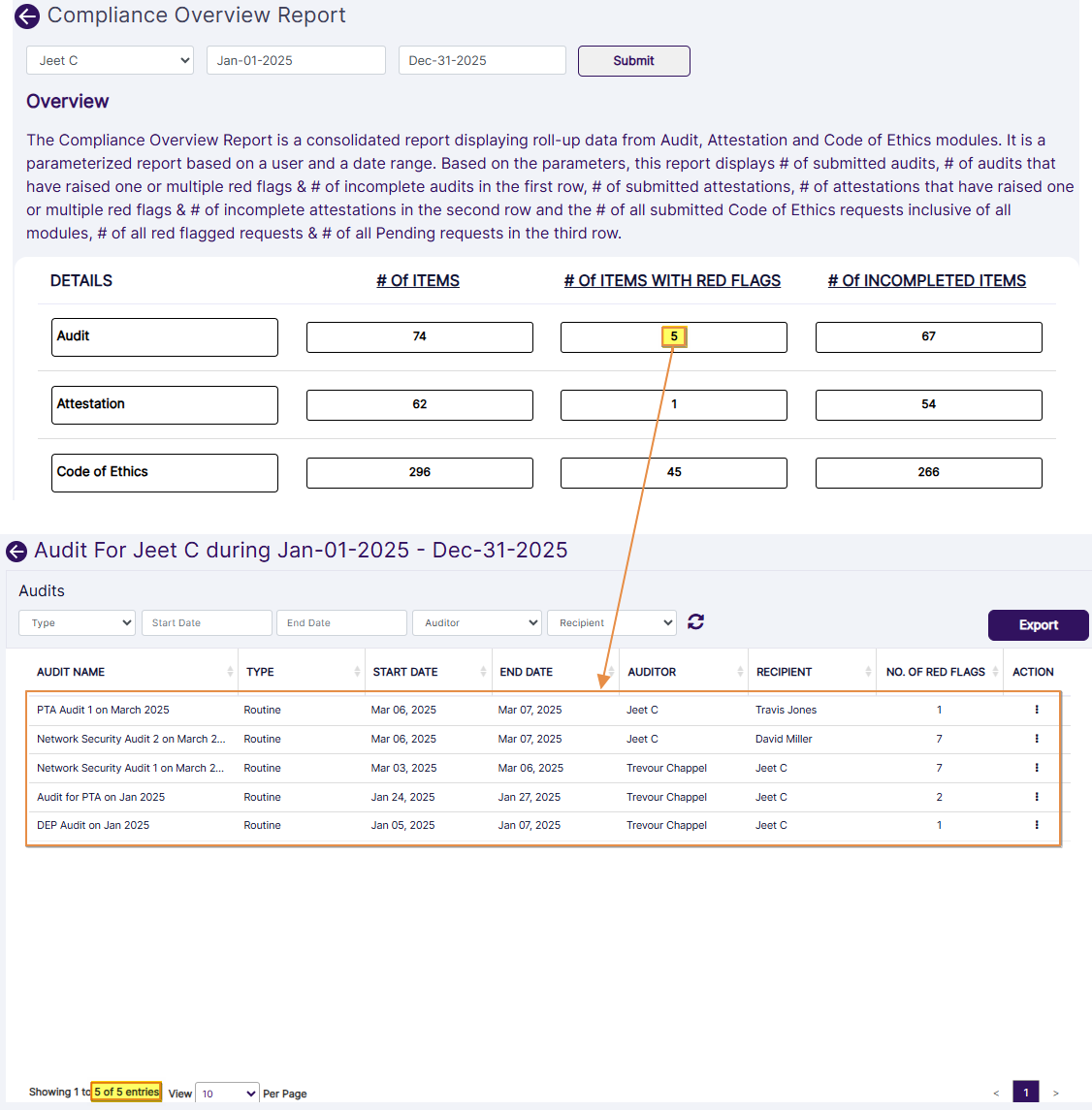 Fig: 60 - Drilled down view
7. Using the Vendor Assessment Reports
The Vendor Assessment Reports lets you search for processed vendor due diligence entries. Set appropriate filters to generate report results as required. You can also export the generated report results.
Let us assume you have navigated to the Reports page. Click on the View All option of the Vendor Assessment Reports tile, to proceed to navigate to the report view.
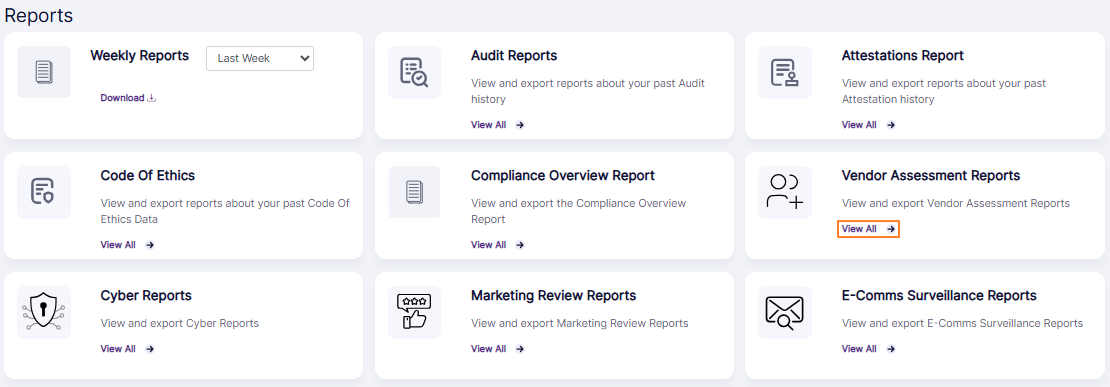 Fig: 61 - Option to navigate to the report
The following image shows the report page that loads. The following columns are present in the grid view - Unique ID, Vetting Title, Start Date, End Date, Status, Red Flag Score, VDD Category, View Summary and Action.
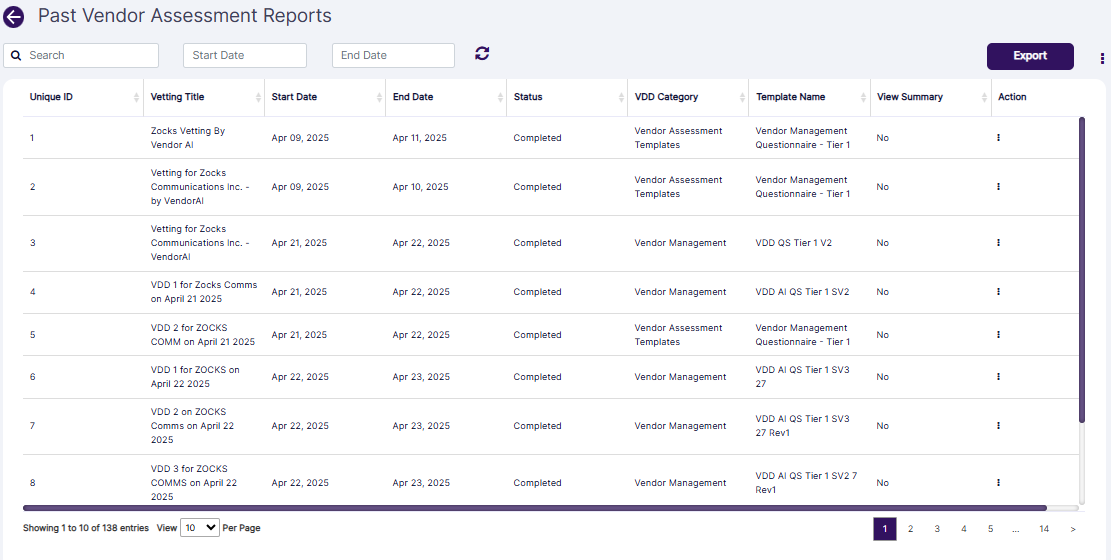 Fig: 62 - Vendor Assessment Reports view
The following filters are present in the report grid view.
- Search bar
- Start Date (date selection) calendar
- End Date (date selection) calendar
Let us illustrate each filter one by one.
1. Search bar
Enter the text based on which you want to execute the vendor assessment search operation. If matching entry is found, it will populate the report grid view.
2. Start Date calendar
You can filter report results based on the vendor assessment starting date by selecting a calendar date from the Start Date filter.
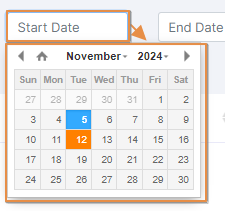 Fig: 63 - Start Date filter
3. End Date calendar
Similarly, you can filter report results based on the vendor assessment ending date by selecting a calendar date from the End Date filter.
 Fig: 64 - End Date filter
Search result(s) populate the grid view based on the filters set.
NOTE:
- All the columns except for Action are sortable.
- Click on the Export button to load the export options (to download a local copy of the generated report). Two options labeled as CSV and PDF load below the button. Click on the former to download an excel file or on the latter to download a .pdf copy. The following image shows the view of a downloaded pdf file.
- You can click on the refresh icon to reset the report filters.
- You can also click on the vertical ellipsis icon of the Action column against any listed vendor assessment to load the View Details menu option.
- Click on the option to load the modal window which displays the status-wise view. Click on the Completed label displayed under the Status column. The VDD DETAILS modal window loads. An Export button is present at its bottom. Click on it to download the .pdf copy of this vendor assessment report.
This modal window can also be loaded by clicking on the vertical ellipsis icon of the Action column and then on the expanded View Details menu option. - You can also click on the vertical ellipsis icon of the Action column against any listed vendor assessment with the View Summary column value displayed as Yes to load the View Assessment Summary menu option.
Click on the option to load the View Assessment Summary modal window which displays the summarized view. A local copy gets downloaded after you click on the download icon displayed under the Download column or on the Export to Excel button at the bottom-right of the modal window. - You can click on the vertical ellipsis icon at the top-right of the Past Vendor Assessment Reports page (beside the Export button to load the Vendor Assessment Attributes modal window. From within this modal window, you can proceed to customize the column label selections. Based on the modifications made to the checkbox selections, the visibility of the grid view columns get updated after you click on the Save button of this modal window. To restore the default view, click on the Reset to System button.
- Pagination options are provided at the bottom to control the page items limit and to navigate to other page entries
 Fig: 65 - Export options
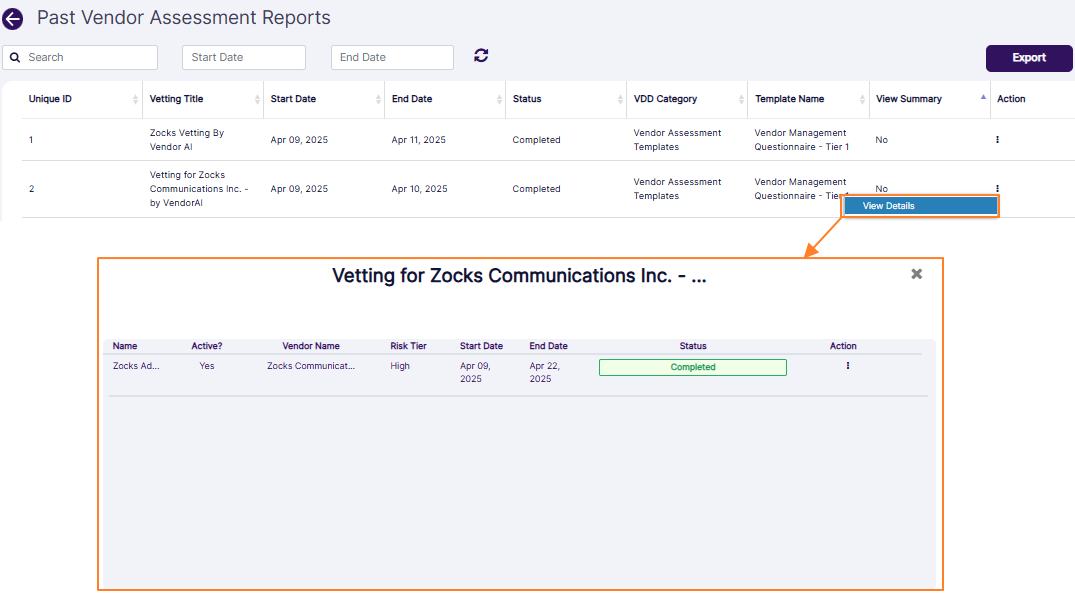 Fig: 66 - Proceeding to view the status-wise modal window
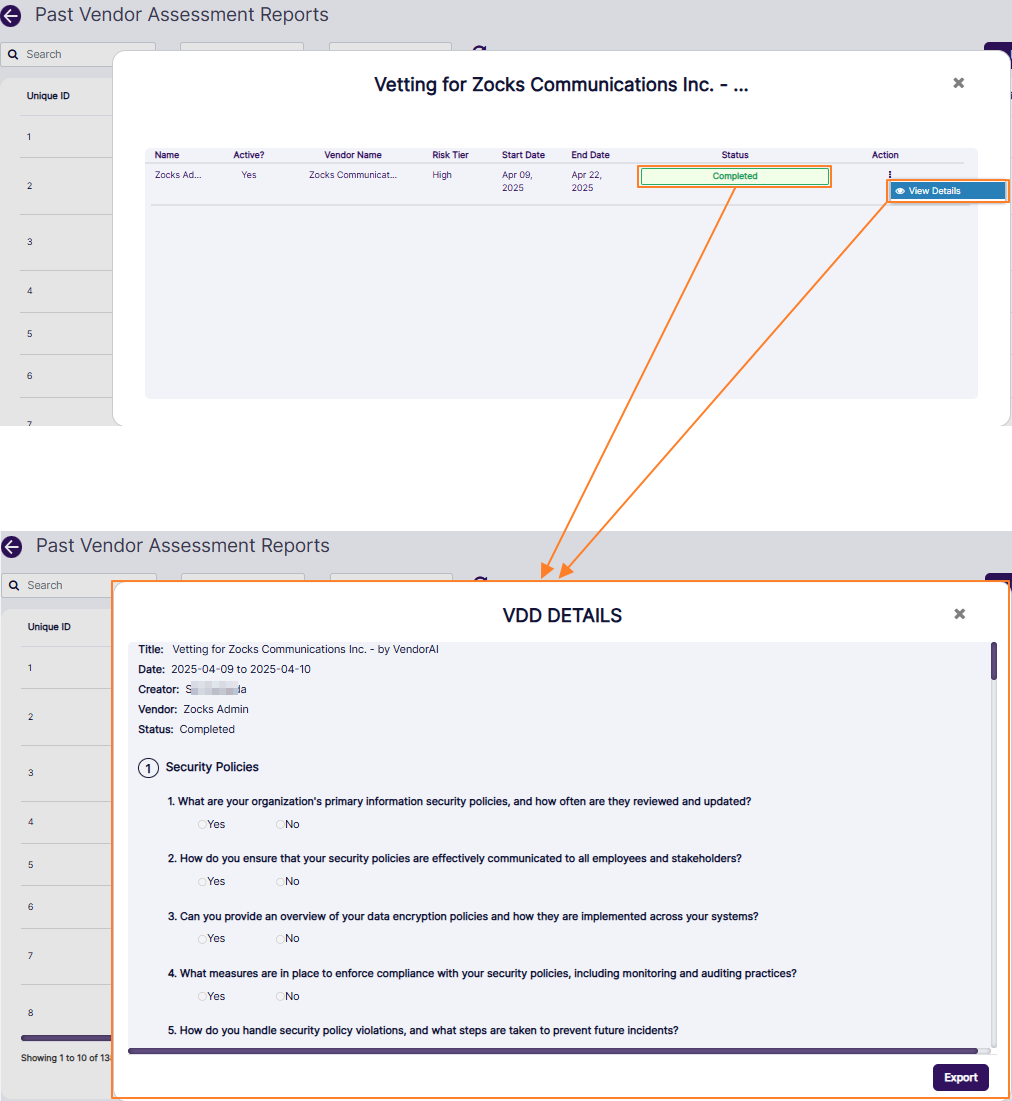 Fig: 67 - Detailed view
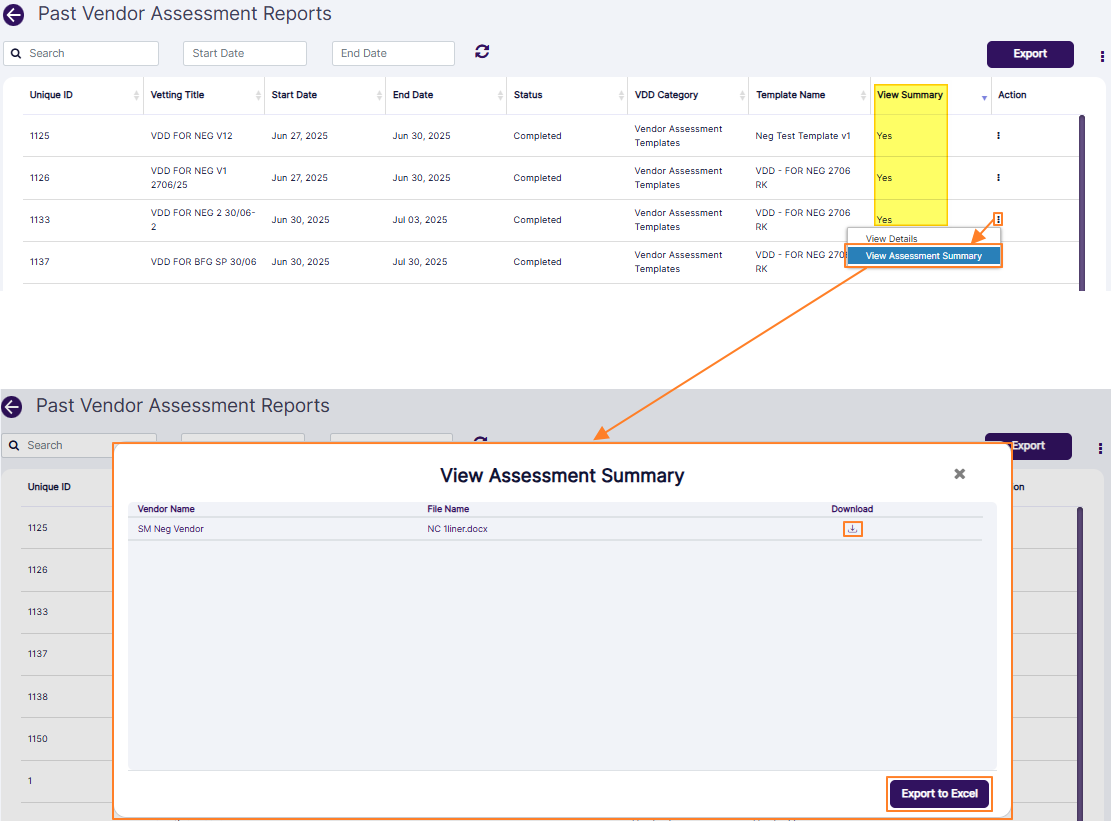 Fig: 68 - Proceeding to view the summary-wise modal window with the ability to download the details
 Fig: 69 - Downloaded report view
8. Using the Cyber Reports
The Cyber Report displays device data as per the dataset present in the Cyber Dashboard. The report has a dropdown to switch between Cyber, Device, Mobile, and Enrollment views. Select any one from these three values and based on that data the report will be populated accordingly in the grid. Users can easily switch between different data types using it to monitor issues and risk scores. You can also export the generated report results.
Click on the View All option of the Cyber Reports tile, to proceed to navigate to the report view.
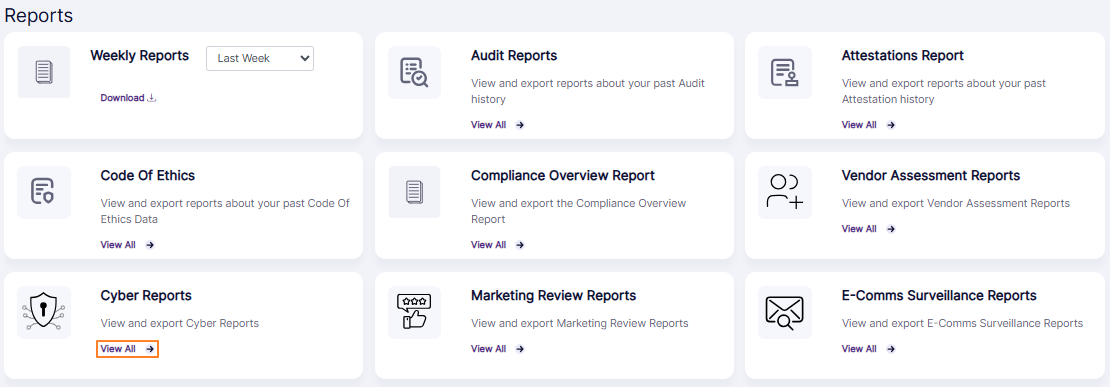 Fig: 70 - Option to navigate to the report
The following image shows the report page that loads.
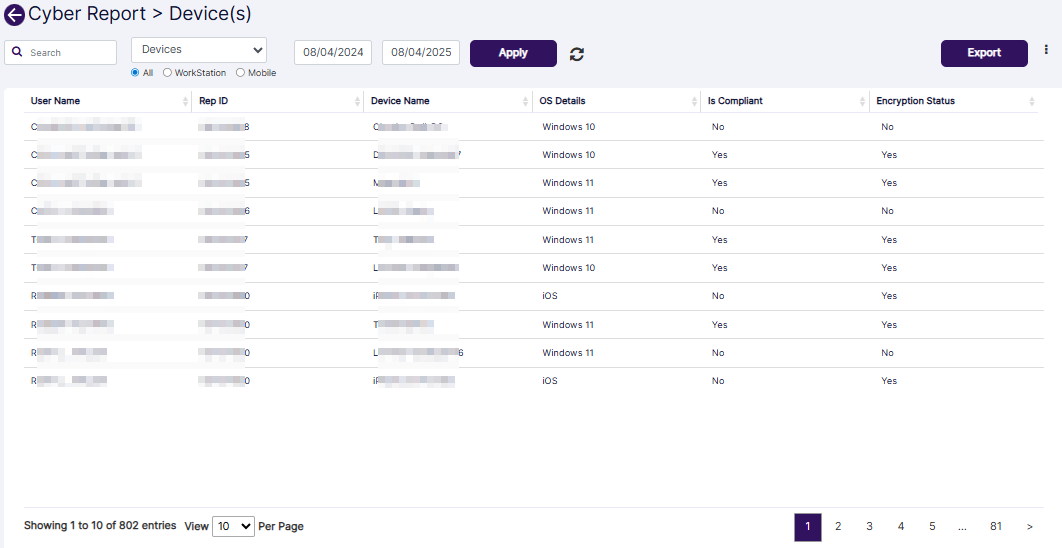 Fig: 71 - Cyber Reports view
The following filters are present above the report grid view.
- Search bar
- Entity selection dropdown
- Start Date (date selection) calendar
- End Date (date selection) calendar
Let us illustrate each filter one by one.
1. Search bar
Enter the text based on which you want to execute the search by. If matching entry is found, it will populate the report grid view.
2. Entity selection dropdown
You can filter report results based on the option selection of this dropdown. It contains three options as Devices, Enrollments and Incidents.
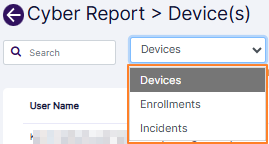 Fig: 72 - Entity selection dropdown filter options
If you select the Device dropdown (which is also selected by default) then three radio button load below the dropdown. The radio buttons are as follows:
- All - used to load all device related information received from endpoints, based on the text entered in the search bar, and / or the specified date range.
- WorkStation - used to load all workstations related data based on the text entered in the search bar, and / or the specified date range.
- Mobile - used to load only associated mobile devices related data based on the text entered in the search bar, and / or the specified date range.
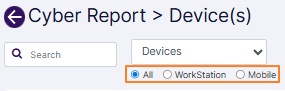 Fig: 73 - Radio button options
NOTE:
- When the Devices dropdown is selected and the All radio button is selected, then captured data related to workstations as well as mobile devices get displayed in the grid view. The following columns are displayed in the Cyber Report > Device(s) grid view:
- User Name - Displays the full name of the user which was provided at the time of user enrollment/registration, or was edited/updated later on. It is also displayed in the NAME column of Enroll Users page.
- Rep ID - Displays the unique REFERENCE ID value which was provided at the time of user creation/registration, or was edited/updated later on. It is also displayed in the Enroll Users page.
- Device Name - Displays the captured name of the device, or displays a N.A label if it not captured yet
- OS Details - Displays the operating system type and its version
- Is Compliant - Displays Yes or No label to indicate whether the said device is compliant of the deemed security standards or not
- Encryption Status - Displays Yes or No label to indicate whether the said device has encryption enabled or not
- When the Devices dropdown is selected and the WorkStation radio button is selected, then the information associated with user workstations, laptops, computers, etc. which are fetched by the Belarc application into SurgeONE get displayed. The following columns are displayed in the Cyber Report > Device(s) grid view:
- User Name - Displays the full name of the user which was provided at the time of user enrollment/registration, or was edited/updated later on. It is also displayed in the NAME column of Enroll Users page.
- Rep ID - Displays the unique REFERENCE ID value which was provided at the time of user creation/registration, or was edited/updated later on. It is also displayed in the Enroll Users page.
- Device Name - Displays the captured name of the device, or displays a N.A label if it not captured yet
- OS Details - Displays the operating system type and its version
- Is Compliant - Displays Yes or No label to indicate whether the said device is compliant of the deemed security standards or not
- Encryption Status - Displays Yes or No label to indicate whether the said device has encryption enabled or not
- Antivirus Enabled - Displays Yes or No label to indicate whether the said device has any antivirus application installed or not
- Antivirus Used - Displays text on whether antivirus is found on not, and if found - whether it is installed (and enabled) or installed but not enabled for real-time protection
- When the Devices dropdown is selected and the Mobile radio button is selected, then the user mobile devices' data fetched and stored in SurgeONE get displayed. The following columns are displayed in the Cyber Report > Device(s) grid view:
- User Name - Displays the full name of the user which was provided at the time of user enrollment/registration, or was edited/updated later on. It is also displayed in the NAME column of Enroll Users page.
- Rep ID - Displays the unique REFERENCE ID value which was provided at the time of user creation/registration, or was edited/updated later on. It is also displayed in the Enroll Users page.
- Device Name - Displays the captured name of the device, or displays a N.A label if it not captured yet
- Device Security Percentage - Displays either N.A label or a number between zero to hundred, including both, to indicate the secureness of the device based on the AI calculated device risk score
- OS Details - Displays the operating system type and its version
- Encryption Status - Displays Yes or No label to indicate whether the mobile device has encryption enabled or not
- OS Upto Date Status - Displays Yes or No or Pending label to indicate whether the mobile device has the latest version of the operating system installed or not or whether the update is pending
- WiFi Connection Info - Displays whether the Wi-Fi connection of the mobile is enabled or disabled or unknown, and whether the connection is connected, personal, not connected, open or unknown
- When the Enrollments dropdown is selected, information related to the SurgeONE user enrollments get displayed. The following columns are displayed in the Cyber Report > Enrollment(s) grid view:
- User Name - Displays the full name of the user which was provided at the time of user enrollment/registration, or was edited/updated later on. It is also displayed in the NAME column of Enroll Users page.
- Email ID - Displays the email address of the user which was provided at the time of user enrollment/registration. It is also displayed in the EMAIL column of Enroll Users page.
- Device Count - Displays the numeric value denoting the number of captured device(s) which are associated with the user. It can also be displayed as zero if no device is captured yet.
- Activated - Displays Yes or No label to indicate whether the user is an active user of SurgeONE
- Not Invited - Displays Yes or No label to indicate whether the user is already invited to access SurgeONE or not. An email is triggered to the registered email address if the user is already invited.
- Invited but Not Activated - Displays either a Yes label when both Activated and Not Invited are set to No, or displays a No label when at least any one column out of the Activated and Not Invited columns is set to Yes
- When the Incidents dropdown is selected, then data related to the detected cyber incidents get displayed in the grid view. A slider is displayed before the start date filter, to select the AI detected risk score range (between 10 to 100). The following columns are displayed in the Cyber Report > Incident(s) grid view:
- Incident Source - Displays the origin or affected application/endpoint of the incident
- Linked User - Displays the associated account
- Isolation Status - Displays the isolation status of the incident. It can be displayed as either Isolated or Not Isolated.
- Brief Summary - Shows a brief information about the incident
- Detection Time - Shows the time of the incident in [(Month 3-lettered abbreviation) (DD) (YYYY)] format
- AI Suggested Severity - Displays the rank or tier of severity of the incident such as High, Low, etc.
- AI Risk Score (10 -> 100) - Displays the AI calculater risk score, where a higher score indicates a greater risk
- Status - Displays the current status of the incident such as Assigned, Resolved, Needs Review, etc.
- Assigned To - Displays the application username who is assigned to look into this incident
Here is the view of the filters and grid view when this dropdown option and radio button is selected.
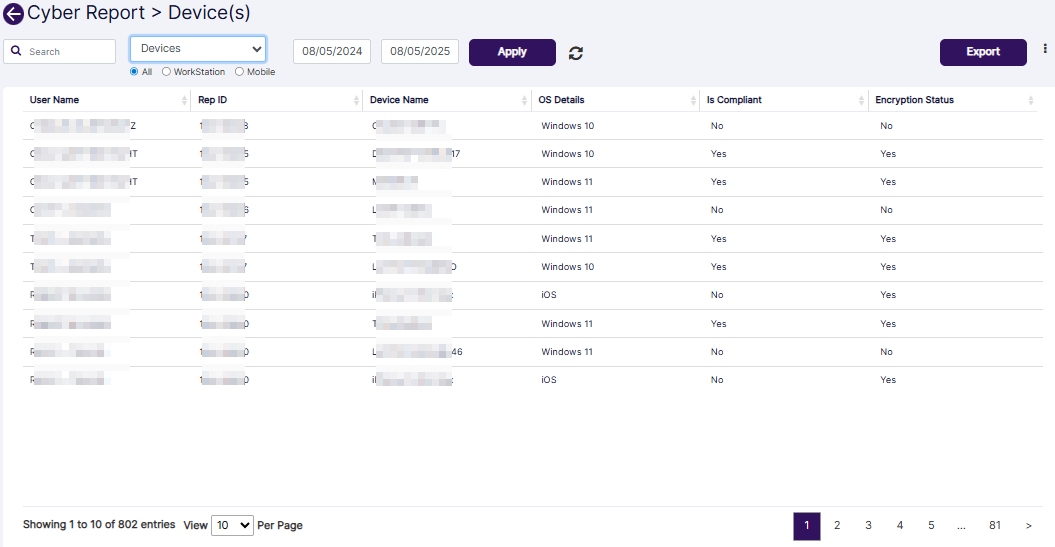 Fig: 74 - View of filters and grid view when Devices dropdown is selected and the All radio button is selected
Here is the view of the filters and grid view when this dropdown option and radio button is selected.
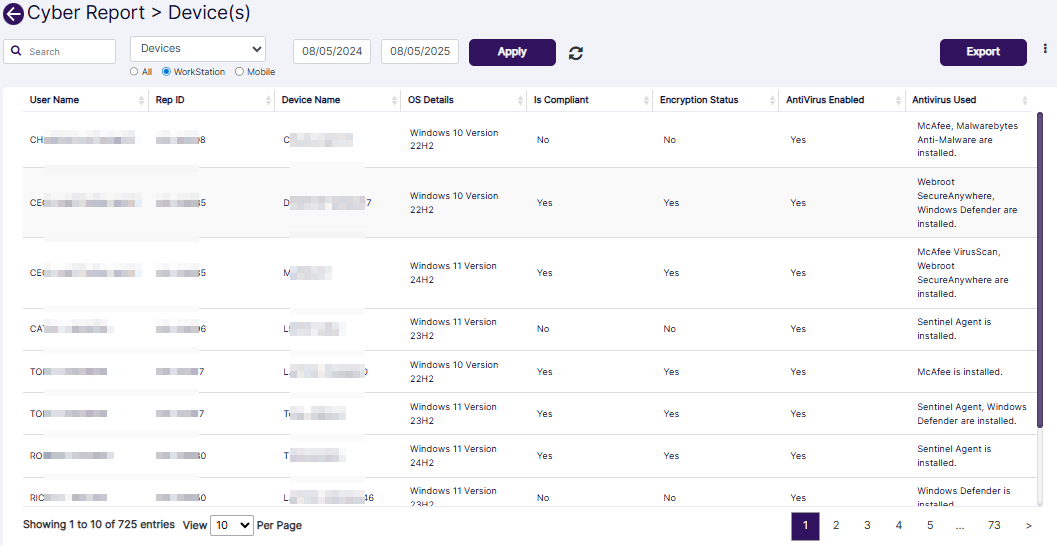 Fig: 75 - View of filters and grid view when Devices dropdown is selected and the WorkStation radio button is selected
Here is the view of the filters and grid view when this dropdown option and radio button is selected.
 Fig: 76 - View of filters and grid view when Devices dropdown is selected and the Mobile radio button is selected
Here is the view of the filters and grid view when this dropdown option is selected.
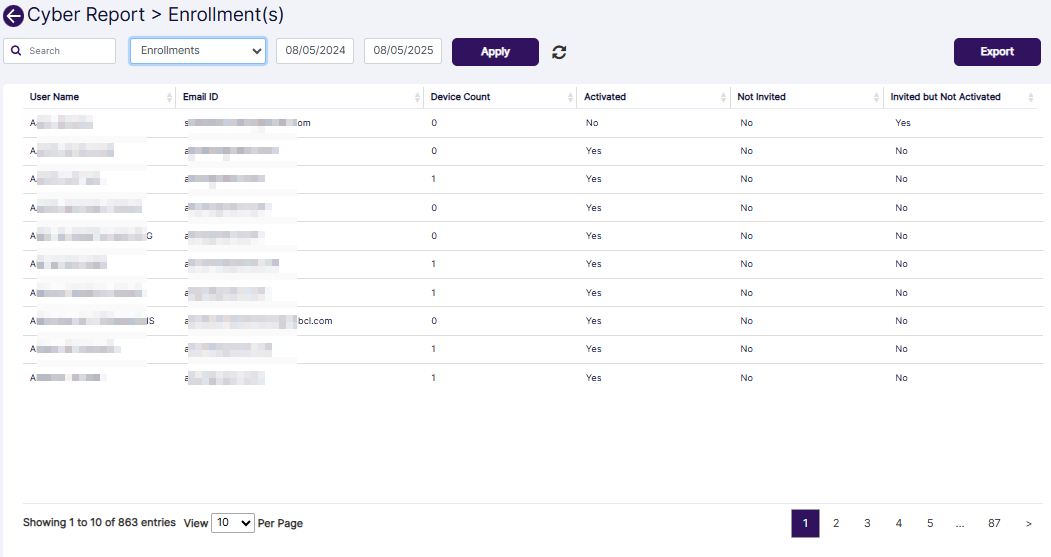 Fig: 77 - View of filters and grid view when Enrollments dropdown is selected
Here is the view of the filters and grid view when this dropdown option is selected.
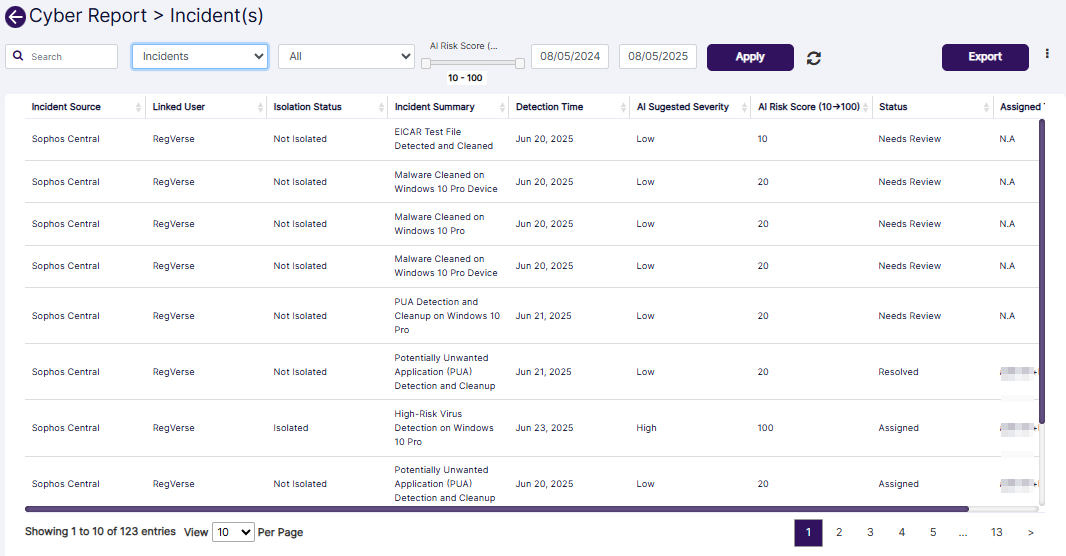 Fig: 78 - View of filters and grid view when Incidents dropdown is selected
3. Start Date calendar
You can filter report results based on the incident starting date by selecting a calendar date from the Start Date filter. By default, the current date is set.
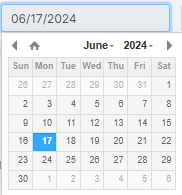 Fig: 79 - Start Date filter
4. End Date calendar
Similarly, you can filter report results based on the incident ending date by selecting a calendar date from the End Date filter. By default, the current date is set.
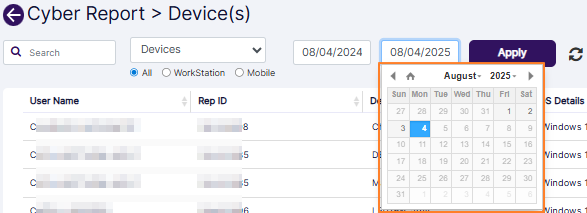 Fig: 80 - End Date filter
You can click on the Apply button to generate report results based on the filter(s) set.
 Fig: 81 - Apply button to generate report based on filters set
NOTE:
- All the columns are sortable.
- Click on the Export button to load the export options (to download a local copy of the generated report). Two options labeled as CSV and PDF load below the button. Click on the former to download an excel file or on the latter to download a .pdf copy.
- You can also click on the vertical ellipsis icon to the right of the Export button to customize the grid view columns. After making necessary checkbox selection, you must click on the Save button to make the changes to the grid.
- Pagination options are provided at the bottom to control the page items limit and to navigate to other page entries
 Fig: 82 - Export options
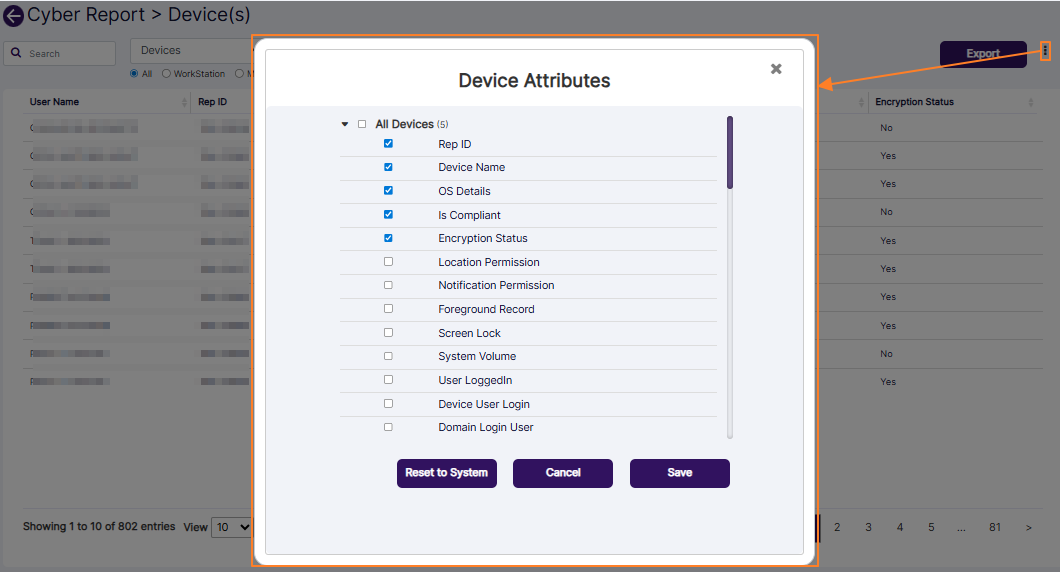 Fig: 83 - Customizing the grid columns visibility
 Fig: 84 - Pagination options
9. Using the Marketing Review Reports
Marketing Review Report enhances your analytical processes and empower your users to selectively filter and extract relevant data. With action-menu option on each row you can fetch the fully detailed review report as a PDF or Excel file.
Click on the View All option of the Marketing Review Reports tile, to proceed to navigate to the report view.
 Fig: 85 - Option to navigate to the report
The following image shows the report page that loads.
 Fig: 86 - Marketing Review Reports view
The following filters or options are present above the report grid view.
- Search bar
- Document Status selection dropdown
- Show All Versions checklist
- Start Date (date selection) calendar
- End Date (date selection) calendar
Let us illustrate each filter one by one.
1. Search bar
Enter the text based on which you want to execute the search by. If matching entry is found, it will populate the report grid view.
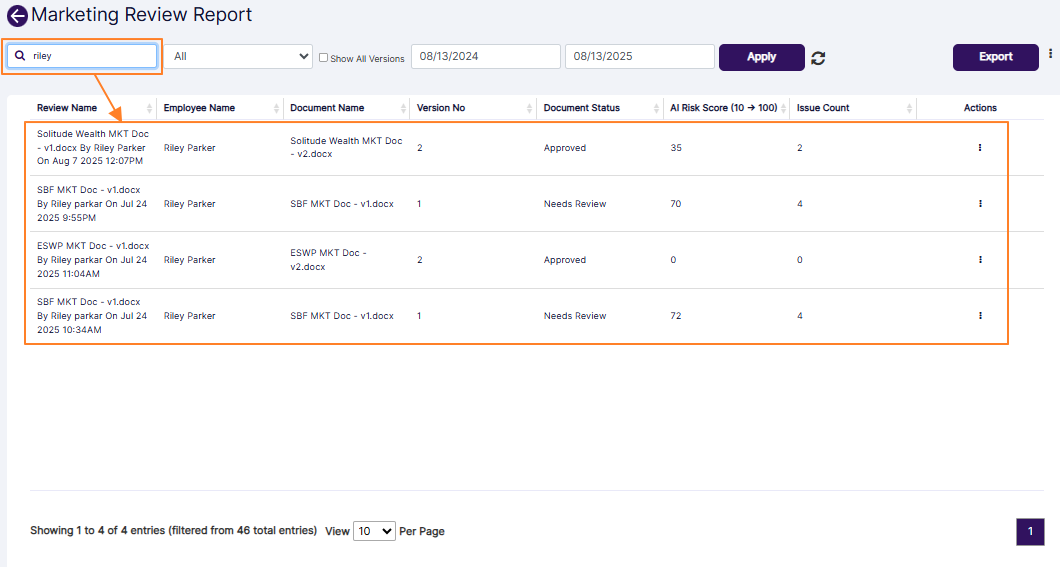 Fig:87 - Searching for Marketing Review entries
2. Document Status selection dropdown
You can filter report results based on the option selection of this dropdown. It contains seven options as follows:
- All - Used to load all marketing content that has been reviewed or is currently under review, regardless of status or processing outcome.
- AI Review In Progress - Used to load all marketing content which is undergoing automated reviewing.
- Needs Review - Used to load all marketing content which have undergone automated reviewing but approver role user needs to be confirm AI based assessment.
- Back to Submitter - Used to load all marketing content which have undergone automated reviewing and issues have been detected and submitter action is needed.
- Approved - Used to load all marketing content which have been approved by the reviewer after undergoing an automated review.
- Expired – Used to load all marketing content where the displayed version is no longer active due to a newer version of the document being uploaded.
- AI Response Error - Used to load all marketing content that triggered an error during the automated review.
 Fig: 88 - Document Status selection dropdown filter
3. Show All Versions checklist
By default, only the latest uploaded version of a document is displayed in the grid. However, you can load all versions by selecting this checkbox
 Fig: 89 - Show All Versions checklist
4. Start Date calendar
You can filter results based on the upload date of a marketing document by selecting a calendar date from the Start Date filter. By default, the current date of the previous year is set.
 Fig: 90 - Start Date filter
5. End Date calendar
Similarly, You can filter results based on the upload date of a marketing document by selecting a calendar date from the End Date filter.
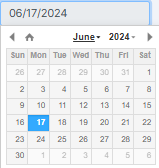 Fig: 91 - End Date filter
You can click on the Apply button to generate report results based on the filter(s) set.
 Fig: 92 - Apply button
You can click on the reset icon (at the right of the Apply button) to reset the filter(s) to the default state and refresh the grid view results.
 Fig: 93 - Reset icon
The following columns are present in the grid view by default.
- Review Name
- Employee Name
- Document Name
- Version No
- Document Status
- AI Risk Score (0 -> 100)
- Issue Count
- Actions
The Actions column present at the right side of a row entry can be used to load the row-context menu option. Click on vertical ellipsis icon within it to load the Download menu option.
 Fig: 94 - Using the Download menu option
After you click on it, a local copy of the report record gets downloaded. Here is the partial view of the opened pdf file which got downloaded.
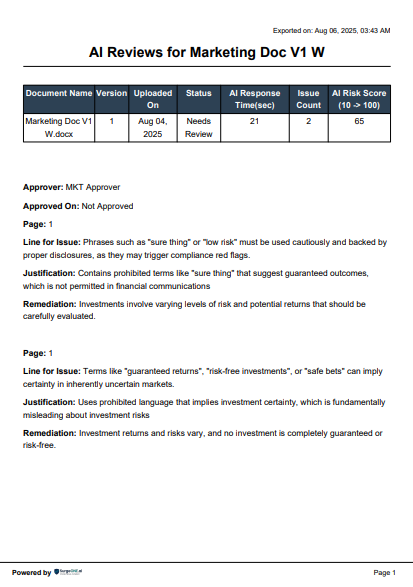 Fig: 95 - Partial view of the contents of the downloaded file
NOTE:
- All the columns are sortable except for the Action column.
- Click on the Export button to load the export options (to download a local copy of the generated report). Two options labeled as CSV and PDF load below the button. Click on the former to download an excel file or on the latter to download a .pdf copy.
- You can also click on the vertical ellipsis icon to the right of the Export button to customize the grid view columns. After making necessary checkbox selection, you must click on the Save button to make the changes to the grid.
- Under the Marketing Review group label the following column checklists are present:
- Review Name
- Review Status
- Scheduled By
- Modified By
- Creation Date
- Modification Date
- Organization
- Review ID
- Under the Marketing Document group label the following column checklists are present:
- Employee Name
- Document Name
- Version No
- Document Status (its checkbox selection is enabled by default cannot be disabled)
- AI Risk Score (10 -> 100)
- Issue Count
- Approver
- Campaign
- Target Audience
- Type of Document
- Channel Type
- Notes for the Reviewer
- Date of Approval
- Pagination options are provided at the bottom to control the page items limit and to navigate to other page entries
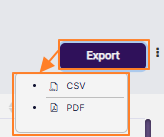 Fig: 96 - Export button
 Fig: 97 - Customizing the grid columns visibility
 Fig: 98 - Pagination options
10. Using the E-Comms Surveillance Reports
The E-Comms Surveillance Report includes reviews conducted within a specified date range, offering more targeted insights. Report results can be filtered by search criteria and status. AI review summaries can be exported as pdfs or excel files to support executive reporting and ensure compliance documentation.
Click on the View All option of the E-Comms Surveillance Reports tile to proceed to navigate to the report view.
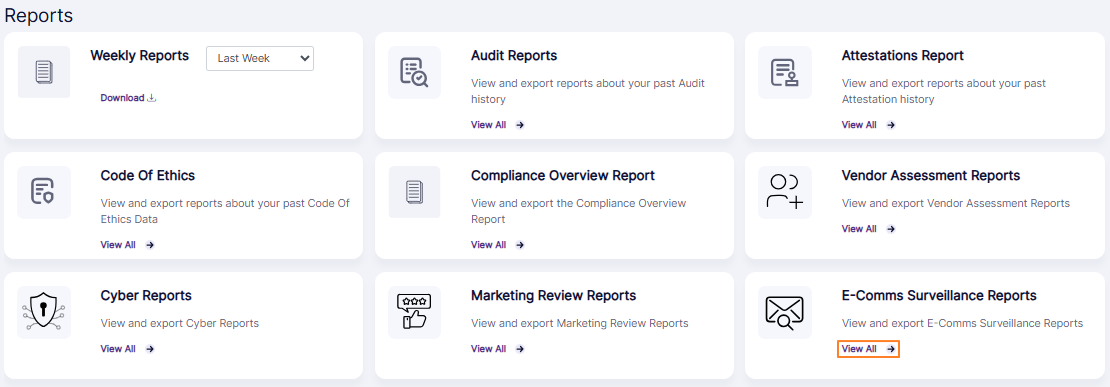 Fig: 99 - Option to navigate to the report
The following image shows the report page that loads.
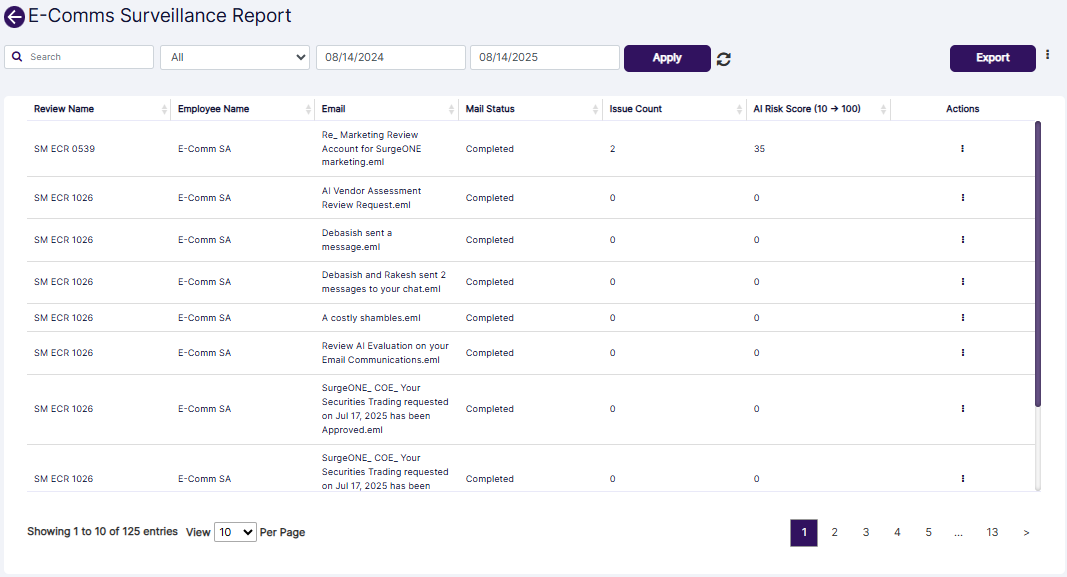 Fig: 100 - E-Comms Surveillance Report view
The following filters are present above the report grid view.
- Search bar
- E-Comms Surveillance status selection dropdown
- From Date (start date selection) calendar
- To Date (end date selection) calendar
Let us illustrate each filter one by one.
1. Search bar
Enter the text based on which you want to execute the search by. If matching entry is found, it will populate the report grid view.
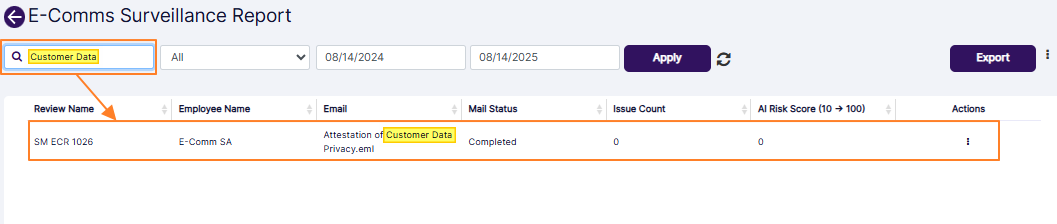 Fig: 101 - Search operation
2. E-Comms Surveillance Status selection dropdown
You can filter report results based on the option selection of this dropdown. It contains five options as follows:
- All - used to load all scanned emails from the assigned user mailboxes linked to every E-Comm Surveillance request, regardless of whether the emails were successfully extracted or an error occurred during processing.
- Completed - used to load all emails that were successfully scanned by AI.
- Mail Not Found - used to load all instances where no mails could be extracted for automated reviewing based on E-Comm Surveillance scheduling filters.
- AI Response Error - used to load all emails that triggered an error during the automated review.
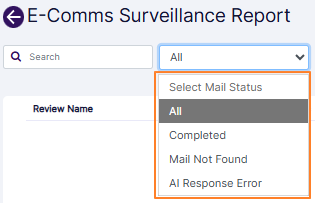 Fig: 102 - Status selection dropdown filter
3. From Date calendar
You can filter report results based on the E-Comm Surveillance schedule date by selecting a calendar date from the From Date filter. By default, the current date of the previous year is set.
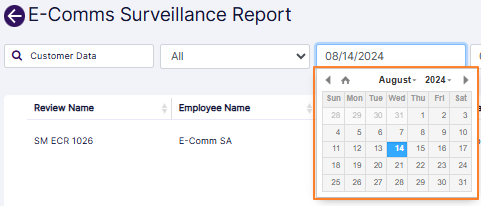 Fig: 103 - From Date filter
4. To Date calendar
Similarly, you can filter report results based on the E-Comm Surveillance schedule date by selecting a calendar date from the To Date filter. By default, the current date is set.
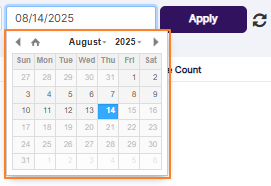 Fig: 104 - To Date filter
You can click on the Apply button to generate report results based on the filter(s) set.
 Fig: 105 - Apply button
You can click on the reset icon (at the right of the Apply button) to reset the filter(s) to the default state and refresh the grid view results.
 Fig: 106 - Reset icon
The following columns are present in the grid view by default.
- Review Name
- Employee Name
- Mail Status
- Issue Count
- AI Risk Score (10 -> 100)
- Actions
The Actions column present at the right side of a row entry can be used to load the row-context menu option. Click on vertical ellipsis icon within it to reveal the Download menu option.
 Fig: 107 - Using the Download menu option
After you click on it, a local copy of the report record or email assessment gets downloaded. Here is the view of the opened sample pdf file which got downloaded.
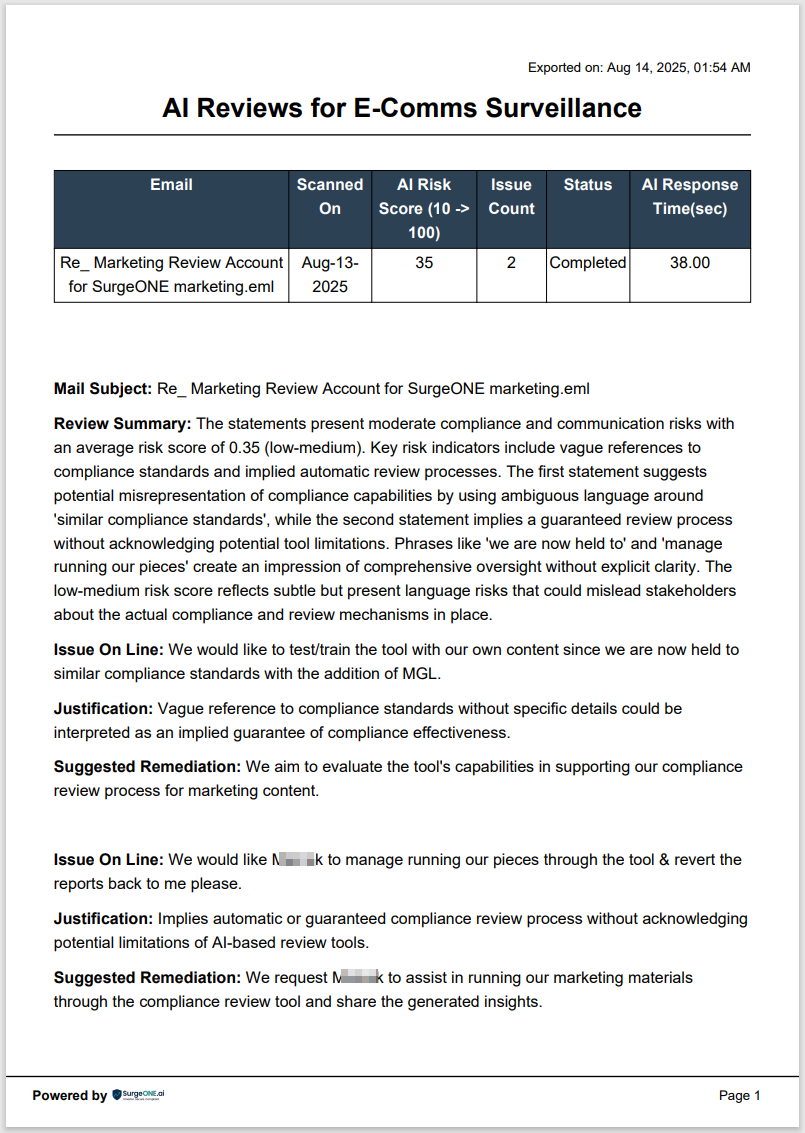 Fig: 108 - View of the contents of the downloaded file
NOTE:
- All the columns of the report grid view are sortable except for the Action column.
- Click on the Export button to load the export options (to download a local copy of the generated report). Two options labeled as CSV and PDF load below the button. Click on the former to download an excel file or on the latter to download a .pdf copy.
- You can also click on the vertical ellipsis icon to the right of the Export button to customize the grid view columns. After making necessary checkbox selection, you must click on the Save button to make the changes to the grid.
- Under the E-Comms group label header the following column labels and associated checklists are present:
- Review Name
- Schedule ID
- Communication Status
- Scheduled By
- Modified By
- Start Date
- End Date
- Creation Date
- Modification Date
- Description
- Organization
- Under the Mail Document group label header the following column labels and associated checklists are present:
- Employee Name
- Mail Status
- Issue Count
- AI Risk Score (10 -> 100)
- Pagination options are provided at the bottom to control the page items limit and to navigate to other page entries
 Fig: 109 - Export options
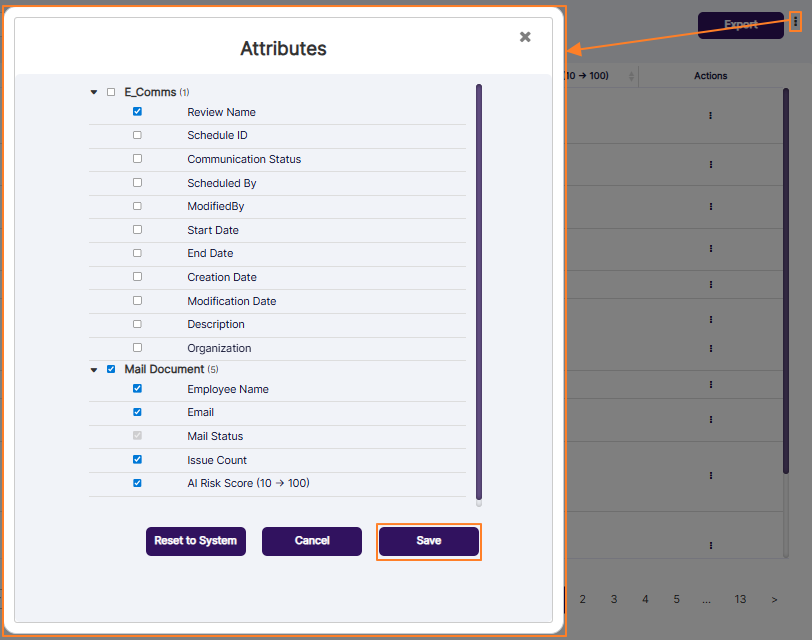 Fig: 110 - Customizing the grid columns visibility
 Fig: 111 - Pagination options