
 This online help page is dedicated to the SurgeONE.ai My VDD screen and its associated functionalities. This page is exclusive to the existing vendors of SurgeONE.ai application who have vendor assessments assigned to them.
The accessibility and functionalities of the different sections of this page are dependant on the role based access controls / permissions set for the logged-in user. For more details refer to the Roles online help.
1. Accessing the My VDD page
- If a vendor account is created in SurgeONE.ai (using the Add Vendor button) and that vendor is assigned a new vendor assessment (using the New Vendor Assessment button), then an email will get triggered to the vendor contact email address of this vendor. The vendor can follow the instructions provided to sign up and log into SurgeONE.ai.
- Click on the Setup Your Account button of the email to get redirected to the SurgeONE.ai password setting page.
- There are two fields labeled as New Password and Confirm Password. You must enter valid password to authenticate your user account. The password that is set here is used to login into your account in future. Enter suitable matching passwords in both these fields. There are certain conditions for the password to be accepted by the system, as follows:
- At least one lowercase letter
- At least one uppercase letter
- At least one number
- At least one symbol. Supported symbols are ! (exclamation mark), @ (at the rate), # (hash), $ (dollar), % (percentage), ^ (exponent), & (ampersand), * (star/multiplication)
- Minimum 8 characters password length
- You can click on the Use MFA slider to enable the two-factor authenticatation facility to secure your SurgeONE.ai vendor account.
- Click on the Continue button after entering desired passwords. The passwords must be valid and matching to proceed.
- When the Use MFA slider is enabled, an email containing a unique code gets triggered to the registered email address. Copy or memorize the code.
- Also, when the Use MFA slider is enabled, you get redirected to the MFA Verification page. Enter the code as received in your mail and click on the SUBMIT button to securely login to your vendor account.
- After successfully logging in, the left panel menu will display only the My VDD menu option to this vendor and the My VDD page will display the assigned vendor assessment(s).
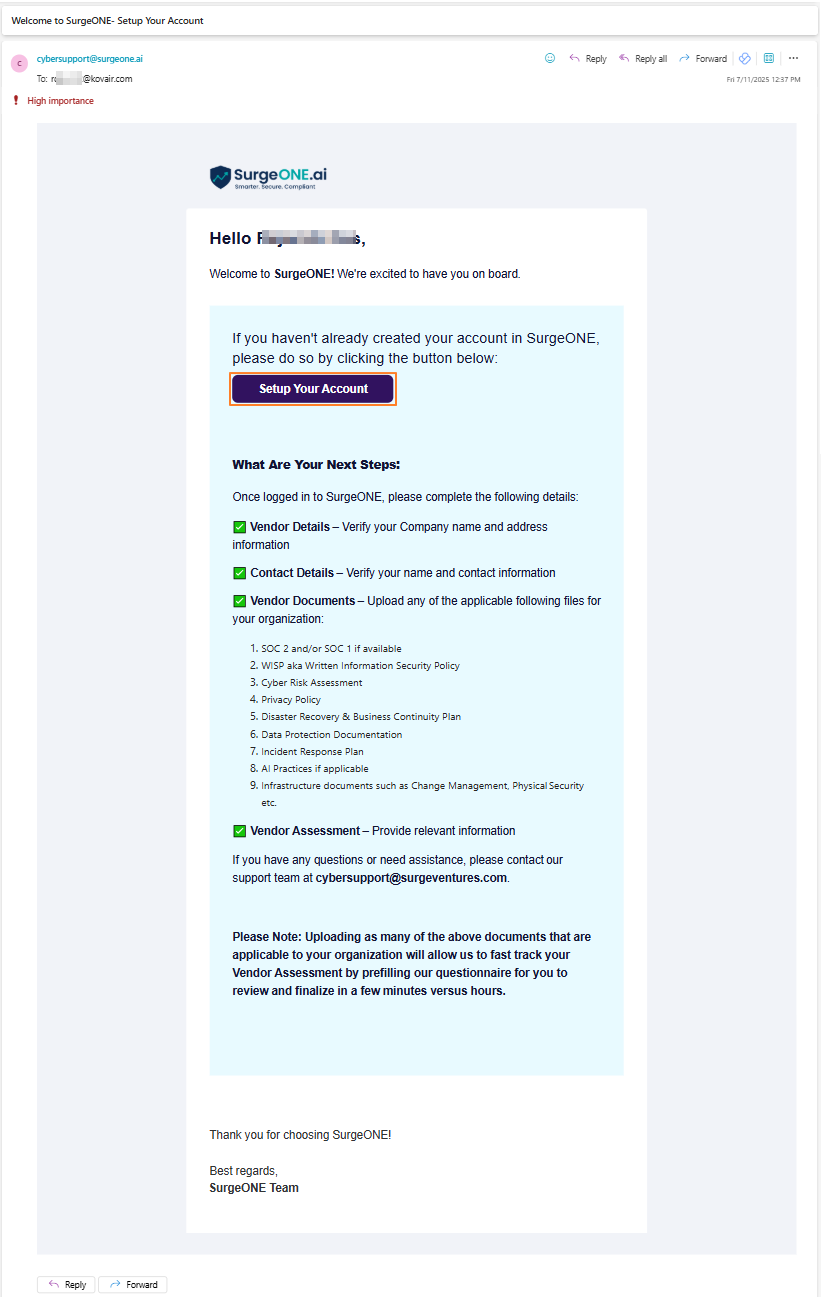 Fig: 1 - Triggered email to the vendor contact email address of the assigned vendor
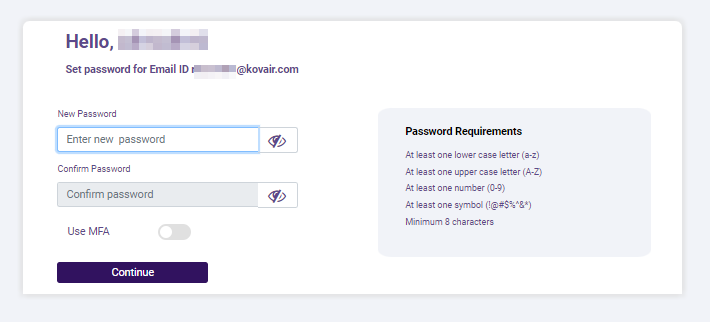 Fig: 2 - Redirected SurgeONE.ai password setting page
 Fig: 3 - Setting up password and MFA
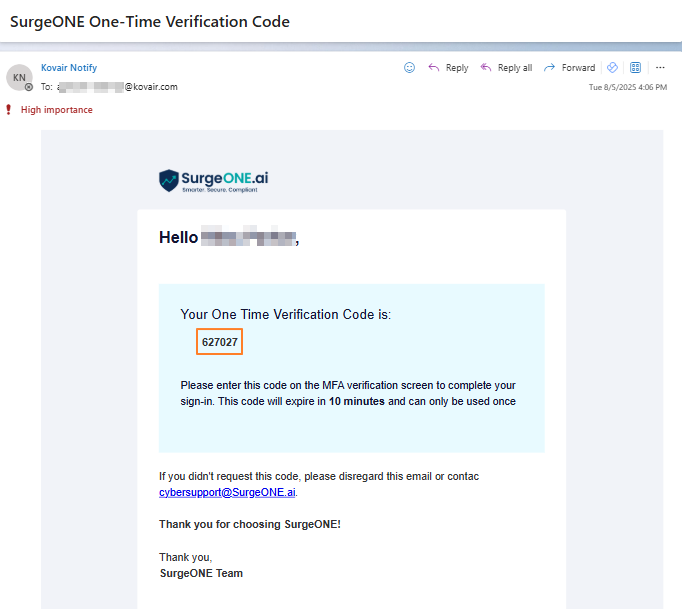 Fig: 4 - Email triggered with MFA code
 Fig: 5 - MFA Verification page view
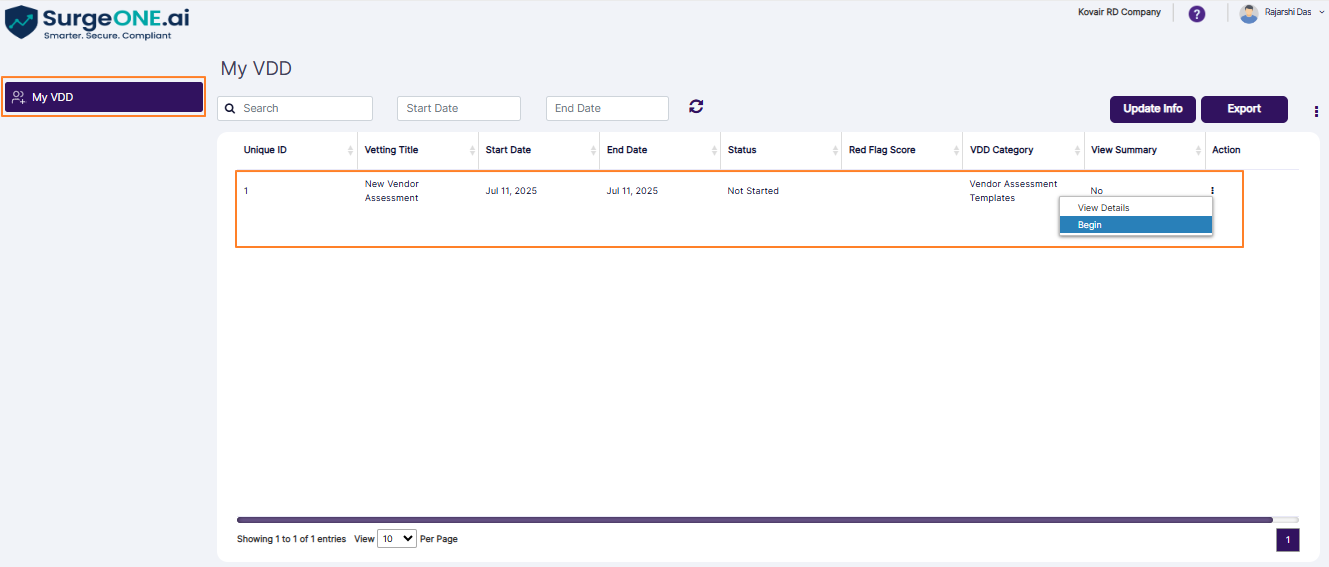
Fig: 6 - My VDD page view
 NOTE:
NOTE:
-
As you begin to enter password in the New Password field, a green tick
 icon can be seen beside the password setting related satisfied condition, at the right side of the field.
-
On the New Password field or on the Confirm Password field, a slashed eye
 icon can be seen at the right side within the field. Click on the slashed eye icon to reveal the entered password by changing the display type from masked to legible text. The eye slash icon changes to the eye
  icon. Click again on the eye icon to mask the entered password. The icon changes back to .
-
The Confirm Password field is disabled on page load. It is enabled only after all password setting conditions are met as per the text entered in the New Password field. The following image displays that all conditions are not met (green tick icon is absent), and hence the field is disabled.
- The Continue button is disabled on page load. It is enabled only after you enter valid and matching passwords in the New Password and Confirm Password fields, provided that all the stipulated conditions to set a new password are met.
- The invite link can get expired or become invalid, such that the vendor gets redirected to the password setting page, but the system displays the error tooltip - Invalid invitation link below the Continue button.
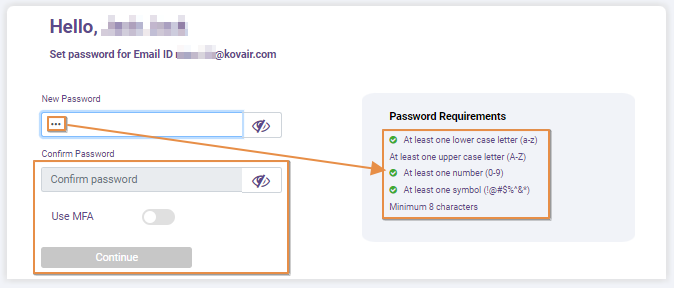 Fig: 7 - Satisfied condition met for setting password
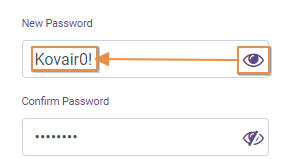 Fig: 8 - Password unmasking/masking
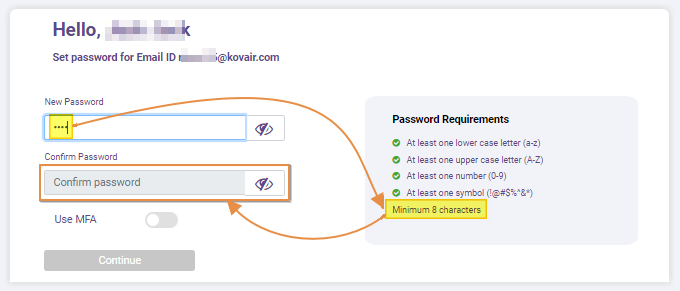 Fig: 9 - Confirm Password field disabled
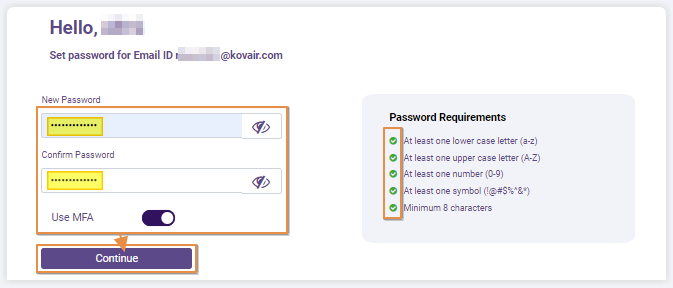 Fig: 10 - Continue button enabled
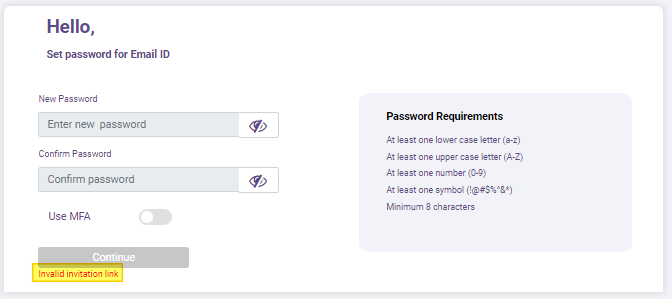 Fig: 11 - Invalid invitation link displayed below the Continue button
2. Understanding the Various Elements of the My VDD page
Refer to the following screenshot which is marked with numerical values that correspond to the below stated points.
- My VDD menu option
- Search filters
- Grid view
- Action column row-context menu options
- Update Info button
- Export button
- Pagination options
- User-specific menu options
- Vertical ellipsis icon to customize the grid view columns
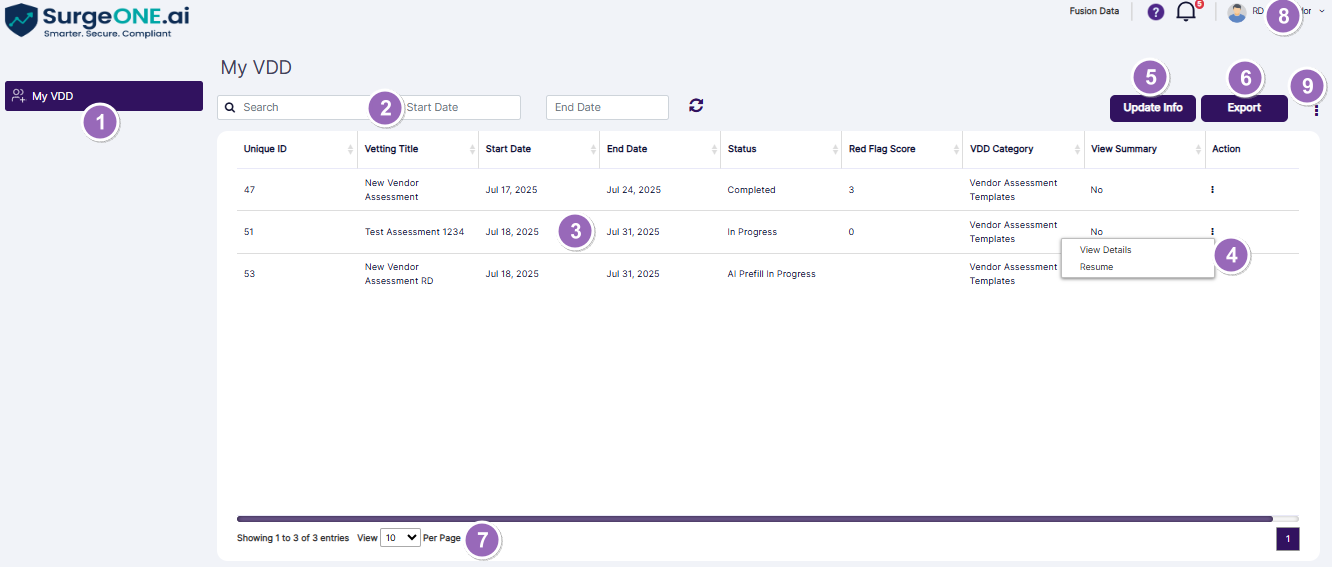
Fig: 12 - Understanding the My VDD page
These points have been elaborated in the following sections.
2.1. Viewing the My VDD menu option
The My VDD page will show the assigned vendor assessment(s), and the left panel menu will only show the My VDD menu option to this vendor after a successful login. The only users who can access this page are the current SurgeONE.ai application vendors who have been given vendor assessments.
2.2. Using the Search Filters
A search bar is provided along with two date filters Start Date and End Date. A reset icon is present to remove any set filters.
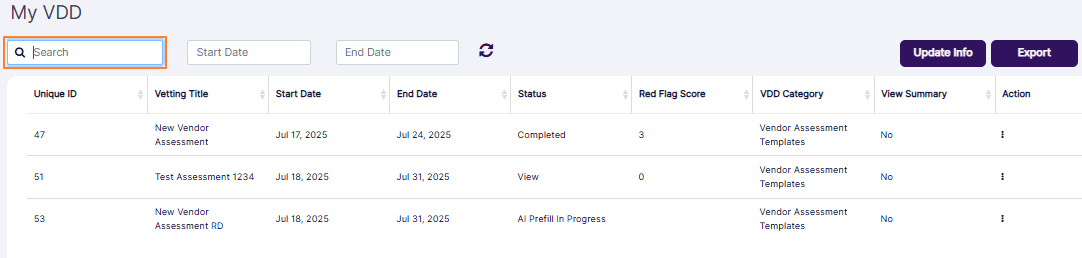 Fig: 13 - Search bar
Here is the expanded view of the Start Date filter. Use it to filter items by its starting date.
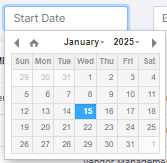 Fig: 14 - Start Date filter
The End Date filter can be used to filter assigned vendor assessments by its ending date.
The following image shows search result populating the grid using the search bar.
 Fig: 15 - Filtered results view
The following image shows the grid view when there is all filters are set to populate results in it.
 Fig: 16 - All filters set
You can click on the refresh  icon to reset the report filters.
The My VDD grid view lists out all the vendor assessments of your organization which are assigned to the logged-in vendor.
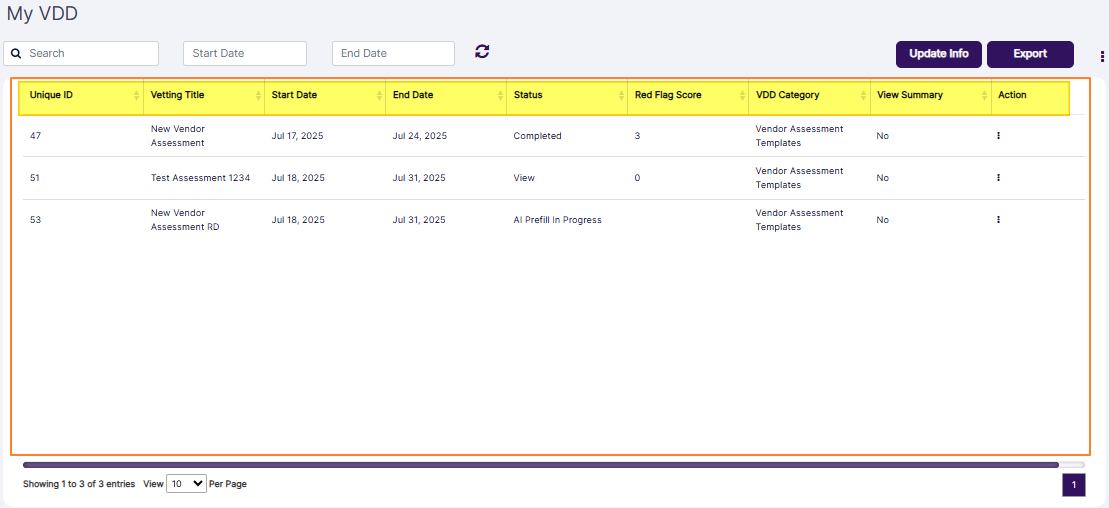 Fig: 17 - Vendors grid view
The following columns populate the grid view:
- Unique ID - Shows the unique system generated identifier of the assigned vendor assessment
- Vetting Title - Shows the label or title of the assigned vendor assessment
- Start Date - Shows the date of starting of the assigned vendor assessment, such as Jan 14, 2025
- End Date - Shows the ending date of the assigned vendor assessment, such as Jan 16, 2025
- Status - Displays the present status of the assigned vendor assessment
- Red Flag Score - Displays the count of red flags detected by the AI with respect to the assigned vendor assessment. It is blank when AI review is going on initially.
- VDD Category - Displays the Category the assigned vendor assessment belongs to (Vendor Assessment Templates in this case)
- View Summary - Currently set to No
- ACTION - Contains the row context menu options
The Status column value can be displayed as follows:
- Not Started: It is displayed when none of the questions (of the applicable sections) are responded to and the assigned vendor or the vendor admin role user is yet to begin the assessment or the AI is yet to check the provided document(s), if provided during the vendor creation.
- In Progress: It is displayed when all the questions (of the applicable sections) are yet to be responded to by the assigned vendor or the vendor admin role user, but some questions have been responded to.
- AI Prefill In Progress: It is displayed when the AI has auto-responded to some of the questions.
- Remediation: It is displayed when all the questions (of the applicable sections) are responded to and some of the responses to the questions need additional information, documentation or remediation.
- Completed: It is displayed when all the questions (of the applicable sections) are responded to and none of the responses to the questions require any further information, documentation or remediation.
Click on the vertical ellipsis icon  of the ACTION column within the grid view to load the row-context menu options. The functionalities have been explained in the following sub-sections.
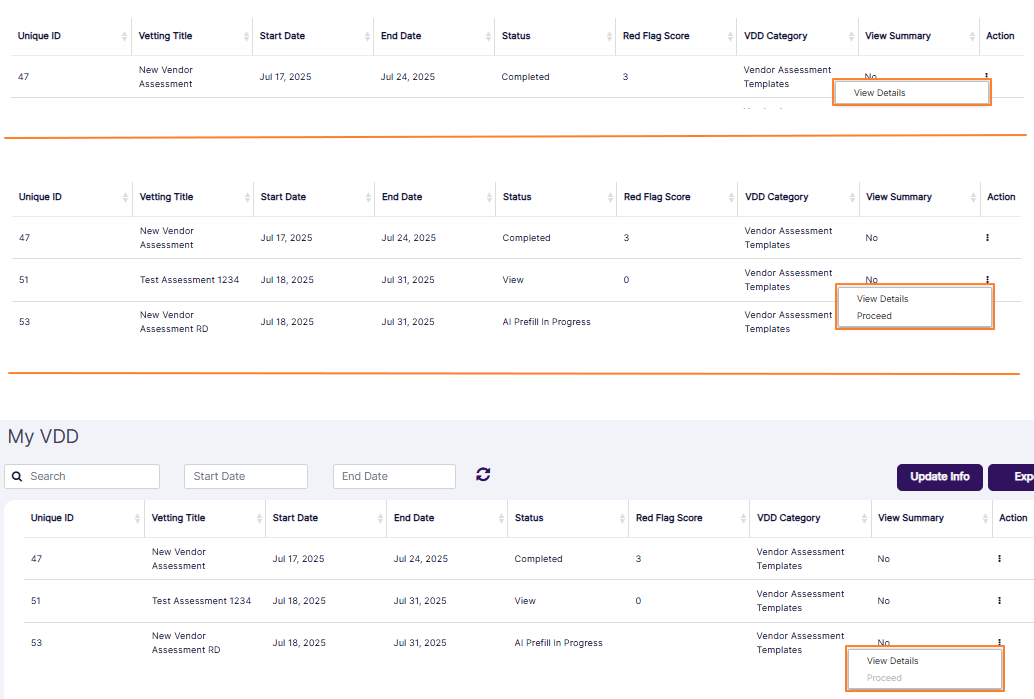 Fig: 18 - Row-context menu options
NOTE:
- The assessments with the Completed Status have only the View Details row-context menu option.
- The assessments with the View Status have the View Details and Proceed row-context menu options.
- The assessments with the AI Prefill In Progress Status have the enabled View Details and disabled Proceed row-context menu options. The latter is disabled since AI is yet to complete its review and hence the VDD cannot be started by the assigned user yet.
2.4.1. Viewing the Details of the Assigned Vendor Assessment
To view the assigned vendor assessment, first click on the vertical ellipsis icon of the Action column of the My VDD grid view and then click on the expanded row context menu option labeled as View Details. A modal window loads to display information pertaining to the assessment in read-only format. It contains an Action column. Click on the vertical ellipsis icon and then again on the expanded View Details menu option. The following image displays a partial view of the loaded details in a VDD Details modal window.
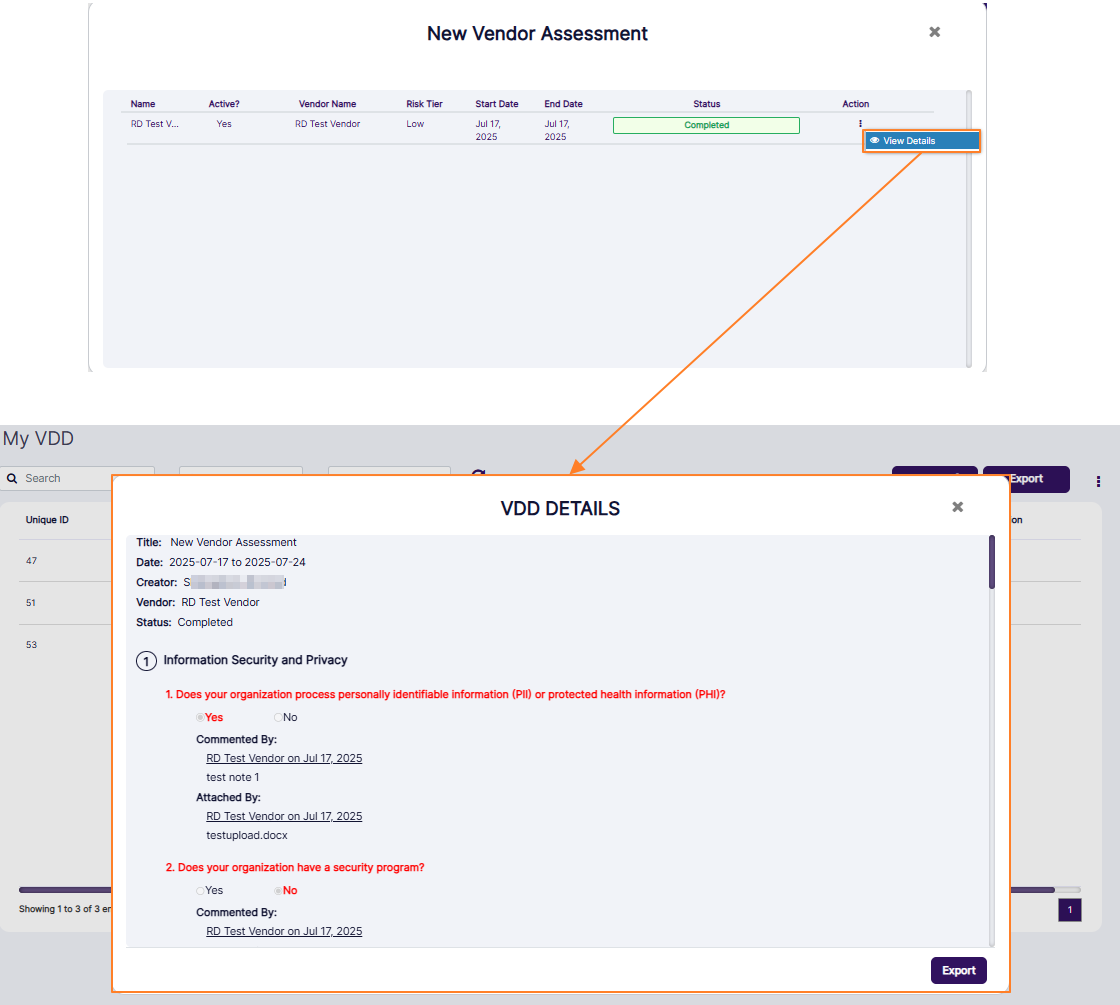 Fig: 19 - View Details option loads the VDD Details modal view
To start the assigned vendor assessment, click on the vertical ellipsis icon of the Action column of the My VDD grid view against any entry with View or Not Started status.
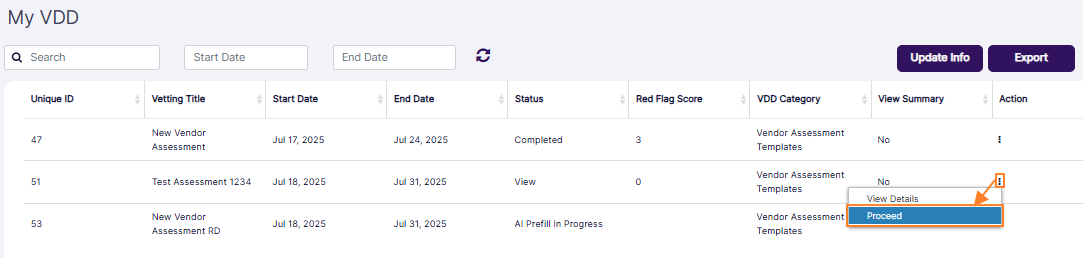 Fig: 20 - Proceed option loads the assessment
The following modal window loads. Click on the View button of the Status column of the loaded modal window.
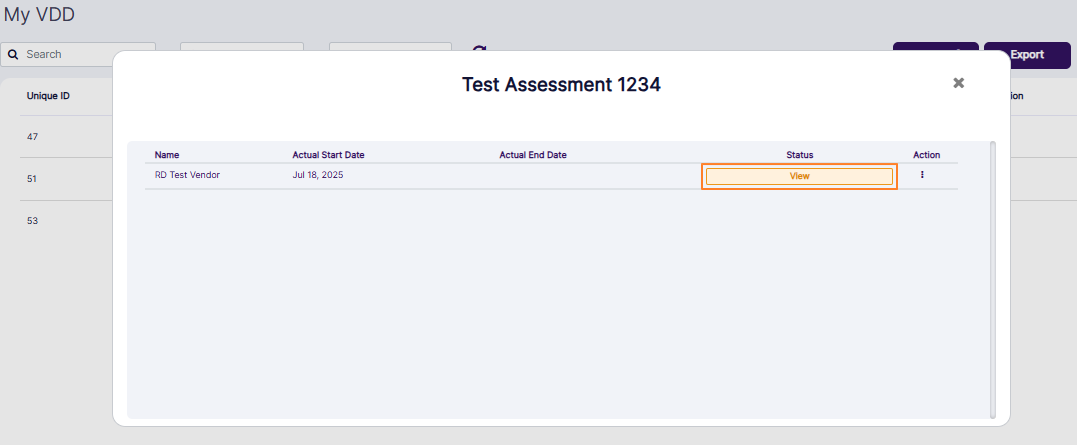 Fig: 21 - View button of the loaded vendor assessment
You can find the various vetting categories displayed on the left panel section and various questions related to each category to its right. Click on any displayed category to load the questions related to that section. You need to respond to all of the questions. Click on the Submit button once done. All the responses will be saved. You will get redirected to the My VDD screen, where the status will get updated accordingly.
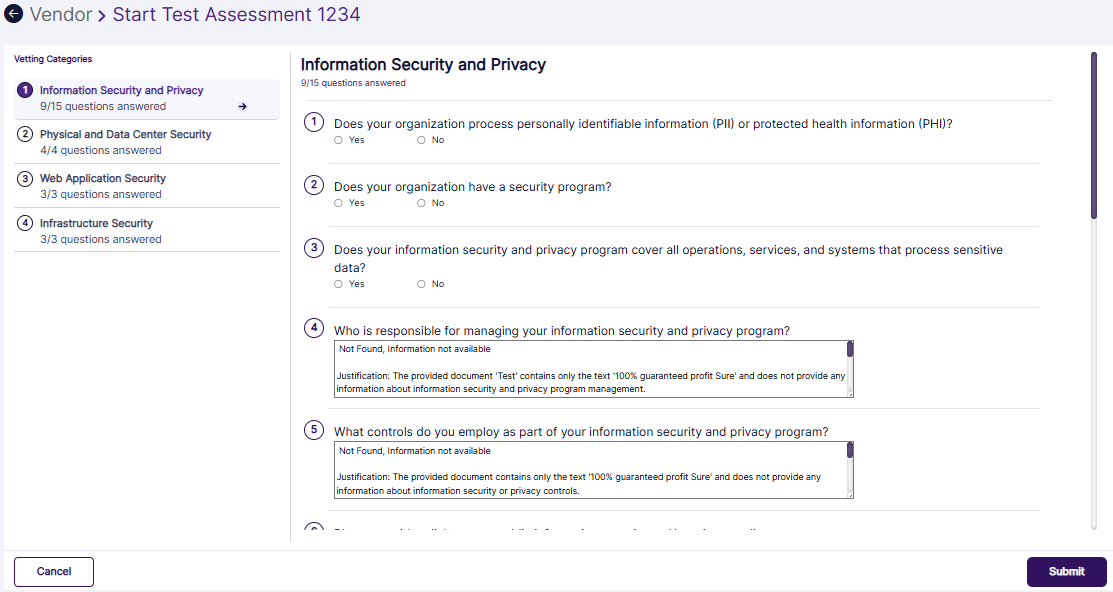 Fig: 22 - View of categories and its questionnaire
NOTE:
- Instead of the Proceed menu option, a Begin menu option can be present. It performs the same functionality as mentioned for the Proceed button.
- Partial answering of the assigned VDD assessment is possible. If you click on the back icon or the Cancel button after responding to some of the questions of the VDD assessment, then the system will save the responses provided. These responses will load when you resume responding to the partially completed VDD assessment.
Fig: 23 - Begin menu option
2.4.3. Resuming the Assigned Vendor Assessment
If you respond to some of the questions and close the assessment, then you will get redirected to the My VDD screen and the status updates from View to In Progress. To resume that vendor assessment, click on the vertical ellipsis icon of the Action column and then on the expanded row context menu option labeled as Resume.
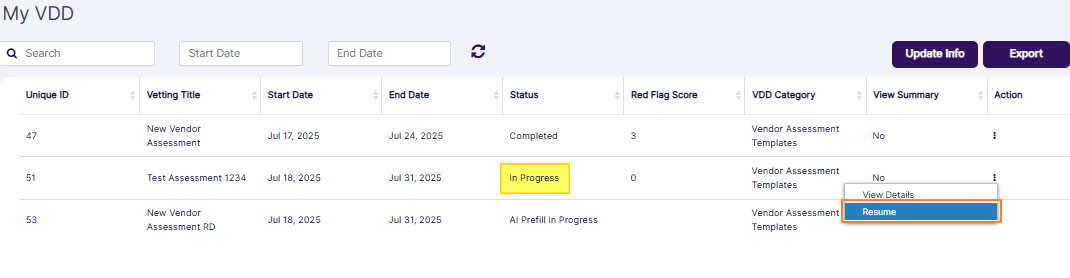 Fig: 24 - Resume option to load the in progress assessment
The following modal window loads. Click on the In Progress button of the Status column of the loaded modal window.
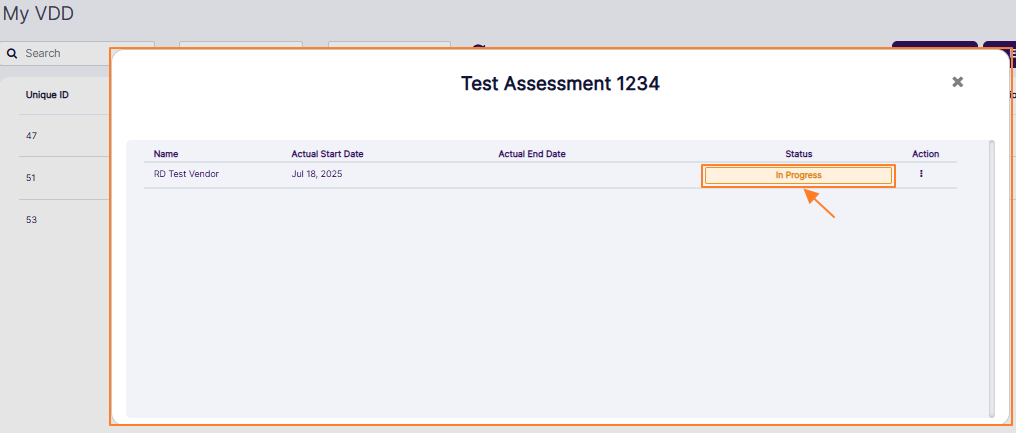 Fig: 25 - In Progress button of the loaded vendor assessment
The questions get displayed along with any previous responses provided. Respond to the remaining questions. You can find the various sections displayed on the left panel.
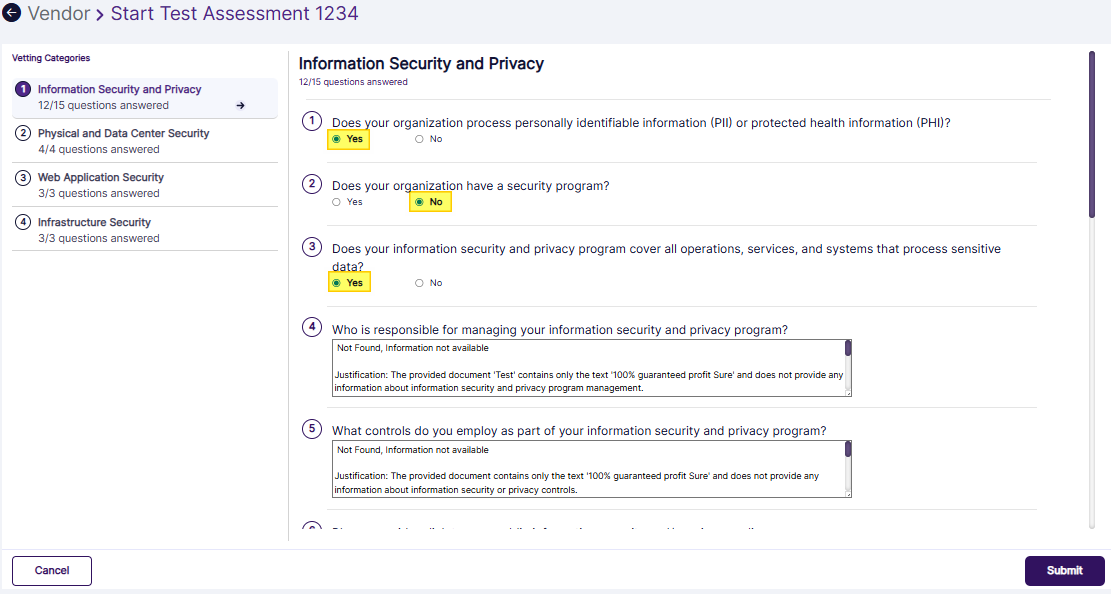 Fig: 26 - View of categories and its questionnaire
Click on the Submit button once done. All the responses will be saved.
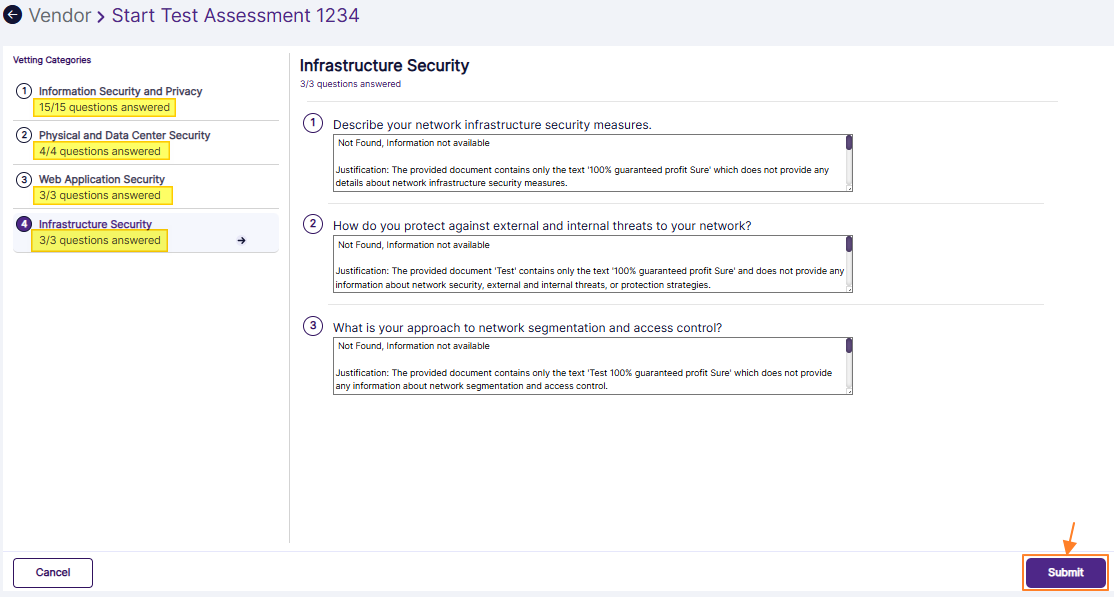 Fig: 27 - Submit button
However, if you click on the Submit button without responding to all of the questions, then the following validation modal window gets prompted.
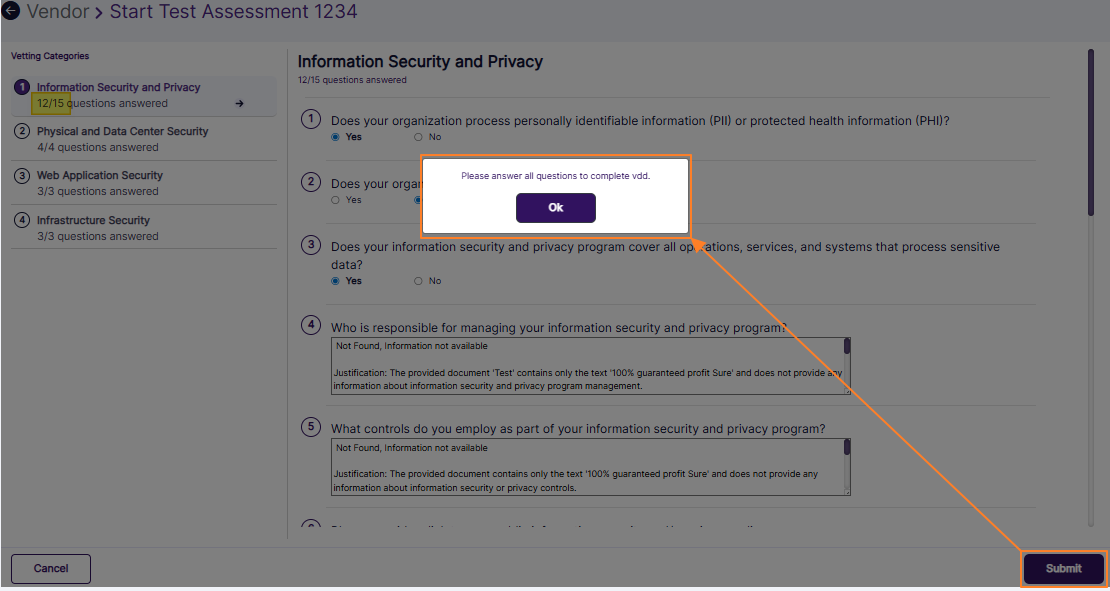 Fig: 28 - Validation prompt to respond to all of the questions
After successfully submitting the vendor assignment, you will get redirected to the My VDD screen, where the status will get updated accordingly. The status gets updated to Completed if there are no red flags detected and no remediations or further actions are needed. However, if there are any red flags, then the status gets updated to Remediation.
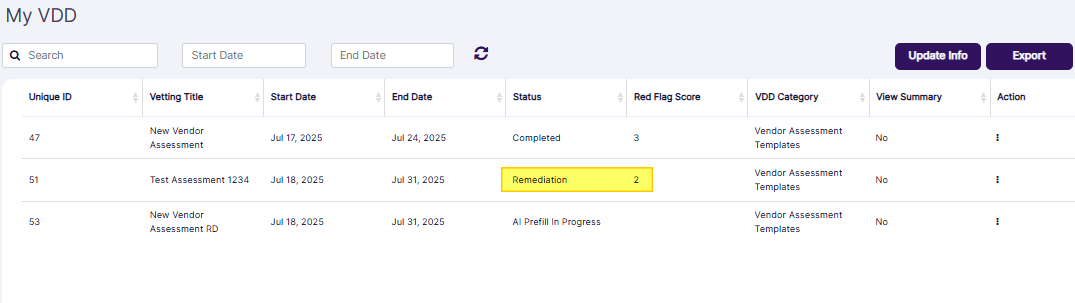 Fig: 29 - Status updated to Remediation if red flags are detected
You can notice that the row context menu option labeled as Start Remediation is disabled. This is because the Vendor Admin or the user with approval or remediation permissions can perform requisite actions for remediation from the Vendor Management module.
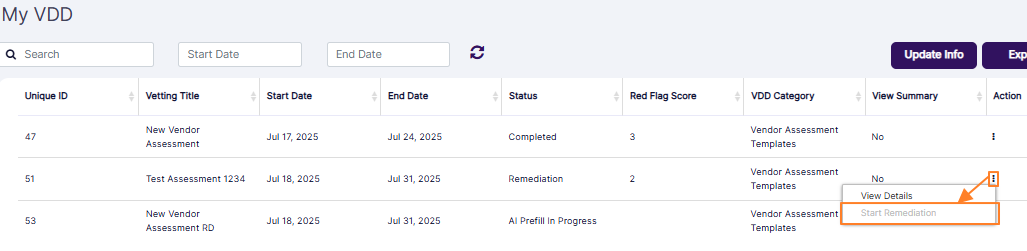 Fig: 30 - Inactive menu option
NOTE:
- The entry can be found in the Needs Review section of the Vendor Management screen. The Vendor Admin or user with similiar permissions granted can initiate the remediation process of the vendor assessment which is submitted with red flags by clicking on the Review button.
-
After clicking on it, the following modal window loads with the Remediation button under the Status column. The view of various categories and questions required remediation can be seen after clicking on the Remediation button. The permitted user can then click on any particular Resolve button to remove any required remediation action for a red flagged question response. Comments can also be posted against each. The permitted user can then click on the Finalize button if all the Resolve buttons are clicked on and the assessment gets completed without any further actions needed.
However, if further documentation or information is needed, then the user can click on the Request Info/Docs button, instead of clicking the Resolve button against a question response which is deemed to require furnishing of more info. - The vendor who had earlier sumbitted the assessment gets an email triggered to the registered email address regarding further furnishing of requested documentation or required information.
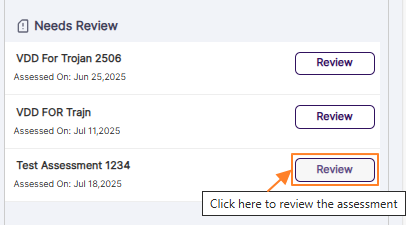 Fig: 31 - Needs Review section with the VDD requiring remediation
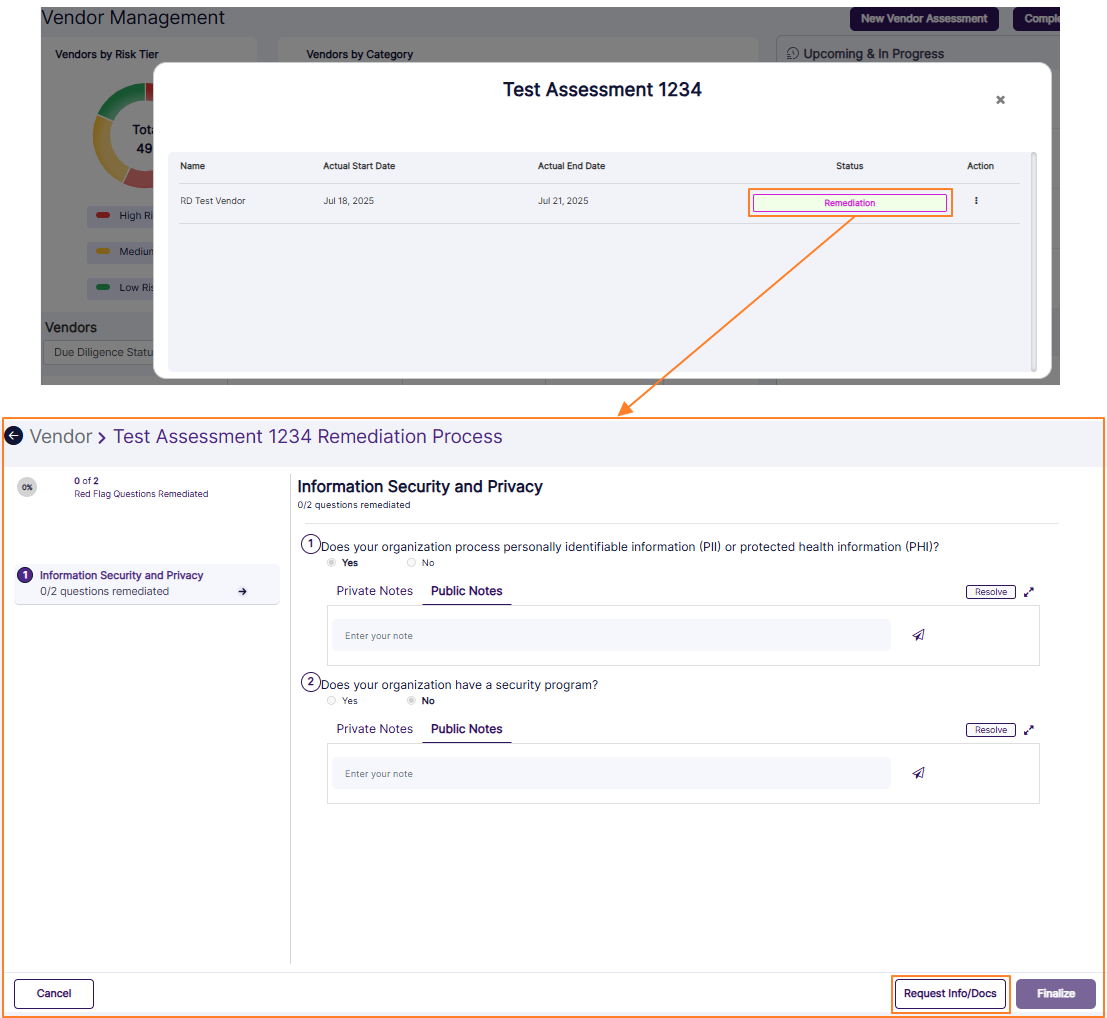 Fig: 32 - Request Info/Docs button
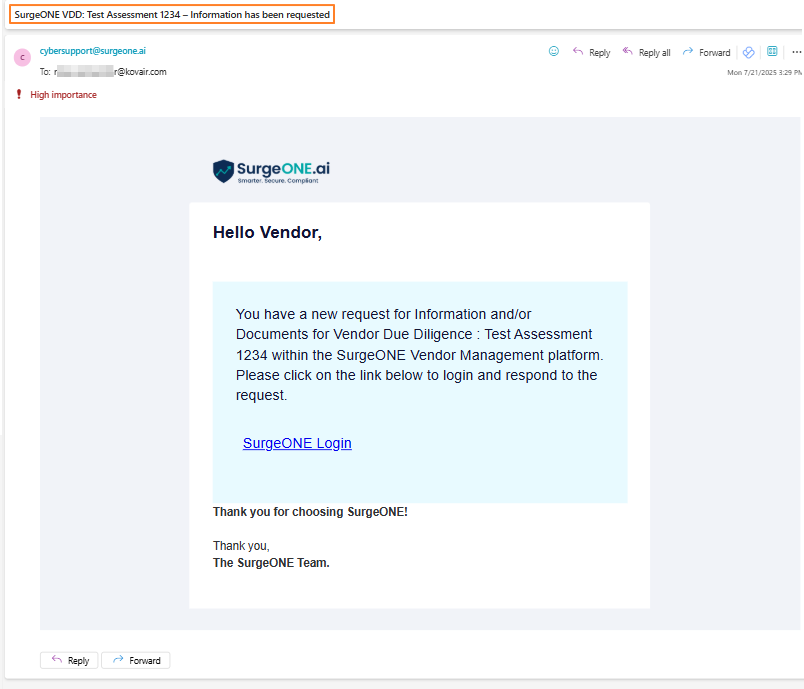 Fig: 33 - Triggered email regarding further furnishing of required documentation or required information
2.4.4. Starting the Remediation of the Submitted Vendor Assessment
After the above-mentioned Request Info/Docs button is clicked upon (accessed via the Vendor Management module), the expanded row context menu option gets updated from Start Remediation to Resume Remediation and is now enabled with the status also getting updated to Remediation In Progress in the My VDD page grid view.
This update occurs because the Vendor Admin had earlier performed necessary remediation and has requested for more information or additional documentation.
 Fig: 34 - Resume Remediation option
After clicking on the menu option the following modal windows loads. The assigned vendor needs to click on the Remediation In Progres button displayed under the Status column of this modal window.
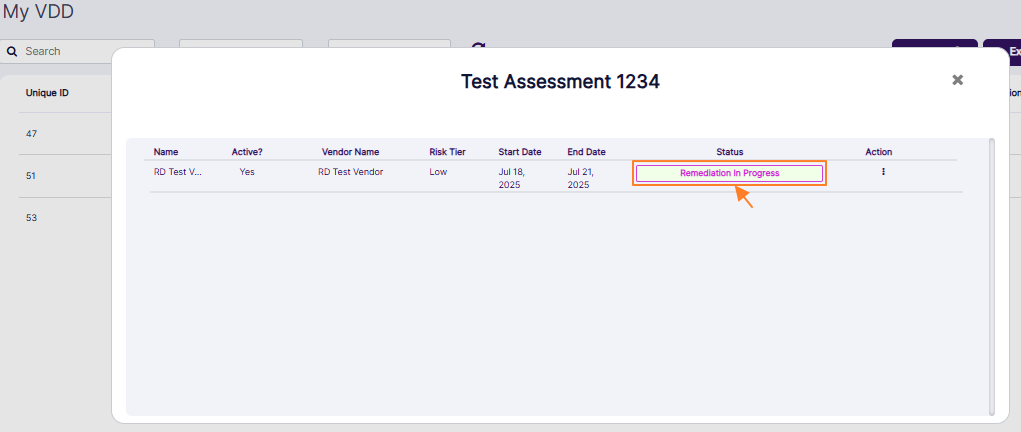 Fig: 35 - Remediation In Progres button
The following page loads displaying the sections and questions which need remediation actions. The vendor can proceed to provide notes by entering text in the text area provided and then clicking on the send icon. This note will be visible to the Vendor Admin or user with similar permissions.
 Fig: 36 - Vendor posting a sample note
After posting the note, an attach and a delete icon can be seen against it. The icons can be used respectively to attach a supported file / document or remove the posted note.
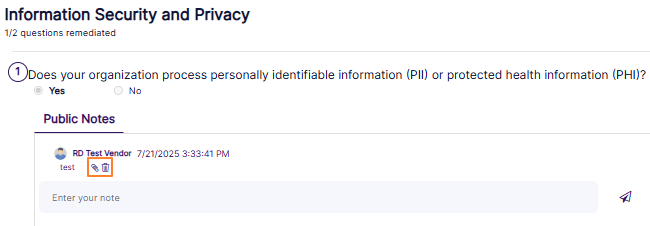 Fig: 37 - View of attach and delete icon against posted note
After providing necessary information against each of the responses which are still red flagged, the vendor can click on the Send Requested Data button to send the furnished information to the approver/Vendor Admin.
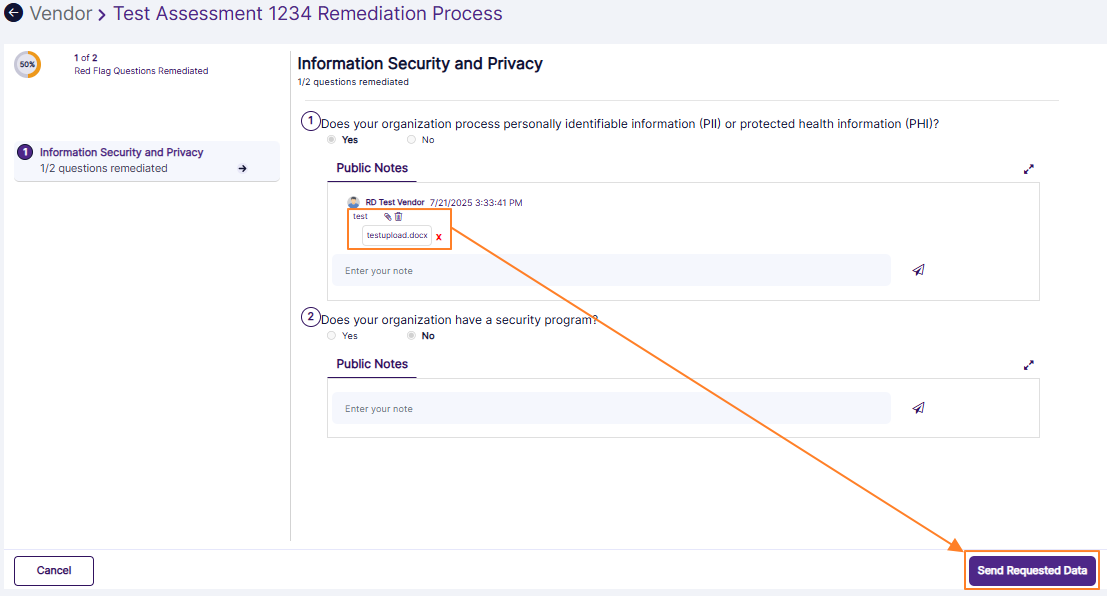 Fig: 38 - Send Requested Data button
The following success notification can be seen at the top.
 Fig: 39 - Success notification
The vendor gets redirected to the My VDD screen. The entry can be found in the grid view with its status updated as Completed and only the View Details row context menu option can be toggled against it.
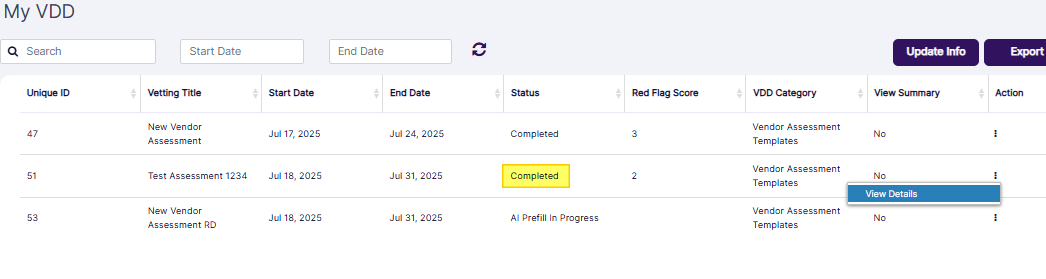 Fig: 40 - View of the completed vendor assessment with its updated status and expanded row context menu option
NOTE:
- Currently, only the user with appropriate permissions granted can perform remediation.
- If the user (who is granted to perform remediation) starts the remediation but does not complete the remediation of all the flagged items and closes the remediation page, then on while the remediation later on, the status is displayed as Remediation In Progress, and the action menu option label gets updated to Resume Remediation.
2.5. Updating own Details
- Click on the Update Info button at the top-right of the grid view to begin editing your vendor related information.
- The following images show the three tabs labeled as VENDOR DETAILS (where you can enter or update vendor-specific details), CONTACT DETAILS (where you can add or update vendor contact details) and the VENDOR DOCUMENTS (where you can enter or update or upload attachments of vendor documents). Click on the Next button to proceed through the tabs after making necessary edits or updates. On the third tab, click on the Submit button to confirm your changes.
- You will get redirected to the My VDD screen.
 Fig: 41 - Update Info button
 Fig: 42 - First tab
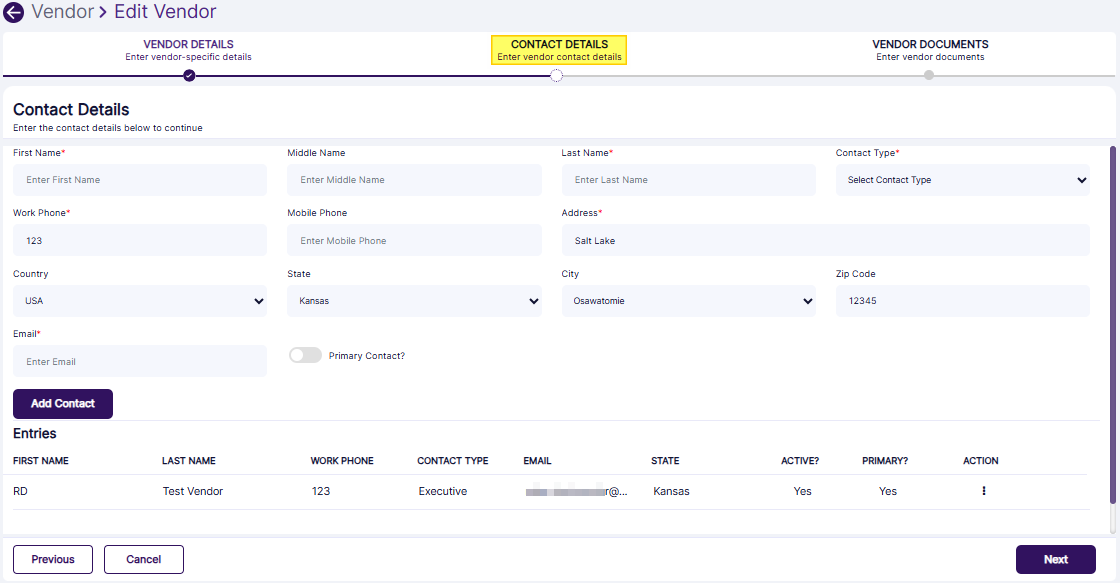 Fig: 43 - Second tab
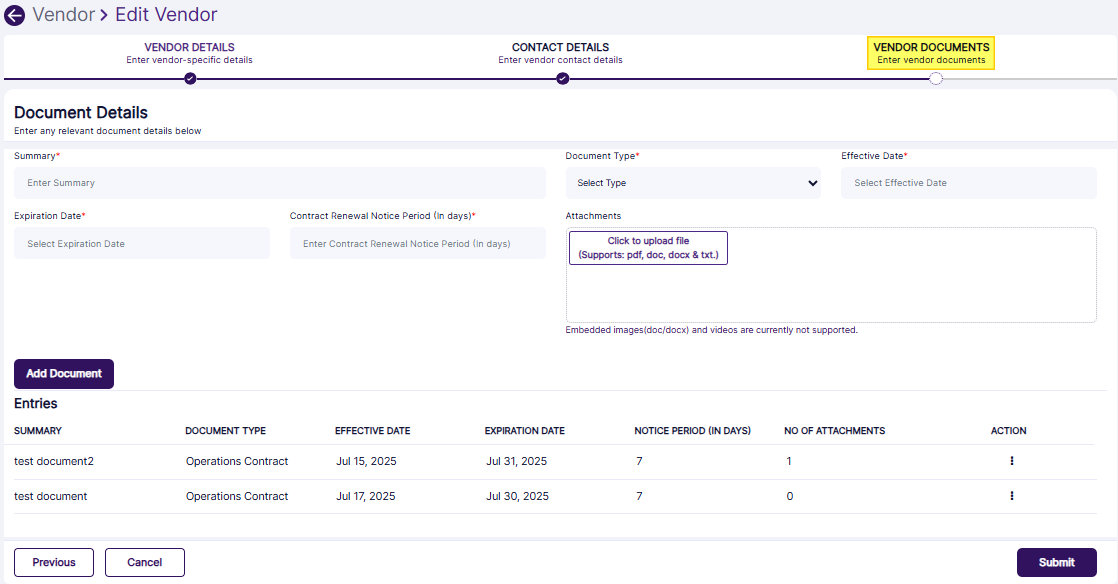 Fig: 44 - Third tab
 Fig: 45 - Redirected view
NOTE:
- You cannot make any changes to the Email field of the CONTACT DETAILS stage when you are editing any existing contact.
- You can visit this link to understand more about the functionalities of these four tabs.
 Fig: 46 - Uneditable Email field
2.6. Exporting data
- Click on the Export button at the top-right of the grid view to load the menu options.
- There are two options labeled as CSV and PDF. Click on any one to load the desired file format.
- The file gets downloaded as per the chosen format. Here is the view of the downloaded excel file showing the results of the grid view.
 Fig: 47 - Export button
 Fig: 48 - Export options
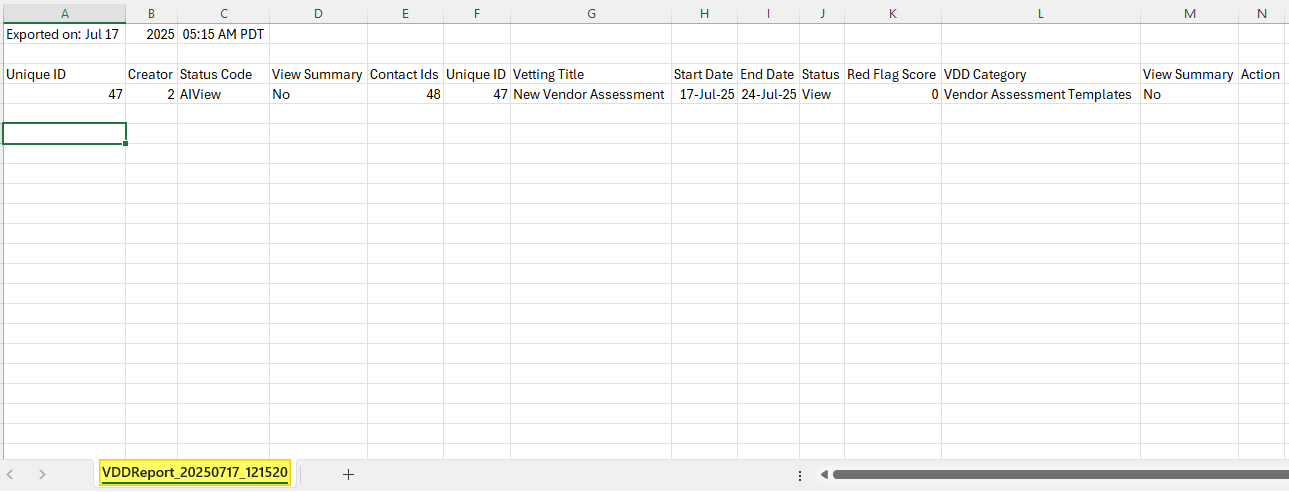 Fig: 49 - Dataset of My VDD grid view getting displayed in the exported excel
Pagination options of the following values - 10 (set as default), 25, 50 and 100 along with page navigation left and right arrow keys are provided at the bottom for ease of access of records displayed in the My VDD page.
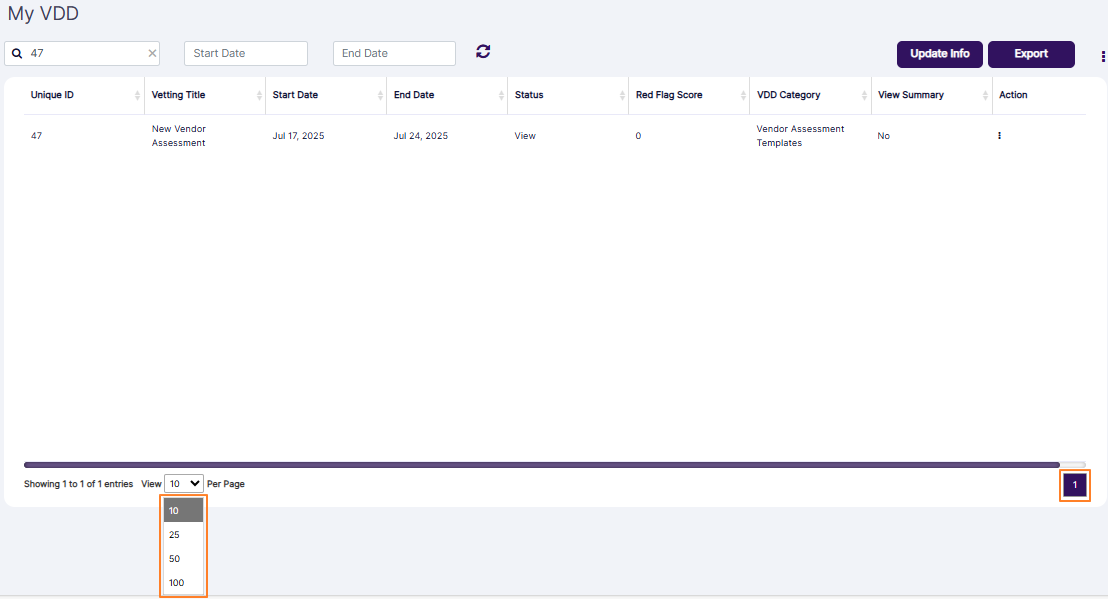 Fig: 50 - Pagination options
You can find there are multiple icons provided in the top right panel (to the right of the organization name).
Page Context Help
The first one is the question mark  icon. Click on it to load the page context help.
Notifications Panel
Next to the question mark icon is the notifications  icon.Click on it to slide out a panel that lists out various application notifications (as received).
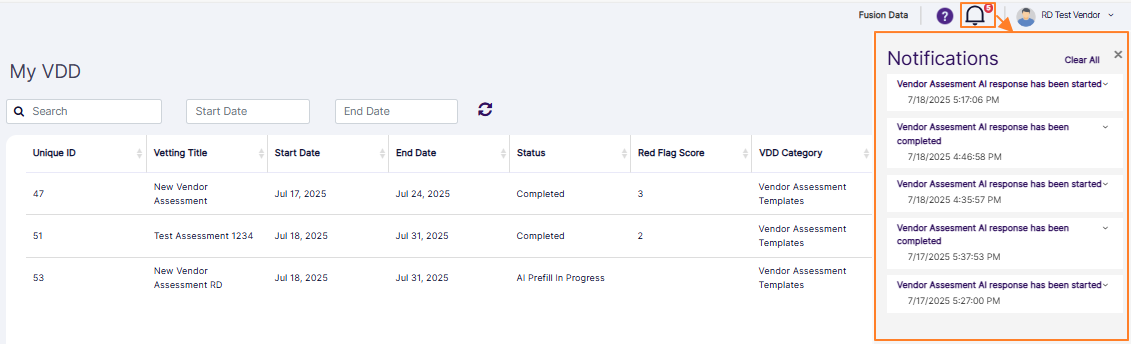 Fig: 51 - Expanded notification panel
Click on the cross  icon to close this expanded panel. Alternatively, you can click again on the notification icon to close the expanded panel.
Notice that at the top right of the notification icon is a numeric value, which denotes the count of the received notifications.
Notifications get stacked up in the panel if there are multiple instances of generation in the application.
User Profile Menu
The third option is the user profile picture preview and the logged-in username. Click on the down arrow  icon beside the name to load the user account context menu.
2.8.1. About FUSION1
Click on the About SurgeONE menu option.
 Fig: 52 - User menu expanded view showing the About SurgeONE menu option
The application debug and release versions can be seen. Click on cross icon to close this view.
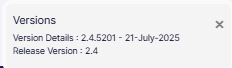 Fig: 53 - SurgeONE.ai application debug and release versions displayed after clicking on the About SurgeONE menu option
2.8.2. Logout
Click on Logout option to terminate your logged in session and get redirected to the application login page. You need to login to re-access the application.
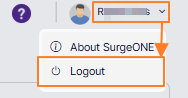 Fig: 54 - User menu expanded view showing the Logout button
2.8.2.1. Uploading Profile Picture
Click on the profile picture preview to load the Upload Profile Picture dialog box. You have the option to upload your own profile picture. Once uploaded, it is visible in the profile picture preview. This is visible in the top right panel of the application across all screens.
Click on the profile picture preview to load the Upload Profile Picture dialog box.
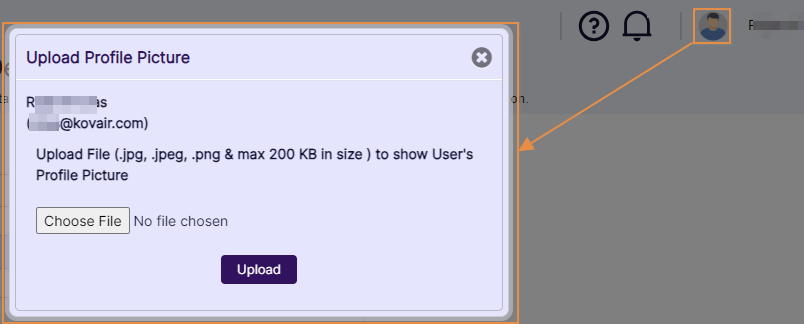 Fig: 55 - Upload Profile Picture dialog box
Click on the Choose File button to browse and select a suitable image. Before the image is selected, a placeholder label No file chosen is visible next to this button.
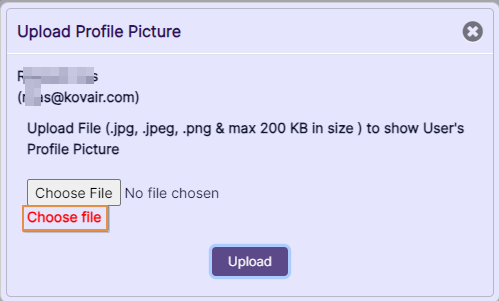 Fig: 56 - Choose File button
NOTE:
- The uploaded image file should be any one format out of the following ones - .jpg, .jpeg or .png
- The maximum size of the file can be 200 KB
After you select an image file, the filename can be seen in its place. You can click on the red cross  icon to remove the selected image.
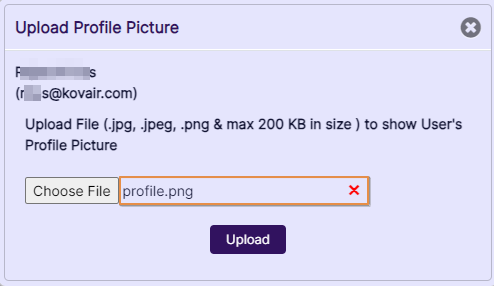 Fig: 57 - Chosen image filename visible
Click on the Upload button to set the selected image as your profile picture.
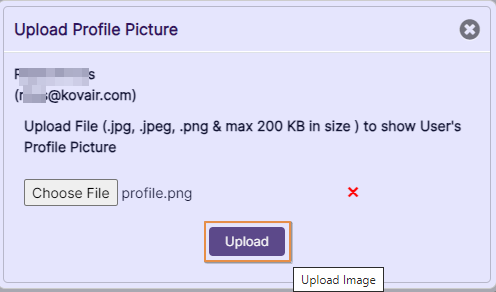 Fig: 58 - Upload button to set profile picture
You can view the uploaded image displayed in your profile picture preview.
 Fig: 59 - Uploaded image visible in UI
2.9. Customizing the Grid View columns
To alter the columns of the My VDD page grid view, you can click on the vertical ellipsis  icon at the right of the Export button.
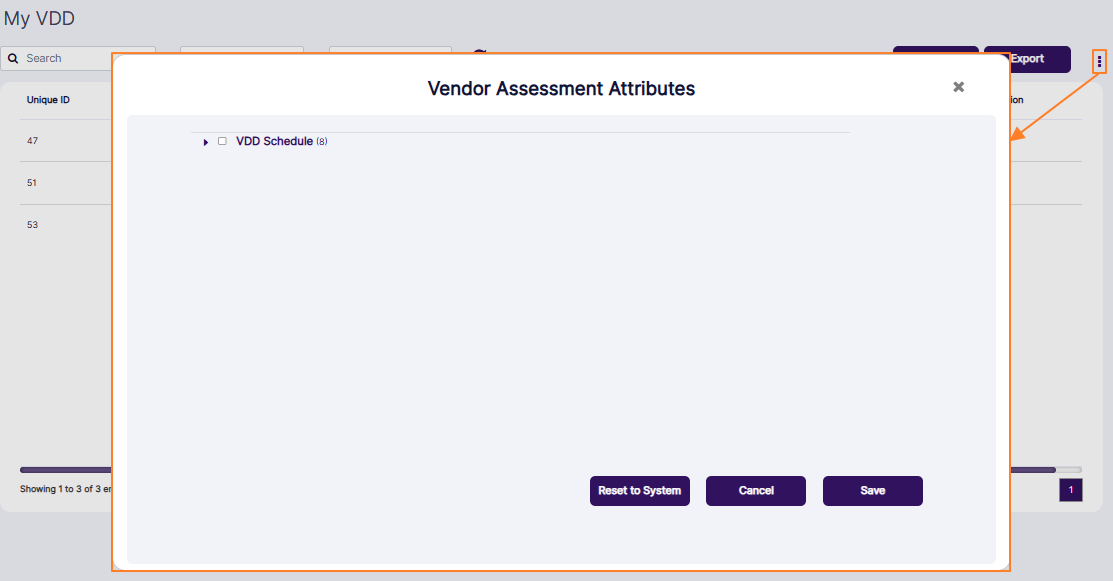 Fig: 60 - Customizing the applicable columns
The Vendor Assessment Attributes modal window loads for you to customize and control the columns displayed in the grid view. This feature enables you to tailor the grid view to show data which enhance user experience by providing flexibility and control, making it easier to focus on the most pertinent details. Vendor can click on the right arrow icon at the left of the VDD Schedule checkbox to display the list of columns and its current selection. Make checkbox selections to set the view accordingly. The checkboxes which are greyed-out are default and cannot be deselected.
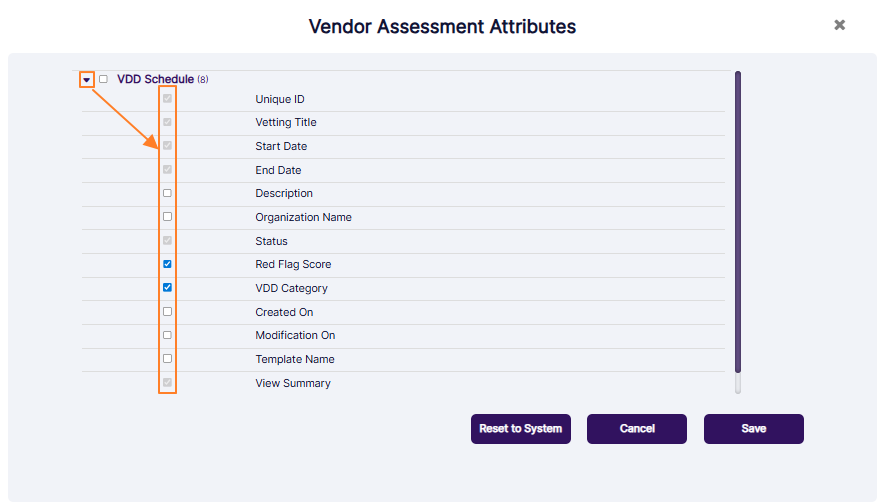 Fig: 61 - Selecting the column checkboxes
The following items (column labels) are displayed in the expanded view of checkboxes in the modal window. Refer to the following table:
| Sl. No. | Column Label |
|---|---|
| 1 | Unique ID |
| 2 | Vetting Title |
| 3 | Start Date |
| 4 | End Date |
| 5 | Description |
| 6 | Organization Name |
| 7 | Status |
| 8 | Red Flag Score |
| 9 | VDD Category |
| 10 | Created On |
| 11 | Modification On |
| 12 | Template Name |
| 13 | View Summary |
Click on the Save button to store any changes made.
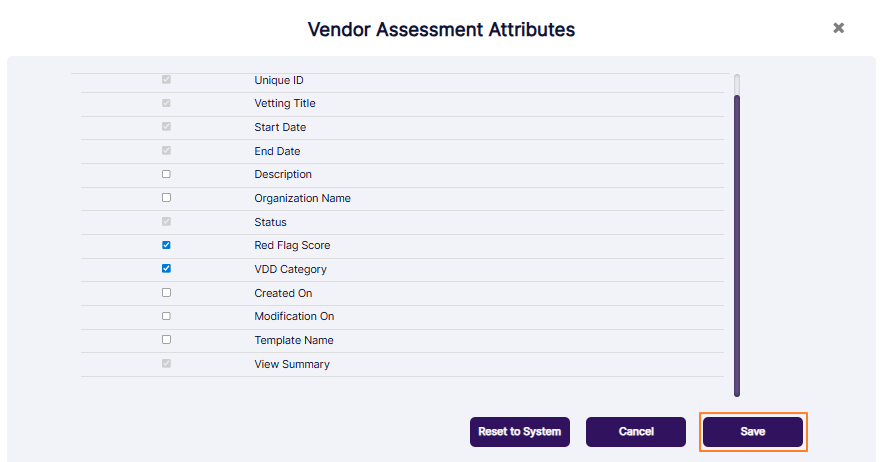 Fig: 62 - Saving changes made
NOTE:
- If you do not select any checkbox and click on the Save button, then the system will not allow you to proceed. A tooltip to select at least one column checkbox gets triggered.
- To revert any checkbox selection changes made and restore the default grid view columns display, you can click on the Reset to System button.
3. Appendix A > Understanding Vendor Assessment Auto-Status Change
The Enable Vendor AI slider / context menu option functionality present to the Admin account in the SurgeONE.ai master portal when creating or managing a company streamlines the vendor assessment process, ensuring accuracy and efficiency while reducing manual effort. When this slider is enabled, AI extracts relevant data from Vendor Due Diligence related documents (i.e. SOC2) provided by the vendor. After extraction, AI automatically fills out the Vendor Due Diligence questionnaire with the information captured from these documents.
- If the Enable Vendor AI slider is enabled for a company, then the vendor assignments which are created and yet to be started by the assigned vendor, will be auto-responded to by the SurgeONE.ai Vendor AI.
- The document(s) which are uploaded during the third stage of the new vendor creation (VENDOR DOCUMENTS tab) will be consumed by the AI for auto-responding to the assigned vendor assessment. AI responds to those questions which can be answered on the basis of the dataset present in the previously provided vendor attachments.
- The Status will get updated from Not Started to In Progress in this case.
- An email will get triggered so that the assigned vendor is notified about this auto-response by the AI.
- A .pdf attachment of the vendor assessment responses will get compiled and emailed to the assigned vendor.
- The assigned vendor needs to review the AI compiled responses from the My VDD page and can make modifications to the AI-provided responses or respond to unanswered questions in order to complete the vendor assessment.
3.1. Appendix B > Vendor Assessment using AI
3.1.1. Introduction to the Vendor AI Functionality
The Vendor Assessment functionality using AI in SurgeONE.ai is designed to enhance the vendor management process by leveraging artificial intelligence. This functionality enables the system to:
- Scrape Documents: AI automatically extract relevant data from various vendor related documents such as SOC2 reports, privacy policies, and security policies.
- Auto-fill VDD Questionnaire: AI collates the extracted data to automatically complete the Vendor Due Diligence (VDD) Questionnaire.
- Store Results: AI saves the filled-out questionnaire and portrays the results in the VDD Dashboard for ease of user access and review.
NOTE:
- This functionality streamlines the vendor assessment process, ensuring accuracy and efficiency while reducing manual effort.
- AI extracts relevant data from Vendor Due Diligence related documents (i.e. SOC2) provided by the vendor, via the SurgeONE.ai Vendor Management feature
- After extraction, AI automatically fills out the Vendor Due Diligence questionnaire with the information captured from these documents.
3.1.2. Workflow Overview
The following diagram gives an overview as to how the overall vendor assessment is performed automatically by SurgeONE.ai Vendor AI functionality:
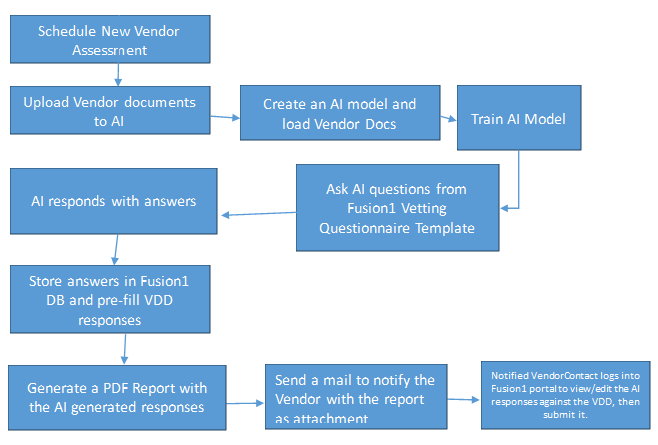 Fig: 63 - Workflow Diagram
NOTE: Currently, questions which accept Single Choice (with Yes / No options) and Text type answers, can be pre-filled by the AI, while the rest are ignored.
3.1.3. Understanding How it Works
- The SurgeONE.ai master portal provides an option against each company whether AI for vendor assessment is to be activated for that company or not.
- While adding a new company, if AI is to be activated for doing its vendor assessment, the Enable Vendor AI slider has to be enabled (it can also be later on enabled using the Enable AI context menu option).
- A windows service, named Kovair SurgeONE.ai AI Service, needs to be installed with access to SurgeONE.ai application database for this to function successfully.
- The vendor assessment is done based on the documents which have been uploaded by a vendor in the Vendor Documents tab against his / her vendor records in the SurgeONE.ai vendor master.
- Documents uploaded in the Vendor Documents tab for a vendor will be sent and trained by the AI once an assessment is scheduled for that vendor.
- If an assessment is scheduled for multiple vendors and all those vendors have already uploaded their specific documents against their individual vendor records in the SurgeONE.ai vendor master, then all those documents will be sent and trained by the AI post scheduling of the assessment to retrieve the answers to the questions that are there in the vendor assessment questionnaire template.
- Once all responses or answers are received from AI and the questions in the assessment questionnaire are prefilled, then an email is sent out automatically by SurgeONE.ai to the selected vendor's Contact, to inform about the assessment proceedings.
- Additionally, the AI responded pre-filled questionnaire will be available as a .pdf format attachment with this email for the vendor to review the responses received from AI and provide feedback.
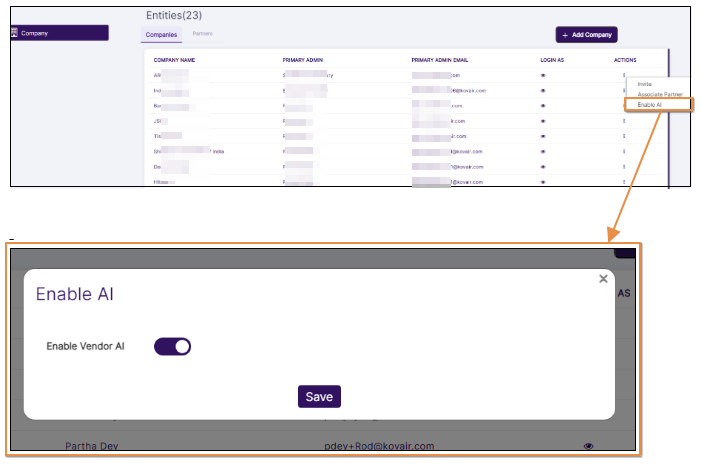 Fig: 64 - Enable AI Option
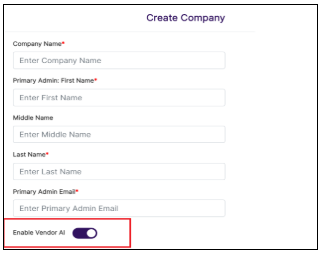 Fig: 65 - Create Company Vendor AI slider enabled
2.5.4. Actions Supported in the UI
- After referring to the attached pdf, if the vendors want to make any modifications or inclusions to the responses to any of the questions for this assigned assessment, he can do it from the SurgeONE.ai application.
- The vendor contact person can use the Action column vertical ellipsis icon of the VDD record and click on the View Details menu option to view the responses from SurgeONE.ai in a read-only viewable format
- To make any inclusions or modifications to the responses to any of the questions in the questionnaire against this assessment, the vendor contact person can click on Resume menu option expanded from Action column vertical ellipsis icon against this VDD record to invoke the assessment questionnaire in edit mode, so that the vendor contact person can make the necessary updations in the answers to the questions in the assessment questionnaire.
- Once all answers are reviewed and responded to, the vendor contact can finally submit the assessment for completion.